BlueOS Documentation
Usage Integrations Hardware- Flight Controller Board
- Onboard (Companion) Computer
- Control Station (Topside) Computer
- Joystick / Gamepad
- Camera
- Electronic Speed Controllers (ESCs)
- Thrusters
- Power Sensor / Battery Monitor
- Power Supply / Battery
- Tether
- Leak Sensors
- Sonars
- Positioning Sensors (GPS / DVL)
- Other Sensors (Temperature, Salinity, Thickness, etc)
- Servos
- Ethernet (Network) Switch
- Electrical Switch
- Electronic Switches (Relays and MOSFETs)
- Grippers and Manipulators
- Indicator Lights
- Acoustic Modems
Advanced Usage
#General Information
This documentation page is for detailed information about the services and pages in the BlueOS web interface. For a higher level list and direct comparison of features see the Overview instead.
#Pirate Mode
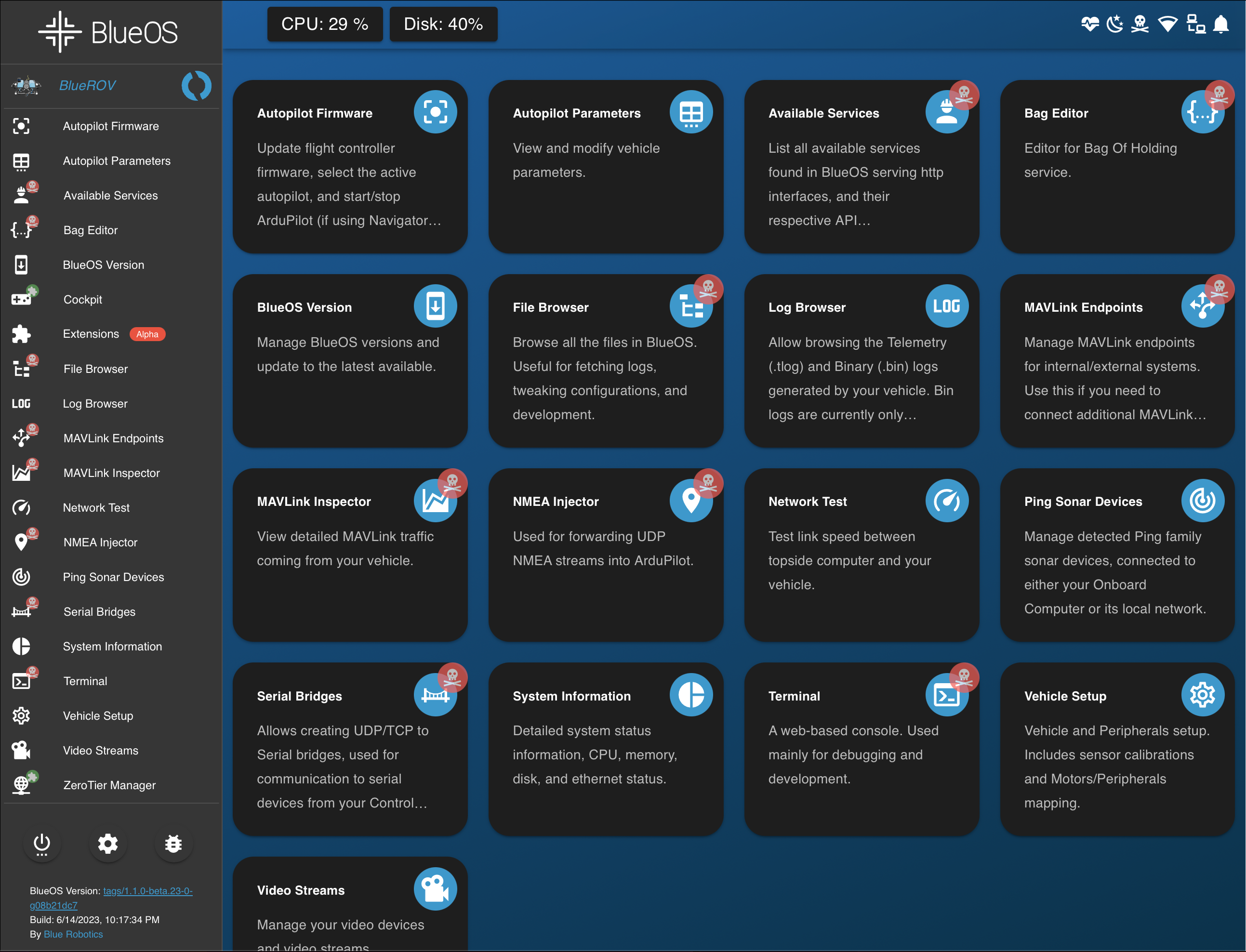
The default BlueOS interface is simplified, and shows only the major tools that most people are likely to find useful. Full functionality is available via "Pirate Mode", which can be enabled from the header bar. Note that Pirate Mode is advanced/development mode, and should be used with care.
This documentation by default shows the full functionality interface, to provide an overview of all functionality instead of a limited subset, but if you're only interested in the basic functionality you can click the button below:
For clarity of this documentation, any pages that are extended by (or only available in) Pirate Mode are shown in dark mode, and described with grey text.
#Safe Mode
New in 1.4
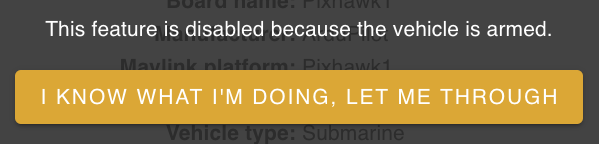
Operating a vehicle involves some risks to both the vehicle and the operator. When BlueOS detects that the vehicle is armed it engages safe mode, which requires explicit confirmation to access functionality like BlueOS and autopilot firmware updates.
#Interface Overview
Based On: blueos-frontend | Port:80
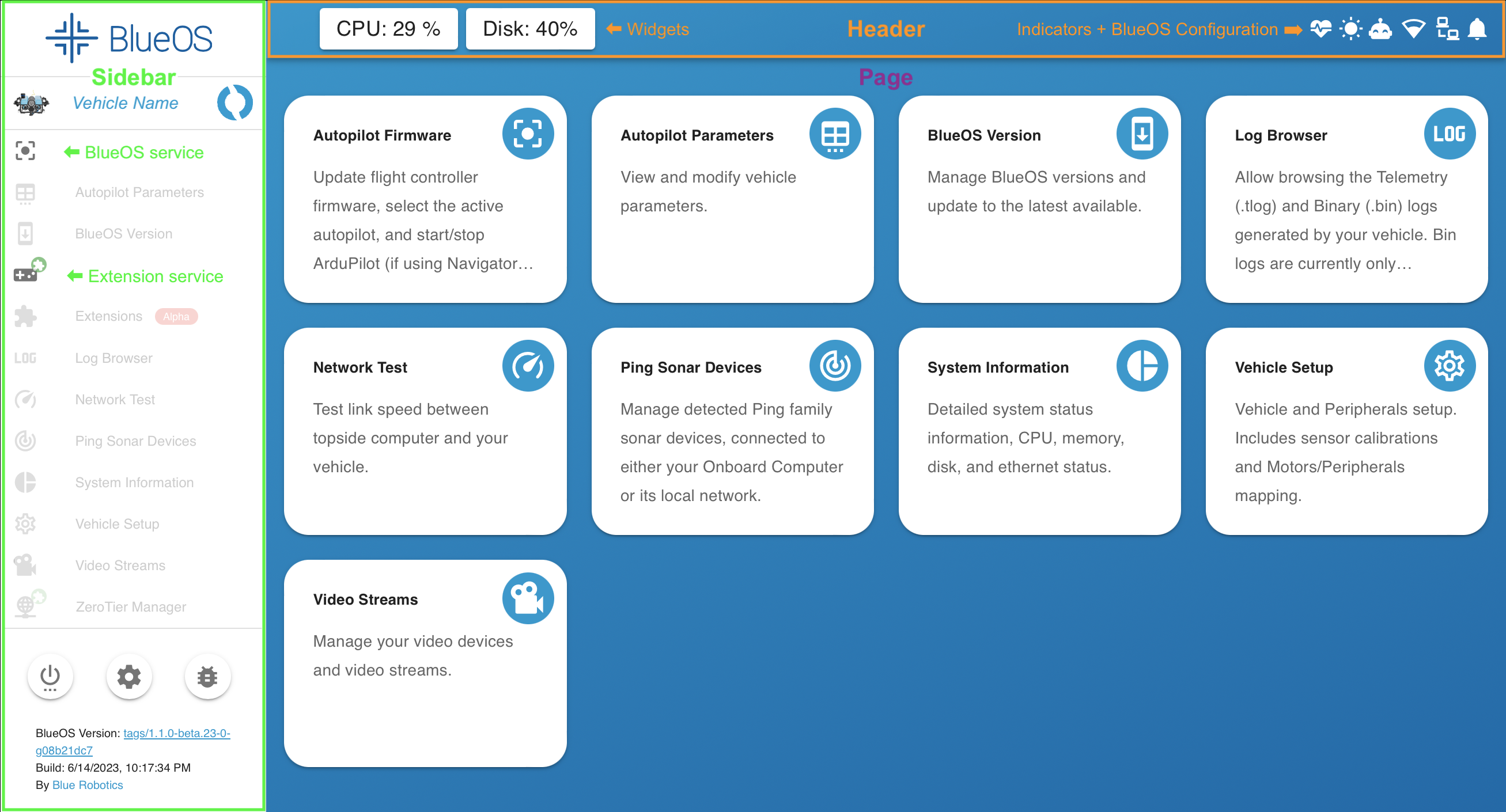
When you first open BlueOS, you'll see a window like the following:
#Header: Indicators and BlueOS Configuration
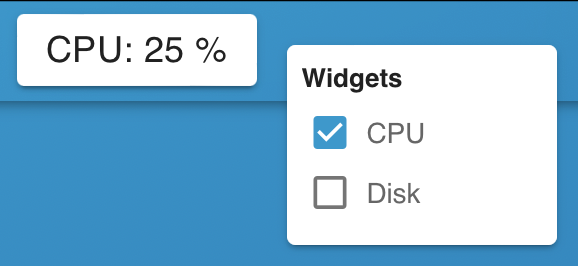
On the left side of the header there is space for widgets, which can be accessed by right clicking and selecting the desired widgets to display. Widgets can be reordered by clicking and dragging.
There are currently widgets available for displaying the CPU and Disk (storage) usage as percentages, as well as local network usage, which are periodically updated during operation:
Widgets are also generated for any enabled network interfaces, which allows monitoring
real time data bandwidth being downloaded/received by the BlueOS computer and
uploaded/transmitted from it (New in 1.4):

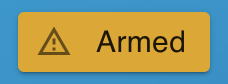
There is also a prominent indicator when the vehicle is in Safe Mode:
On the right side of the header you'll find:
#Notifications
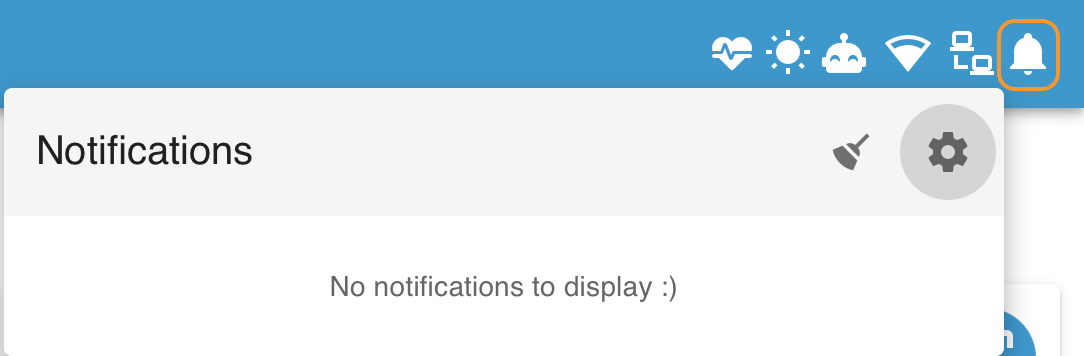
- Press the broom to clear notifications
- Press the gear to toggle showing old messages
#Wired network management (ethernet / USB-OTG)
Based On: Cable Guy | Port:9090
An ethernet connection can generally be accessed through the http://blueos-ethernet.local mDNS address.
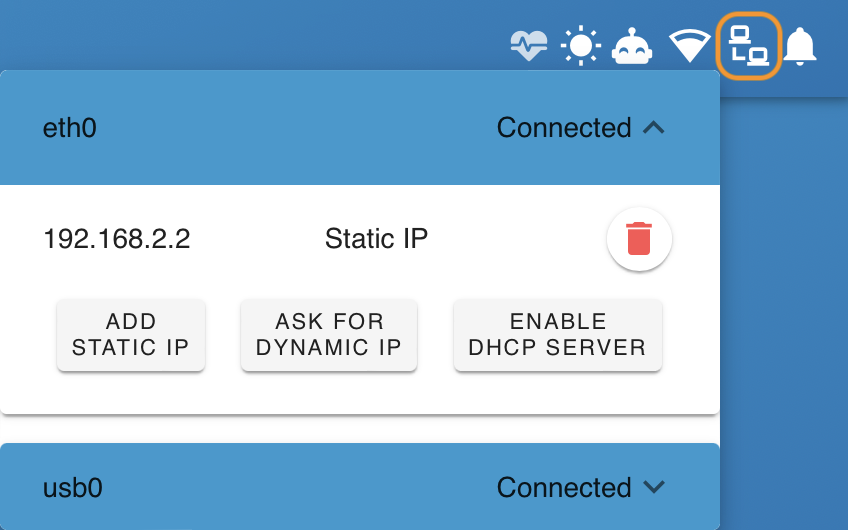
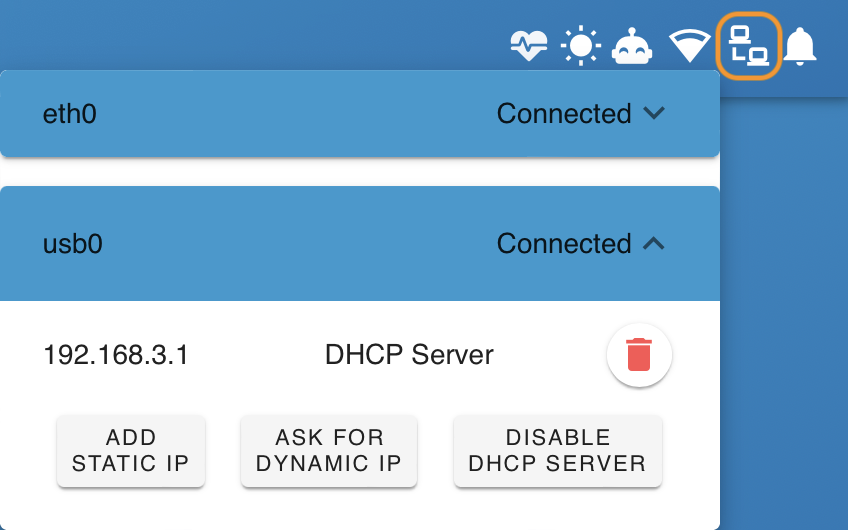
When configuring a wired interface, choose between:
- A static IP
- A dynamic IP
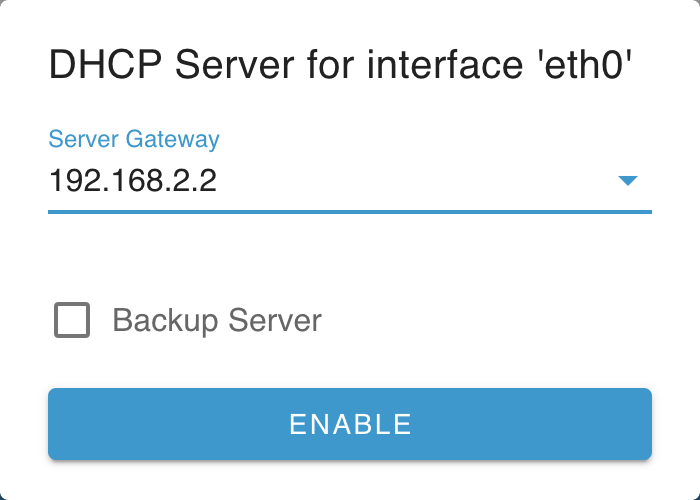
- A DHCP server
- Serves the lease range 101-200
(New in 1.4) - Can be configured as a backup, which only runs if no existing DHCP server is detected on the network
(New in 1.4)
- Serves the lease range 101-200
It is possible to have multiple connections per interface type.
#Wifi + Hotspot network management
Based On: Wifi Manager | Port:9000
- Choose a wifi network to connect to
- The BlueOS web interface is accessible via http://blueos-wifi.local when connected to the same wifi network as your device (including a mobile phone)
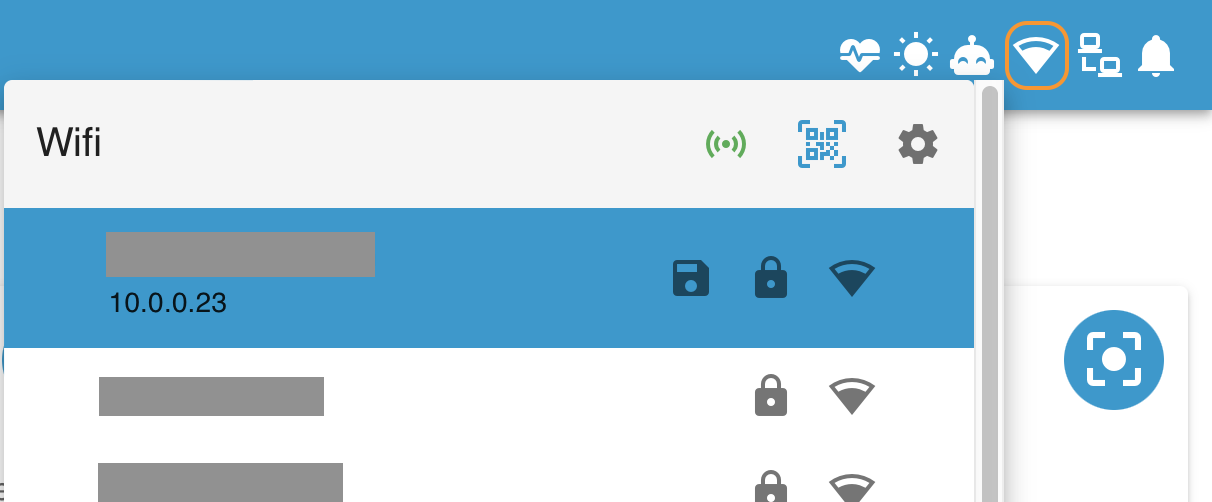
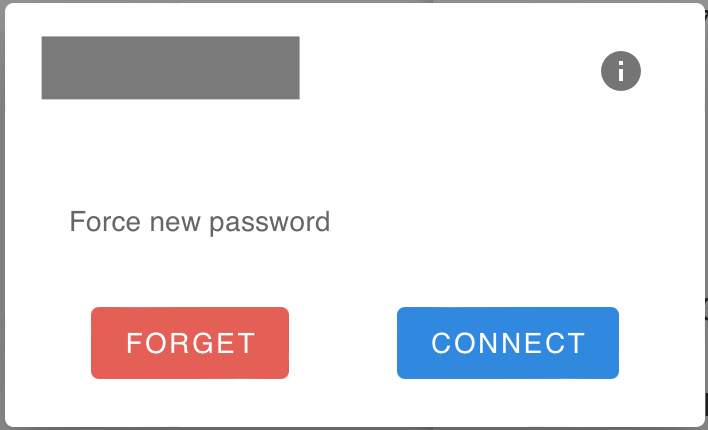
- Forget, connect to, or a force a new password for a saved network
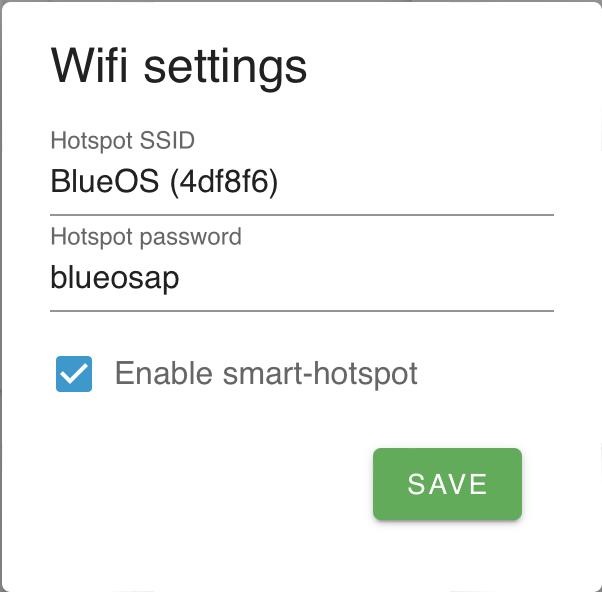
- Configure or turn on/off the BlueOS wireless hotspot, or display a QR code to
easily connect to it from a phone
- The hotspot SSID is named
BlueOS (******)by default, where the asterisk field varies for each system- The default password for the hotspot is
blueosap
- The default password for the hotspot is
- The BlueOS web interface is accessible via http://blueos-hotspot.local and http://192.168.42.1 when your device is connected to the BlueOS hotspot network
- The hotspot SSID is named
#Internet Status and Management
- See whether the vehicle is connected to the internet (updates every 20 seconds)

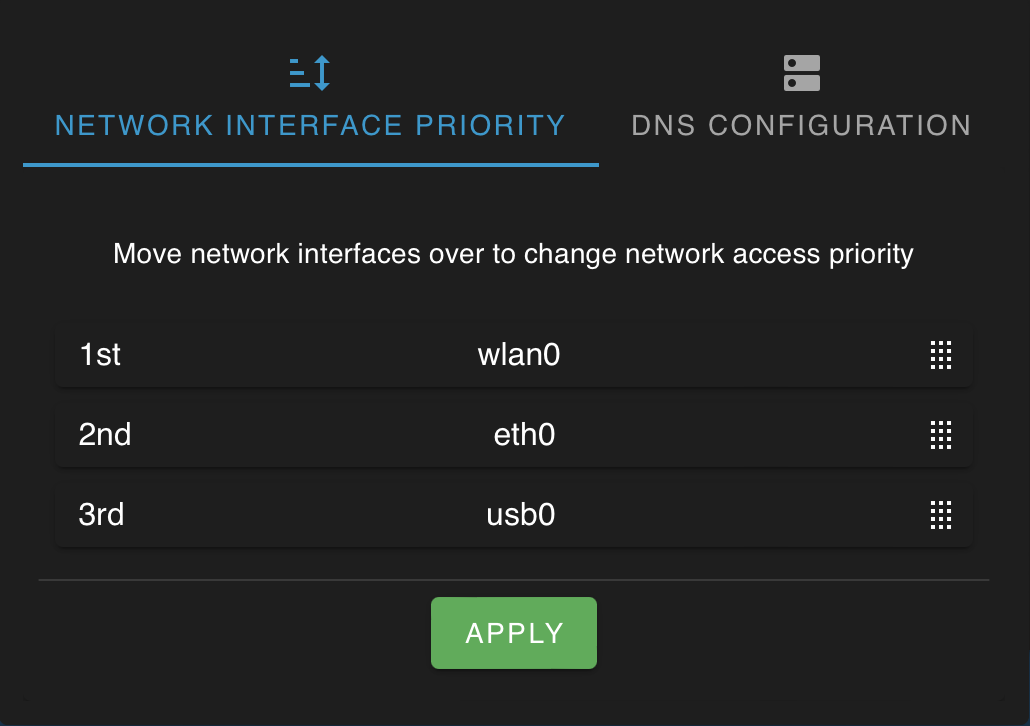
- Configure network priority ordering
- Determines which network interface is used for internet connection
- Displays internet availability on each network
- Generally
wlan0should be at the top (for internet via wifi) - Move
eth0to the top if using internet passthrough via the tether
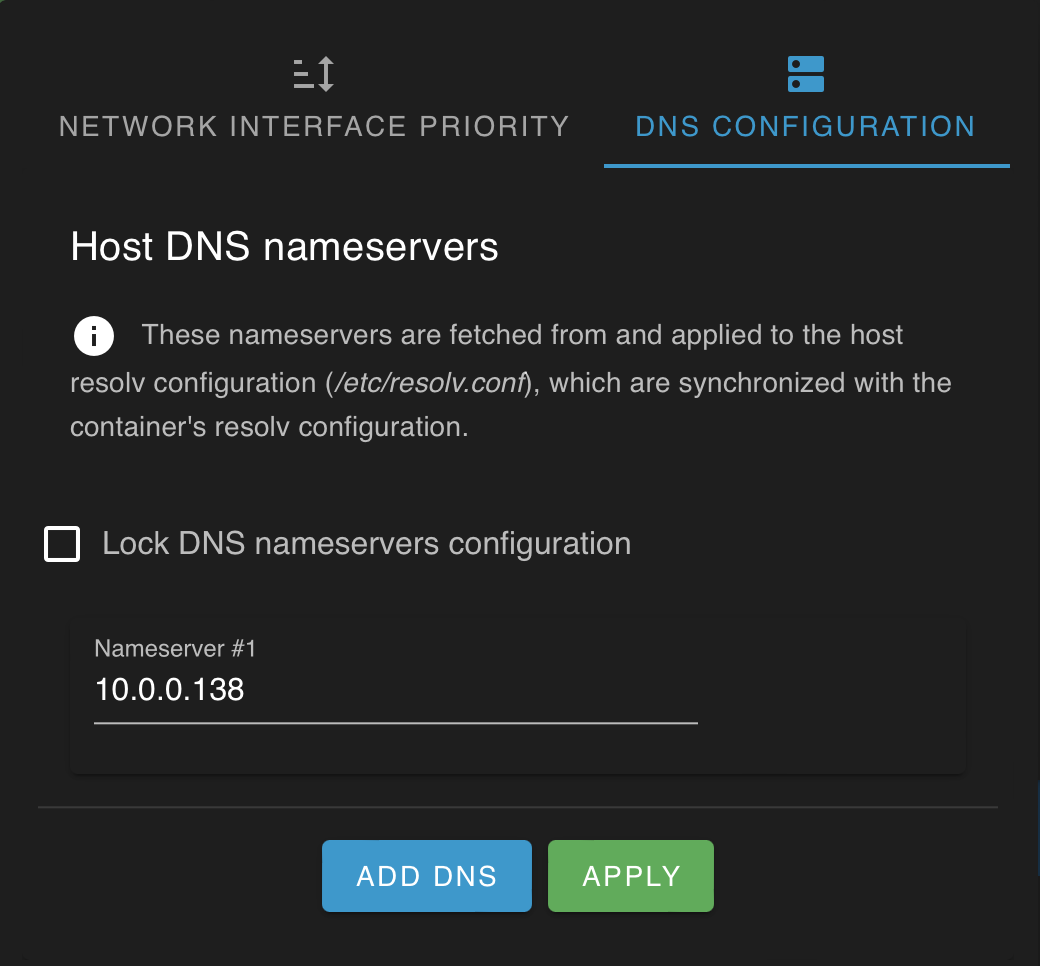
- View and configure DNS name servers
#Display Mode Management
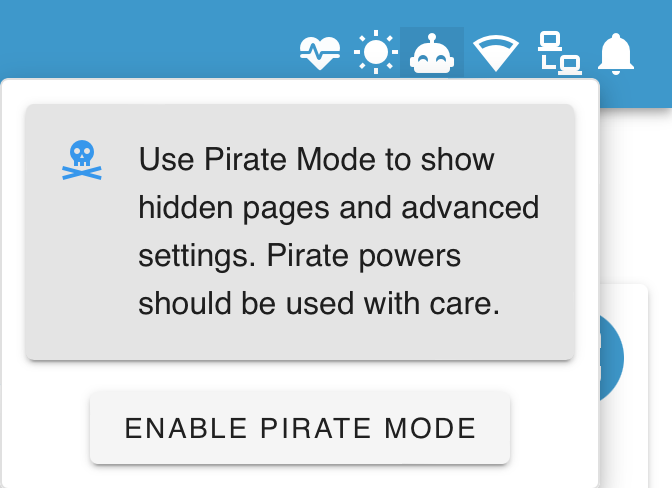
- Pirate mode can be toggled via the happy robot /
skull-and-crossbones icon
- Access or hide advanced functionality
- Advanced users only - pirate mode is not recommended for normal use
- Light and dark display modes can be toggled between with the sun / moon icon
#System status
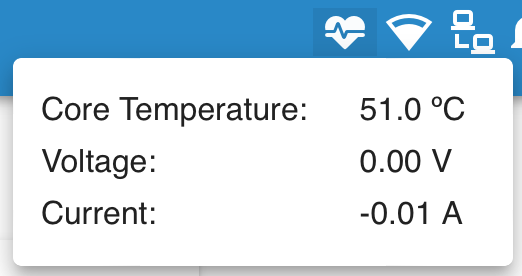
- Heartbeat icon pulses with vehicle heartbeat, and goes red if heartbeat is lost
- On click shows onboard computer temperature, voltage, and current usage
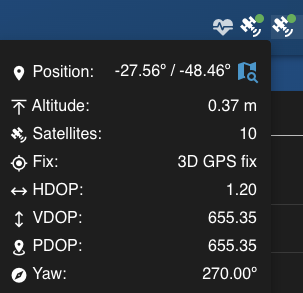
- GPS icon displays the number of visible satellites if a GPS is detected
- On click shows the current GPS position estimate, and some GPS health/status values
- Can show status for two connected GPS systems, and GPS-based yaw if both have valid position fixes
(New in 1.4)
- Additional warning icons appear if a problem is detected on the onboard computer:
- High disk usage
- CPU overheating
- CPU throttling
- CPU under voltage
- Connected wirelessly (instead of through a tether)
- BlueOS cannot connect to its host computer
#Sidebar
The burger menu at the top left of the header opens up the sidebar, for conveniently accessing available pages, tools, and services. When the page is wide enough, the sidebar automatically stays open.
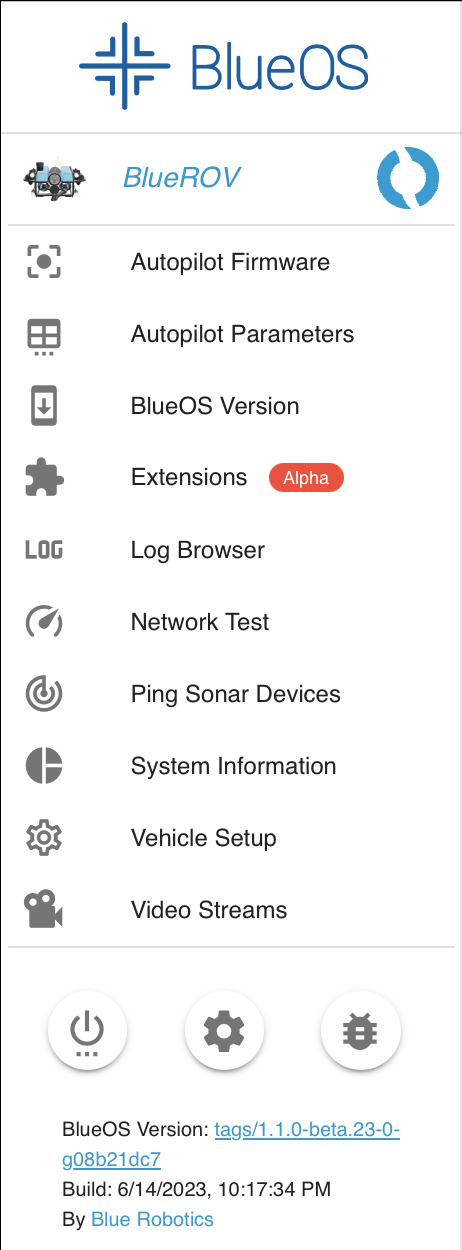
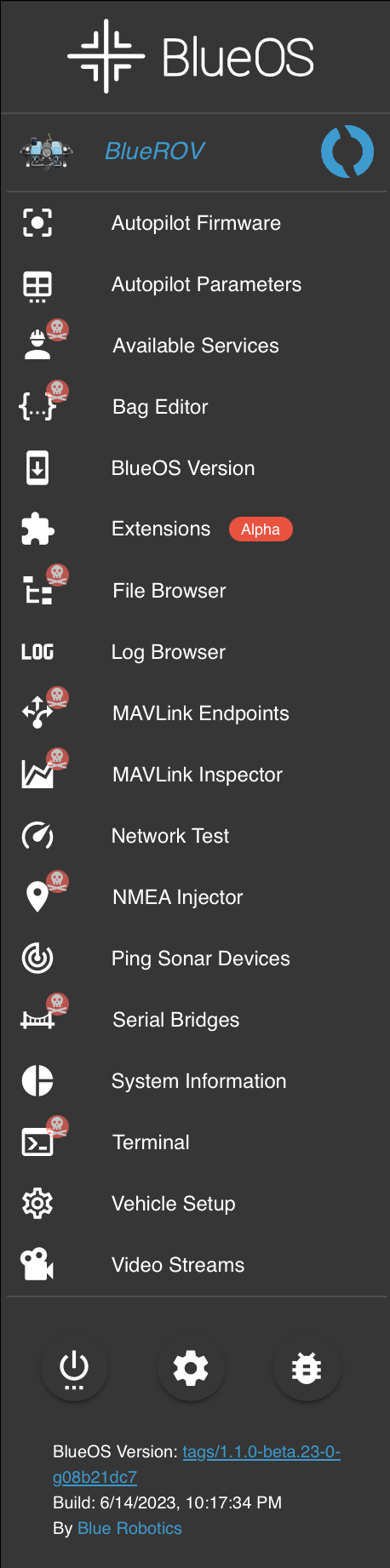
- The theme content at the top is configurable
- The development documentation specifies the requirements for a service page to appear in the sidebar
#BlueOS Settings
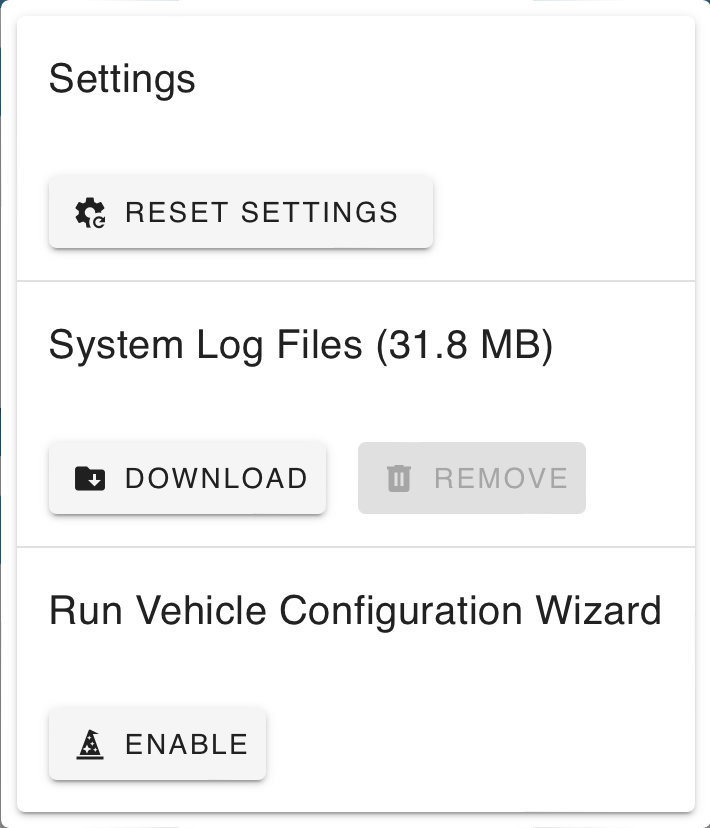
- Reset BlueOS settings
- Remove existing camera/endpoint/bridges configuration
- Remove log files from BlueOS services (to reduce space usage on the SD card)
- Download log files from BlueOS services to report a problem
- Old logs are aggregated and compressed with GZip, and automatically deleted if the space runs out
(New in 1.2)
- Old logs are aggregated and compressed with GZip, and automatically deleted if the space runs out
- Re-enable the configuration wizard
#Power
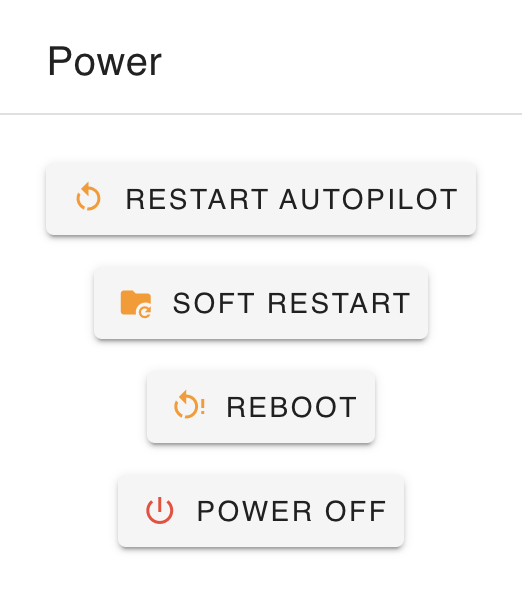
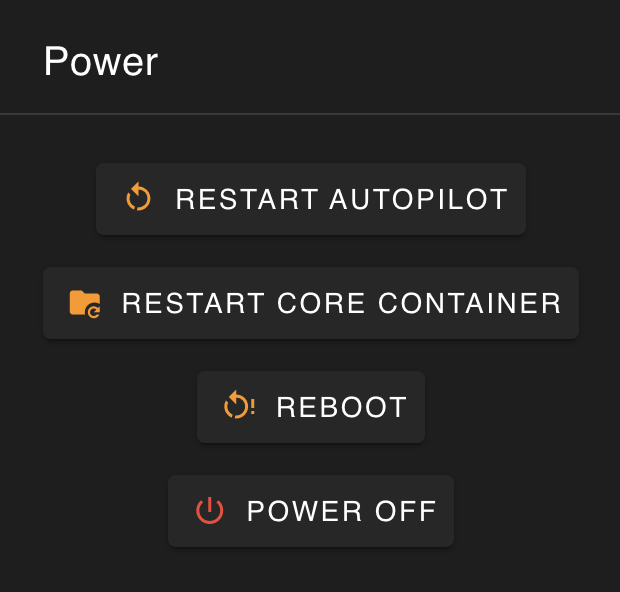
- Power off
- Shut down onboard computer
- Recommended before turning off vehicle power
- Reboot
- Reboot onboard computer
- Restart core container (same as "Soft restart")
- Restart the core BlueOS docker container
- Generally sufficient for most 'reboot' requirements
#Feedback
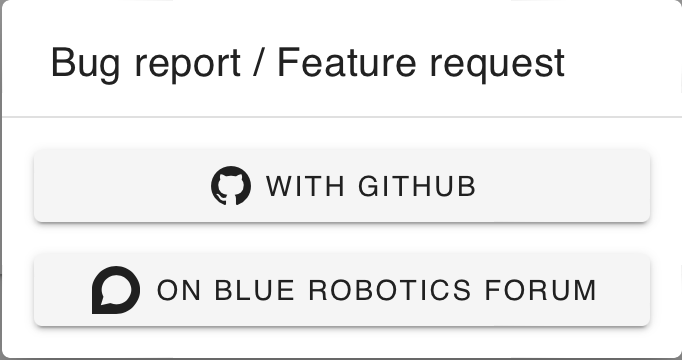
Submit feedback about BlueOS via:
- Issues on the GitHub repository
- allows easily tracking changes, and notification when complete/fixed
- Report form submissions
- Can be submitted at any time, and get sent to the developers when the control station computer next connects to the internet
- Posts on the Blue Robotics forum
- allows easy discussion with the community
#Dashboard
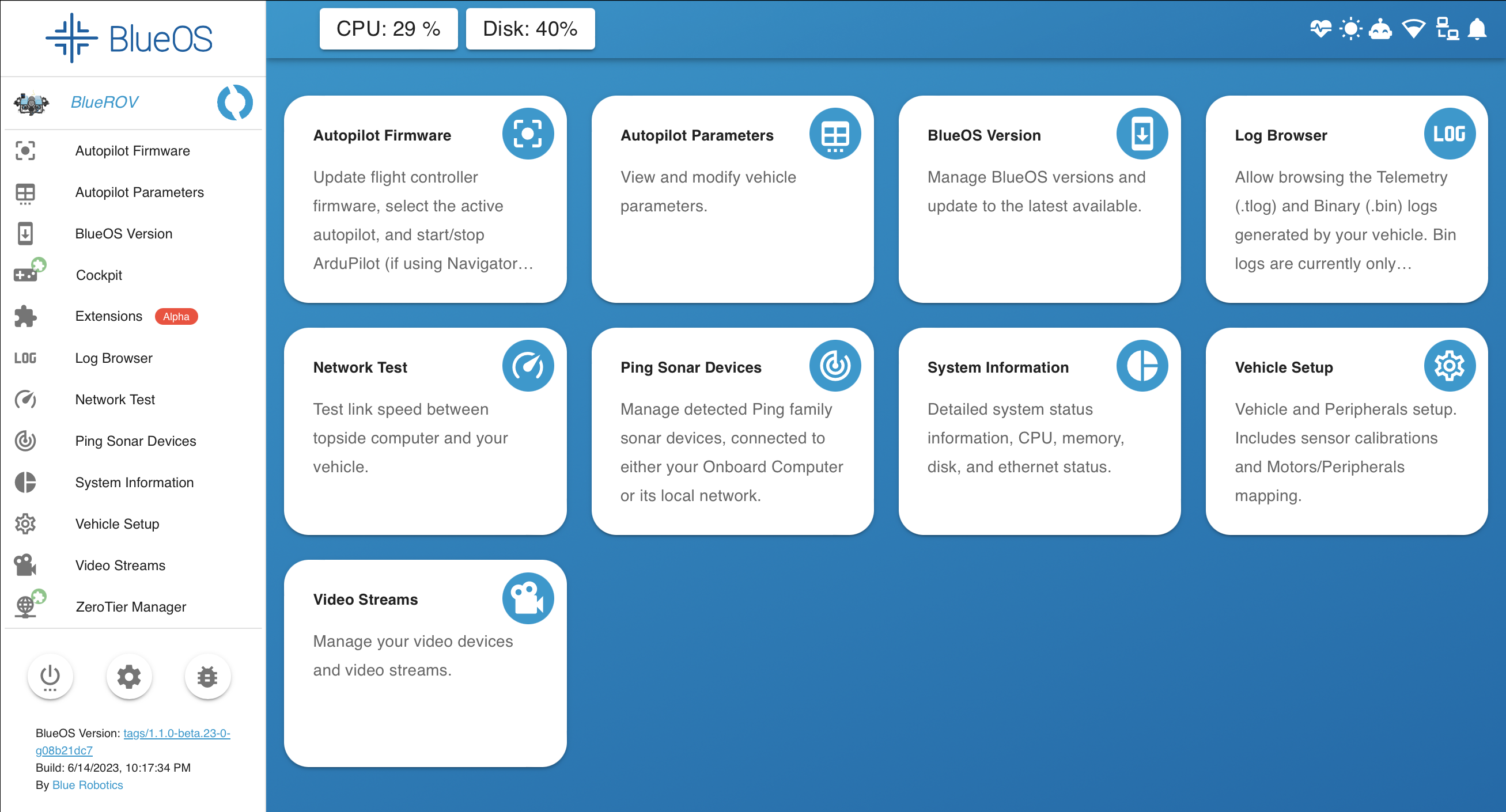
The "Dashboard" page provides an overview of the available pages. In future it will provide an overview of the vehicle state and main configuration options. Click the BlueOS logo to return to the dashboard at any point.
#BlueOS Service Pages
Pages are sorted alphabetically.
#Autopilot Firmware
Based On: ArduPilot Manager | Port:8000
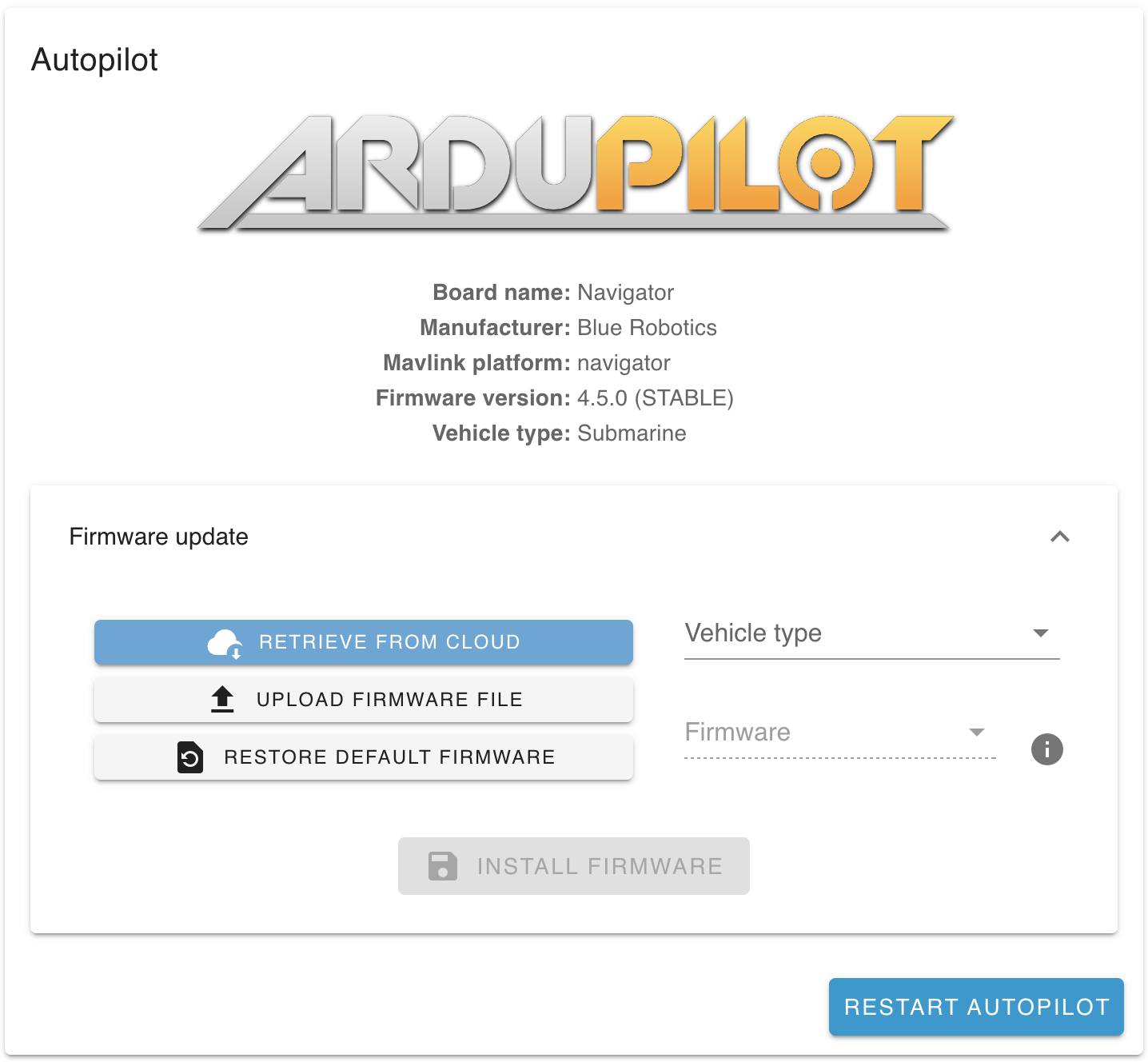
The Autopilot Firmware page provides basic information about the active autopilot, along with options to:
- Change board (select a connected board, or run a SITL simulation)
- Start the autopilot
- Stop the autopilot
- Restart the autopilot
- Update the firmware
- ArduPilot family of firmwares only
- Choose firmware to install
- Select from the online repository
- Select vehicle type (Sub / Rover / Plane / Copter)
- Select desired release and stability level
- Stable - A production-ready release.
- The latest Stable is recommended for most users.
- e.g.
Stable-4.1.1
- Beta - In-testing release, with new features and improvements, aiming to become stable. May have bugs.
- Dev - Development branch, with all the newest features. Intentionally unstable (changes quickly), and possible untested/dangerous.
- Stable - A production-ready release.
- Upload a custom firmware file from the surface computer
- Restore the default (ArduSub) firmware for the connected flight controller
- Select from the online repository
- Flash firmware onto a connected compatible flight controller board
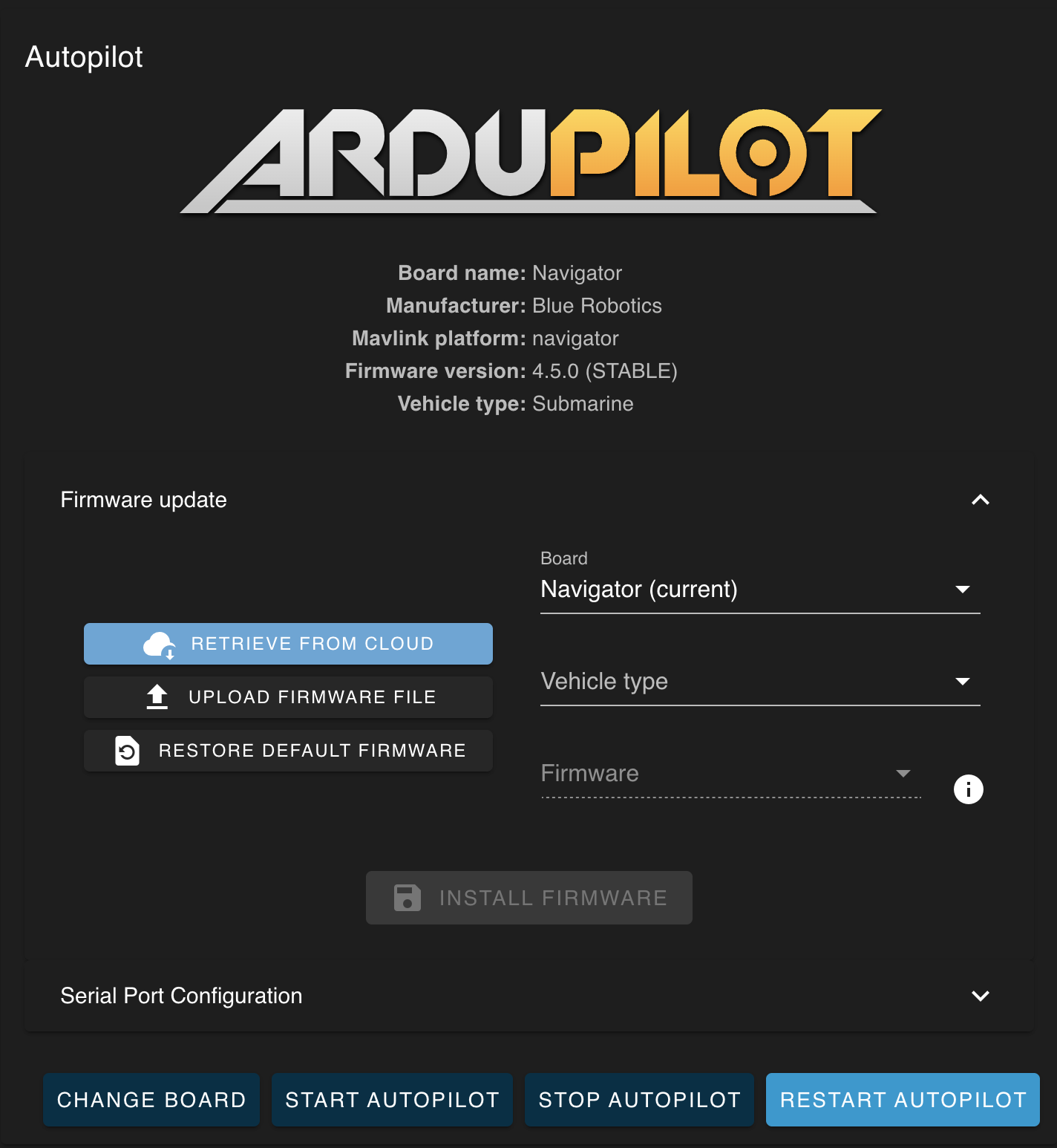
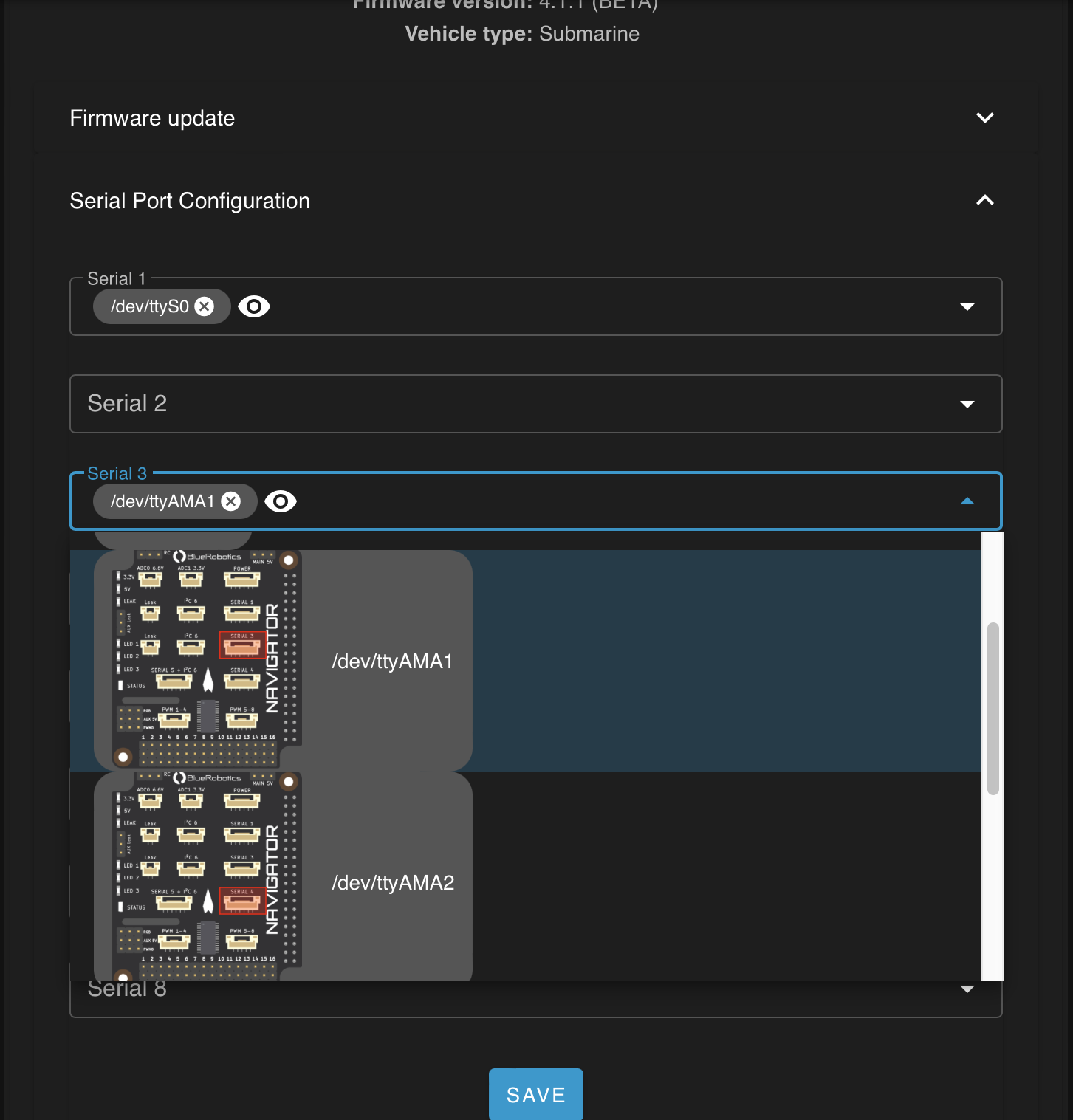
Systems with a Navigator flight controller also have the option to configure serial-compatible ports from the onboard computer (including USB ports) as serial ports accessible to the autopilot.
💡 It's highly recommended to flash the default parameters for the vehicle when a firmware downgrade or upgrade is done. Check the vehicle setup for more information.
#SITL Simulation
If you want to do some testing without needing physical hardware, BlueOS includes a virtual flight controller "board" for running ArduPilot SITL simulation builds. It comes pre-configured to run the latest stable ArduSub firmware, but can be re-flashed with other ArduPilot firmware versions or variants like a normal flight controller board.
The default setup is for a 6-thruster vectored ROV (like the BlueROV2), and is "located" in a lake in Brazil, where the BlueOS core development team is based. The vehicle will show up on the map in control station software, and can be controlled with a joystick, but the simulation is only for telemetry - there's no video output! If you'd like to try driving around a simulated full ROV in a swimming pool (fish included!) you can instead run our hosted version of BlueSim, and open Cockpit from the sidebar.
If you want to simulate a different vehicle frame in SITL (especially if you have just flashed on a different firmware variant) you
can click or copy this link1, then click
"Try it out" in the POST: /sitl_frame endpoint, select the frame you want in the dropdown, and "Execute".
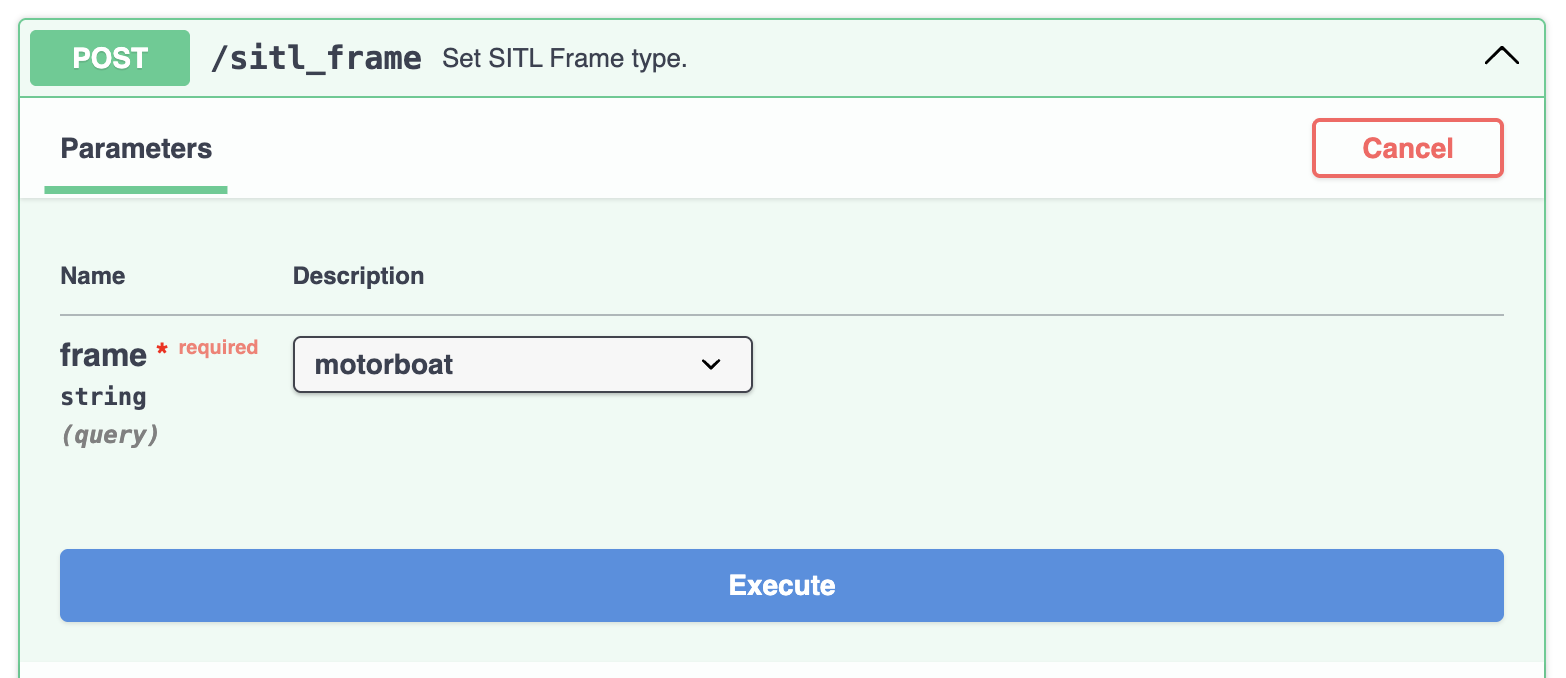
As an example, to simulate a BlueBoat you would first flash the SITL board to ArduRover, change the frame to "motorboat" (as described above), then load Blue Robotics' default parameters for the vehicle from the Vehicle Setup "Configure" page.
If the provided link doesn't work, you can instead click the /v2.0/docs
link in the "version" column at the far right of the "Autopilot Manager" row in the Available Services page.
#Lua Scripts
ArduPilot firmware supports using Lua Scripts to add
custom functionality and drivers without needing to modify or build the firwmare itself. Once enabled
(via the SCR_ENABLE parameter)
they can be conveniently managed through the lua_scripts folder in the File Browser.
Currently this functionality is only available to vehicles with a Linux-based flight controller board (like a Navigator), but general support for serial-connected autopilots is on the way!
#Autopilot Parameters
New in 1.1
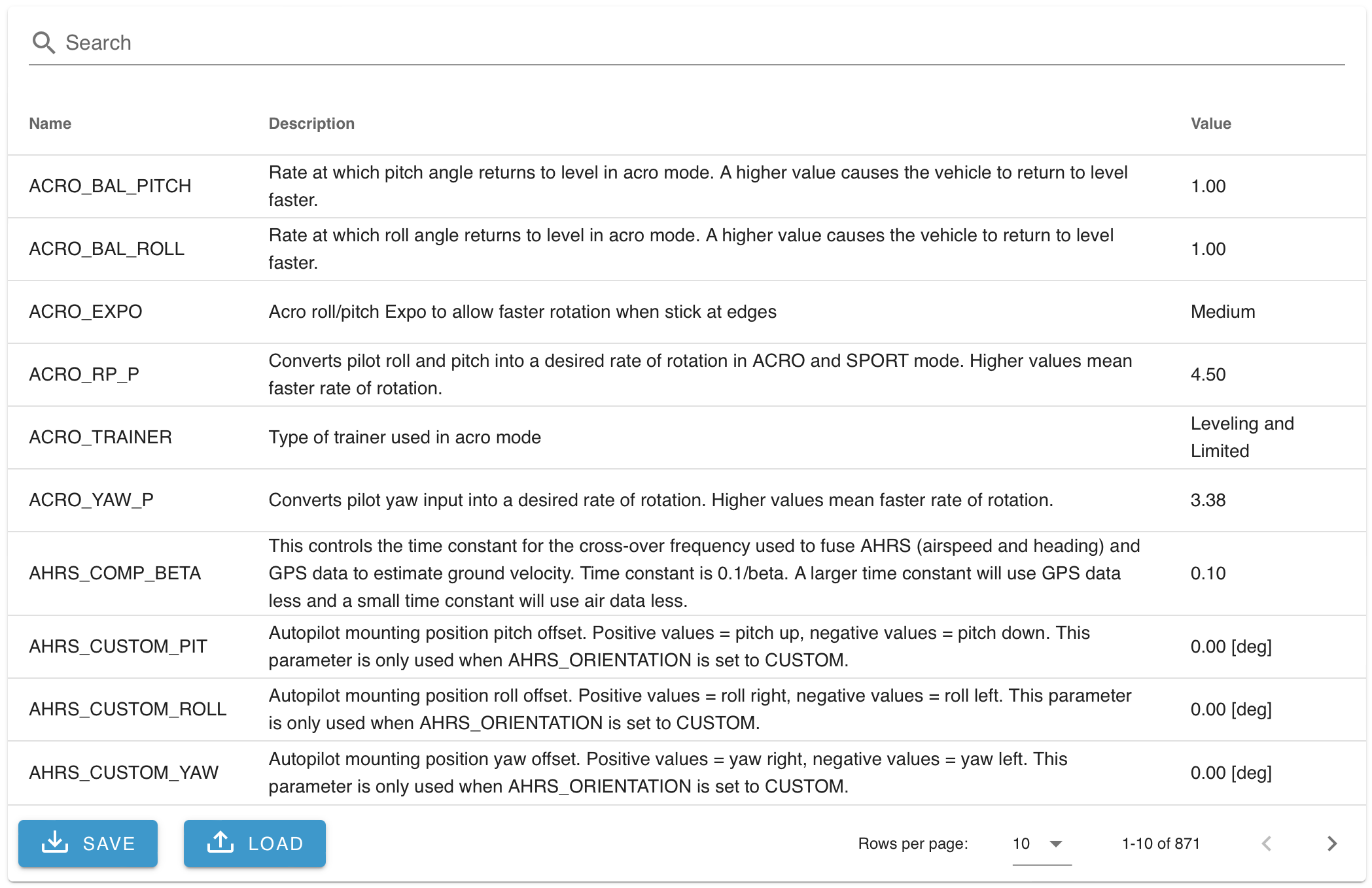
The Autopilot Parameters page allows checking and changing the autopilot's configuration.
- Includes fuzzy searching of names and descriptions, to help find relevant parameters
- Parameter descriptions can be overridden by including a
metatdata_override.jsonfile in theuserdatafolder in the File Browser(New in 1.4)- Parameter files can be generated from an ArduPilot firmware using this tool
- Allows loading parameters from a file, and saving the current parameters to a file
#Available Services
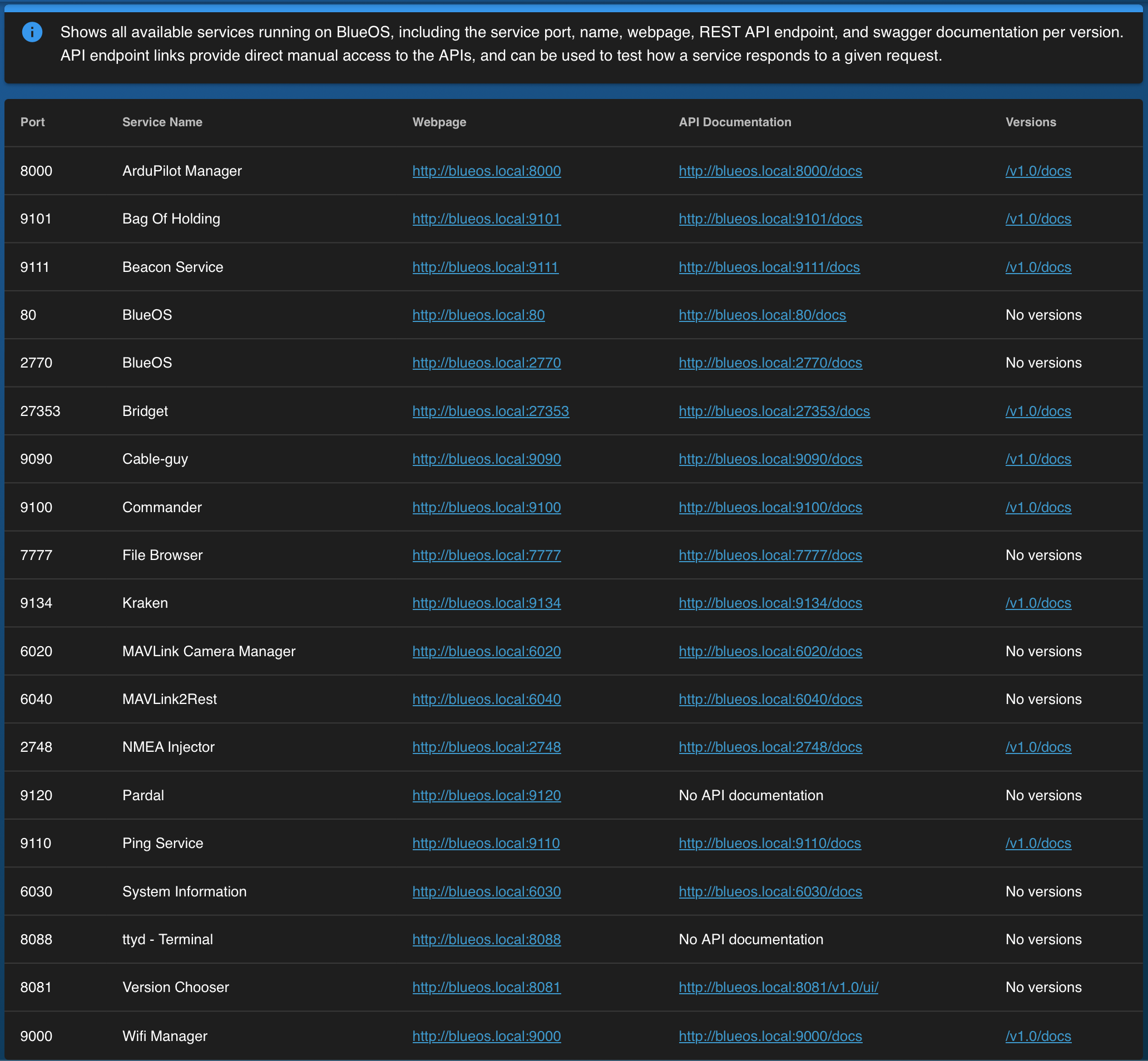
The Available Services page provides developer access to the underlying http server interfaces of the services upon which BlueOS is based. Each service is listed with
- the port it is served at
- a meaningful name
- a web-page link using the active network configuration
and where relevant
- its API documentation (in a live-testable form)
- the current API version
The individual services are documented in the development documentation.
#Bag Editor
Based On: Bag of Holding | Port:9101
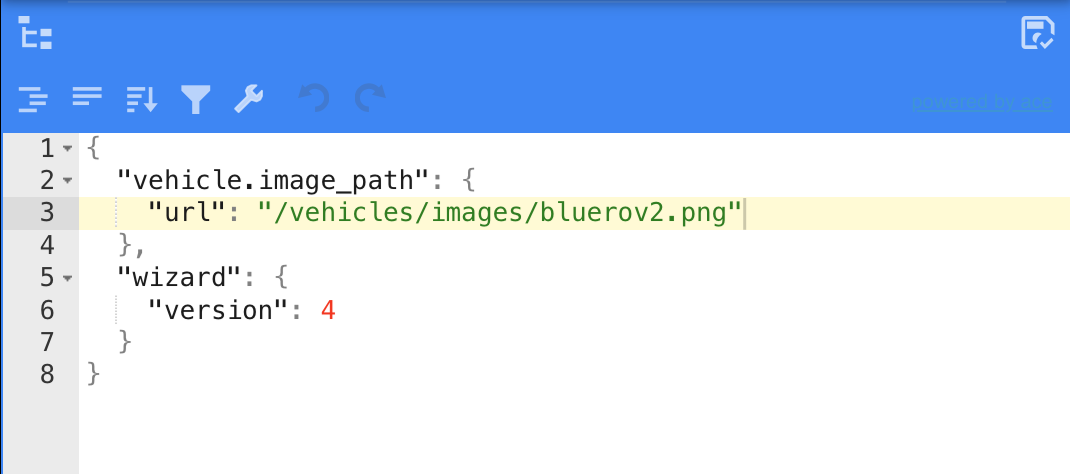
The Bag Editor is a helper service for advanced users, which allows modifying the database used to handle frontend interface changes.
#BlueOS Version
Based On: Version Chooser | Port:8081
The Version Chooser is a major component in the robust backbone of BlueOS. It runs independently from the main interface, and is monitored such that if it somehow fails a backup version will be run in its place.
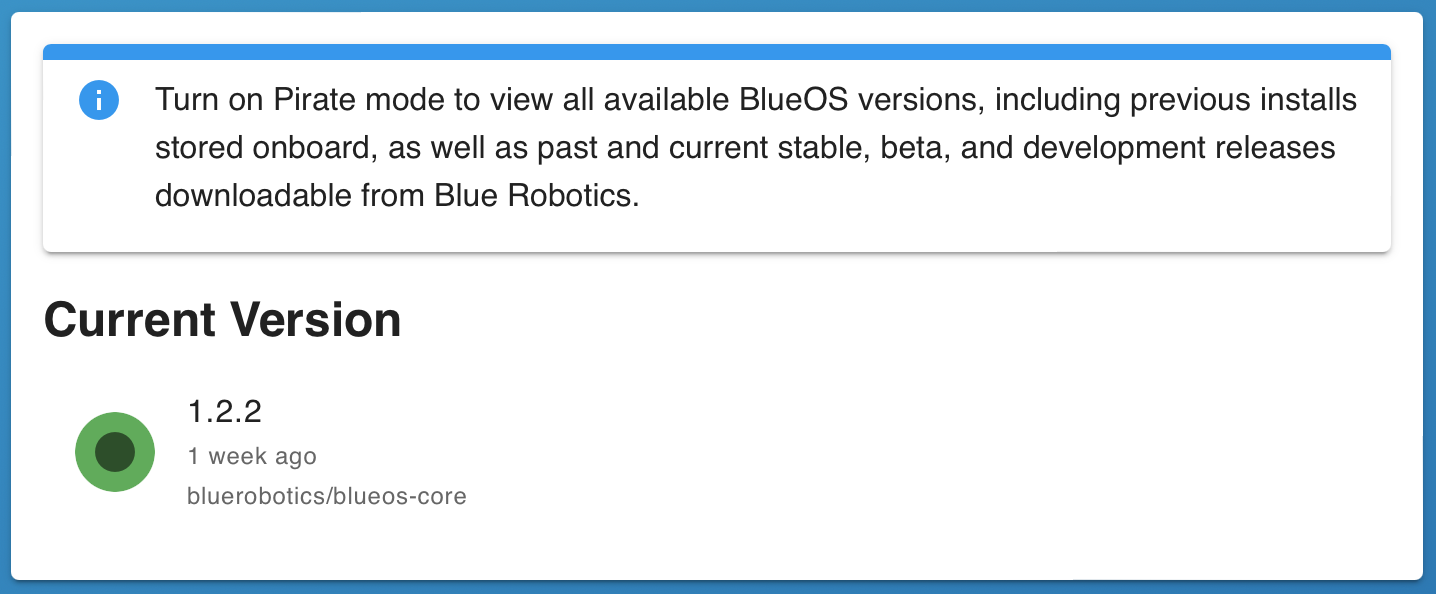
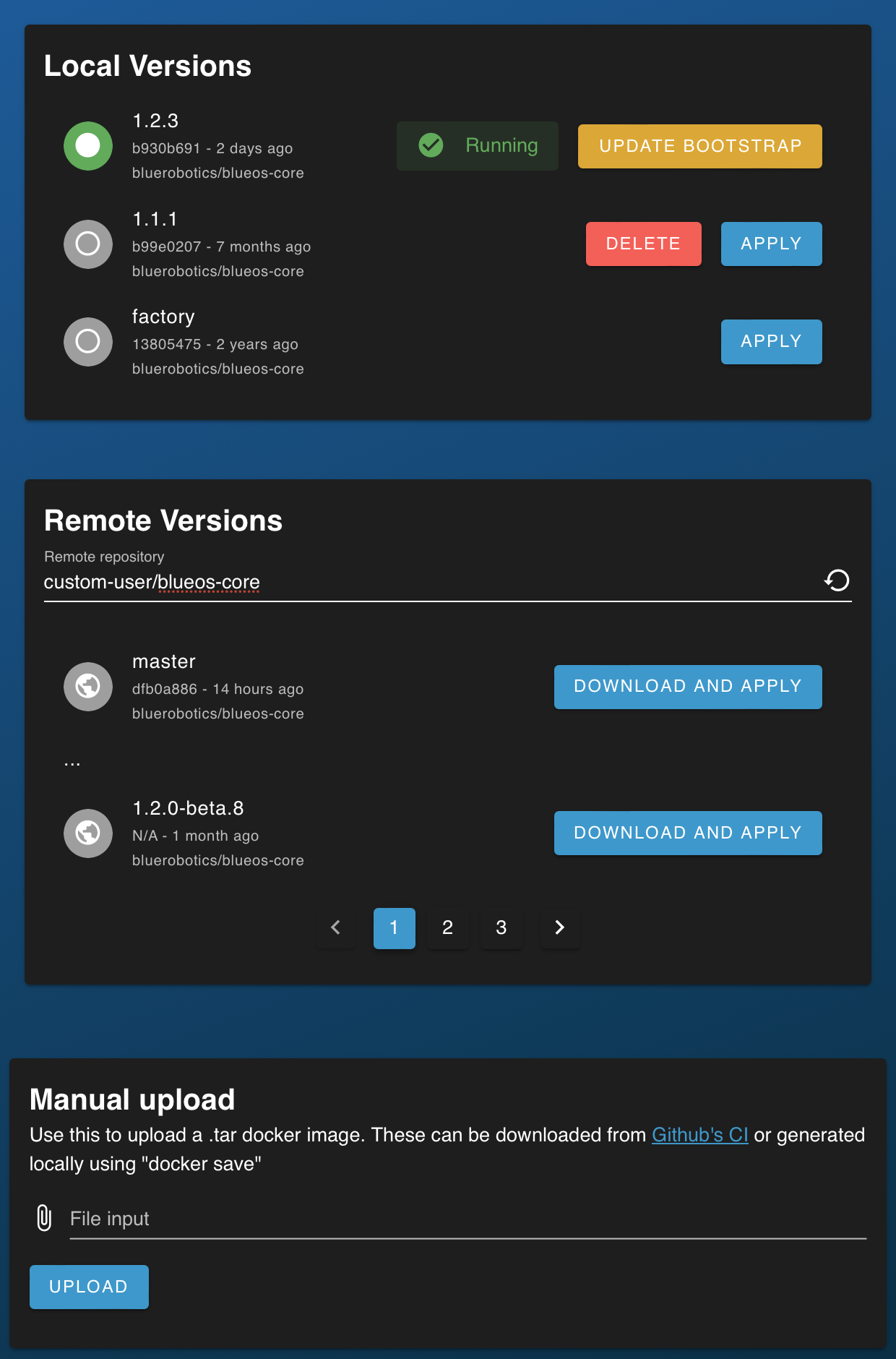
- The simplified interface provides an easy way to update to the latest version that is as stable or more stable than the currently installed version
- The full interface supports easily changing forwards and backwards between
versions
- Previously-installed versions are kept locally on the device, unless manually deleted, which provides an easy route for roll-backs to undesired changes (e.g. during development)
- Allows updating the bootstrap image to match the current version
- Allows loading remote versions (including from custom docker-hub repositories)
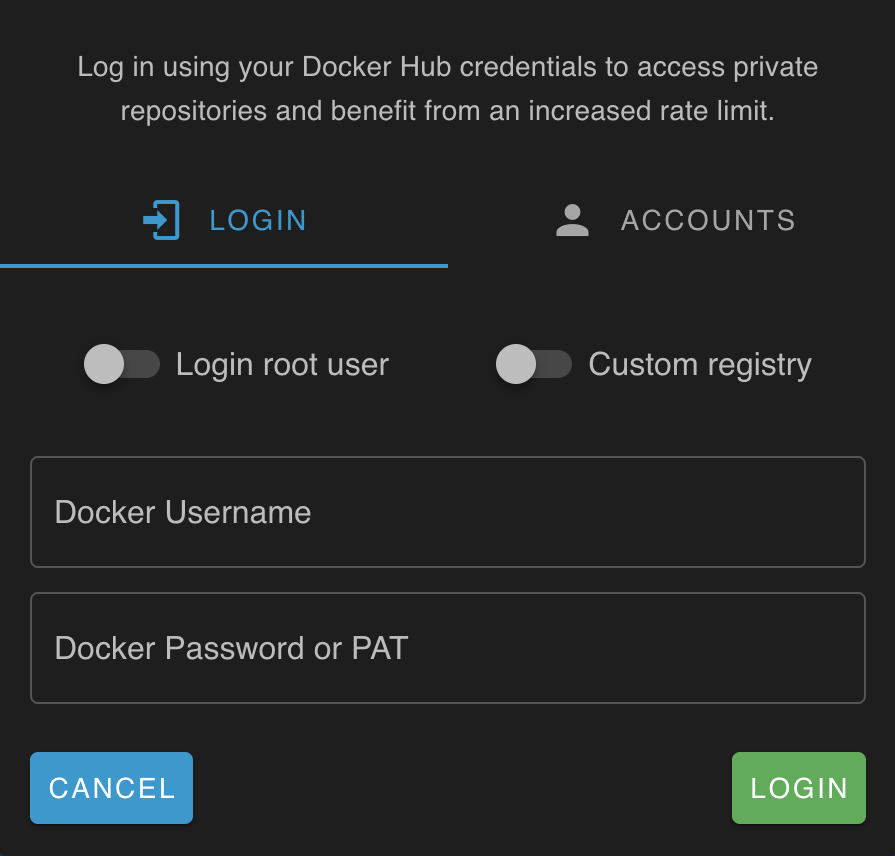
- Allows logging in to one or more docker registries, to access private repositories,
and to help avoid rate limiting
- By default, logs in to the registry for Docker Hub
- Custom registries can be authenticated to by specifying the relevant registry index after enabling the switch
- Credentials are saved to
.docker/config.json, by default for the normalpiuser (and optionally the root user) - Accounts authenticated to the root user are displayed with a shield icon, and are valid for
sudo dockercommands
- Allows manually uploading docker images from the surface computer
- If an undetected failure somehow occurs in BlueOS (or if a broken version gets
installed) it's possible to easily roll back to a working version from
- on the device
- manual upload, or
- downloaded from the internet
- If necessary, the underlying service can be accessed directly
#File Browser
Based On: File Browser | Port:7777
The File Browser allows viewing, editing, downloading, and uploading BlueOS files.
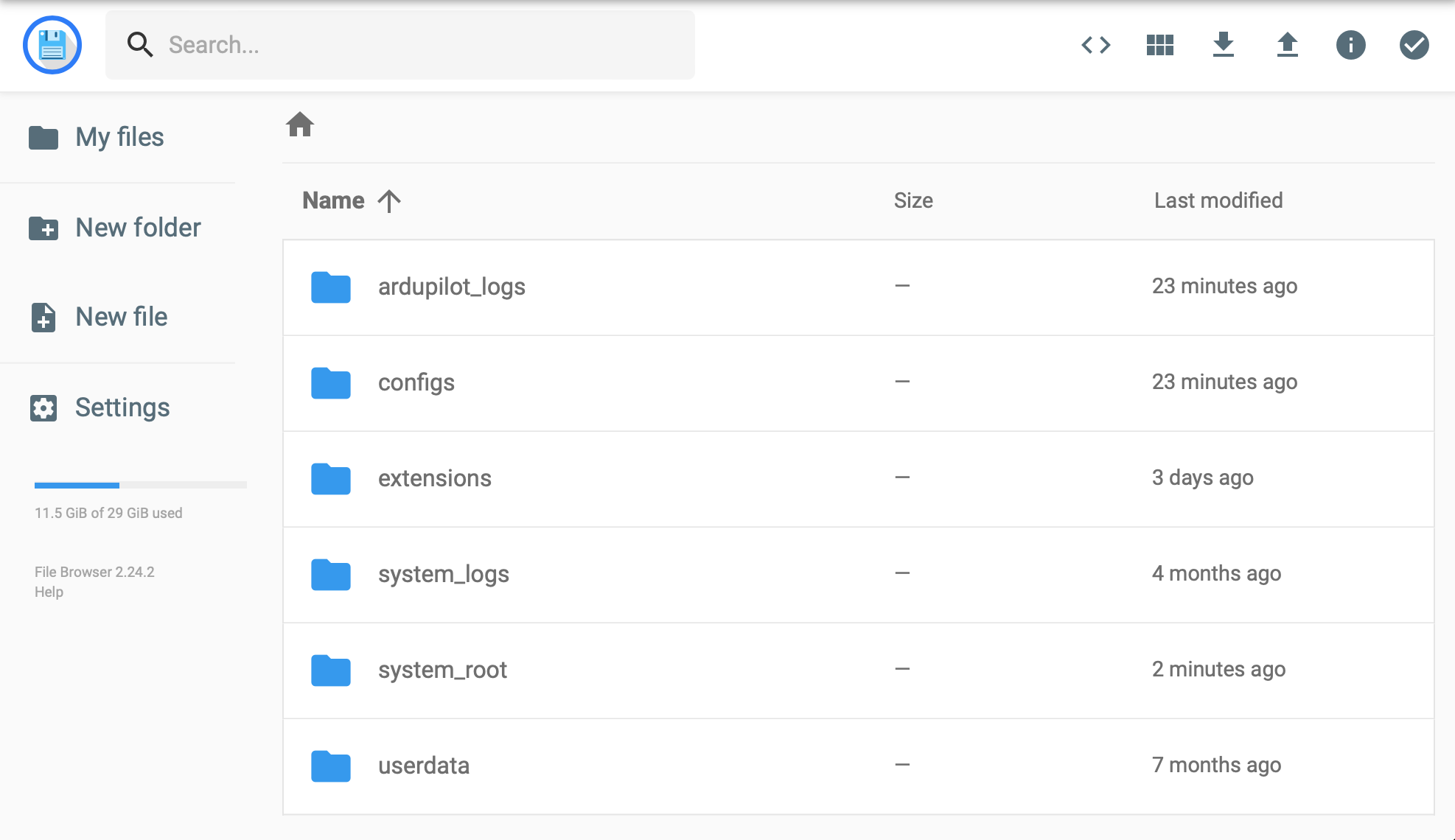
Vehicles using a Navigator flight controller board with a recent ArduPilot firmware can access Lua
drivers and scripts at configs/ardupilot/firmware/scripts. (New in 1.2)
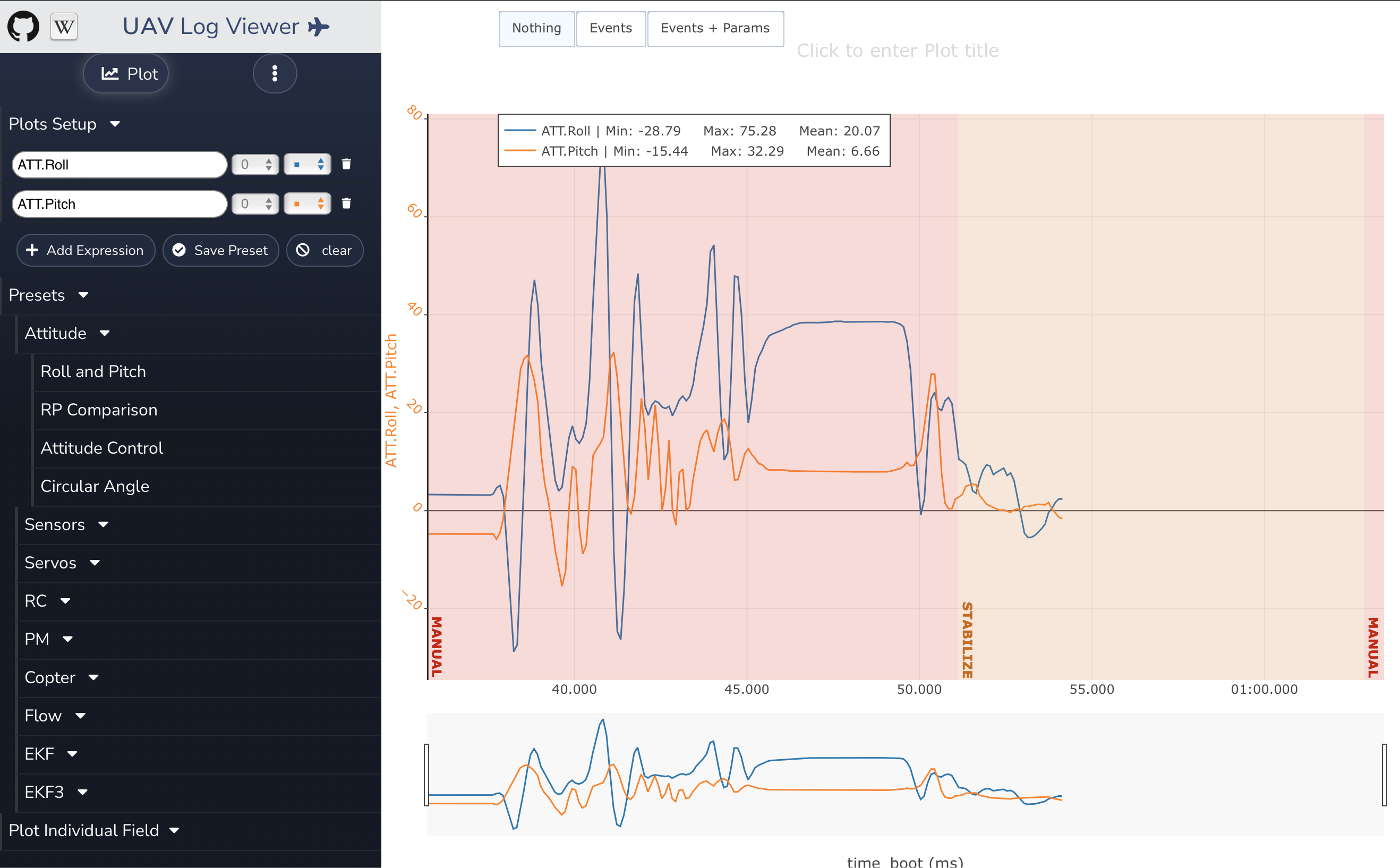
#Log Browser
Based On: UAV LogViewer
- Allows downloading telemetry
.binlogs from Linux-based autopilots- Set the
BRD_RTC_TYPESautopilot parameter to includeMAVLINK_SYSTEM_TIMEso the filenames use timestamps
- Set the
- Can stream logs from external flight controllers (e.g. Pixhawks) if the
LOG_BACKEND_TYPEautopilot parameter is set toMAVLink
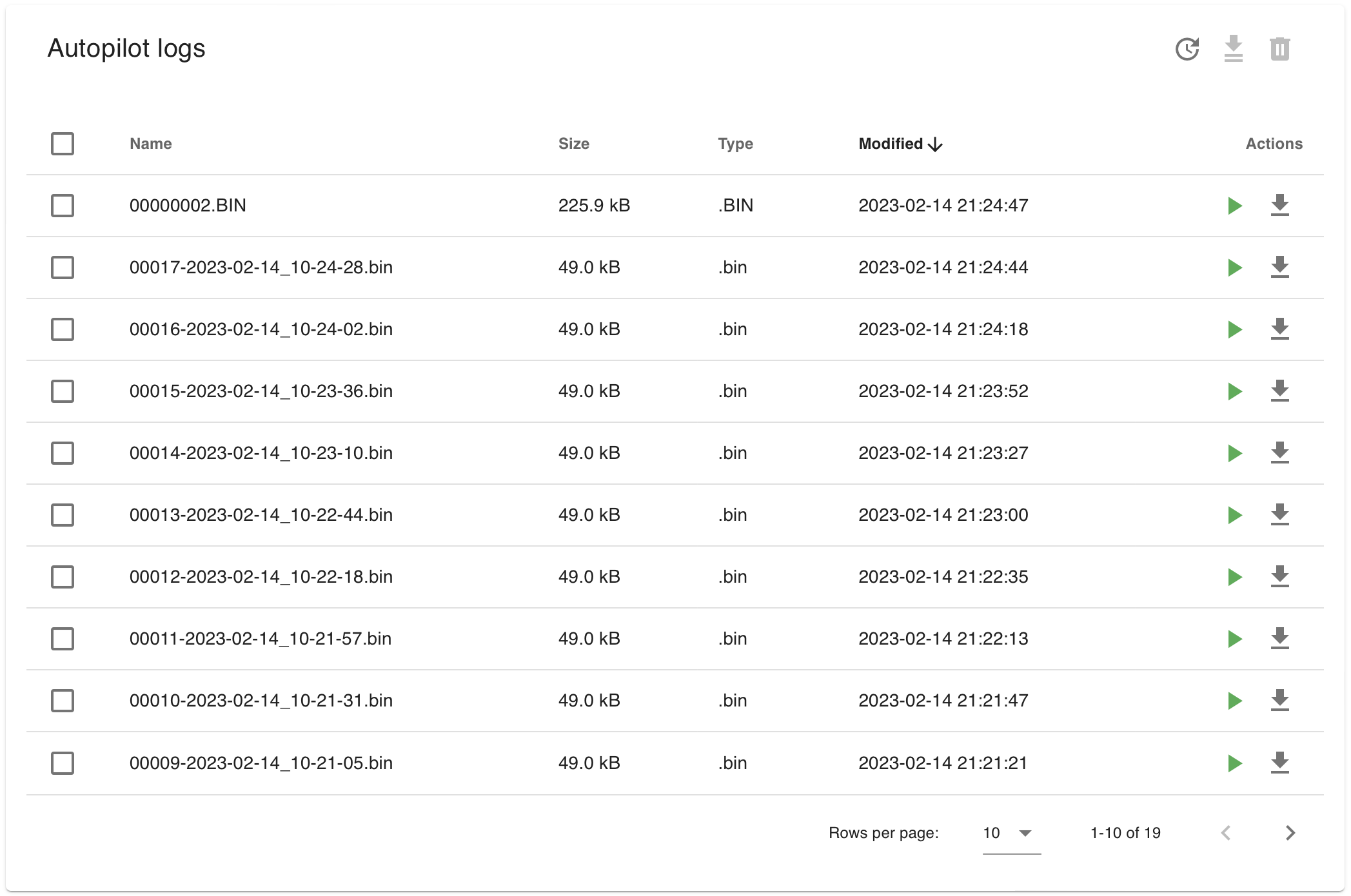
- Press the green play button to access the built in Log Viewer, to visualise and analyse vehicle telemetry (including position if a positioning system is equipped)
#MAVLink Endpoints
Based On: ArduPilot Manager | Port:8000
The MAVLink Endpoints manager allows configuring the serial, UDP, and TCP endpoints for MAVLink-based services and programs to access.
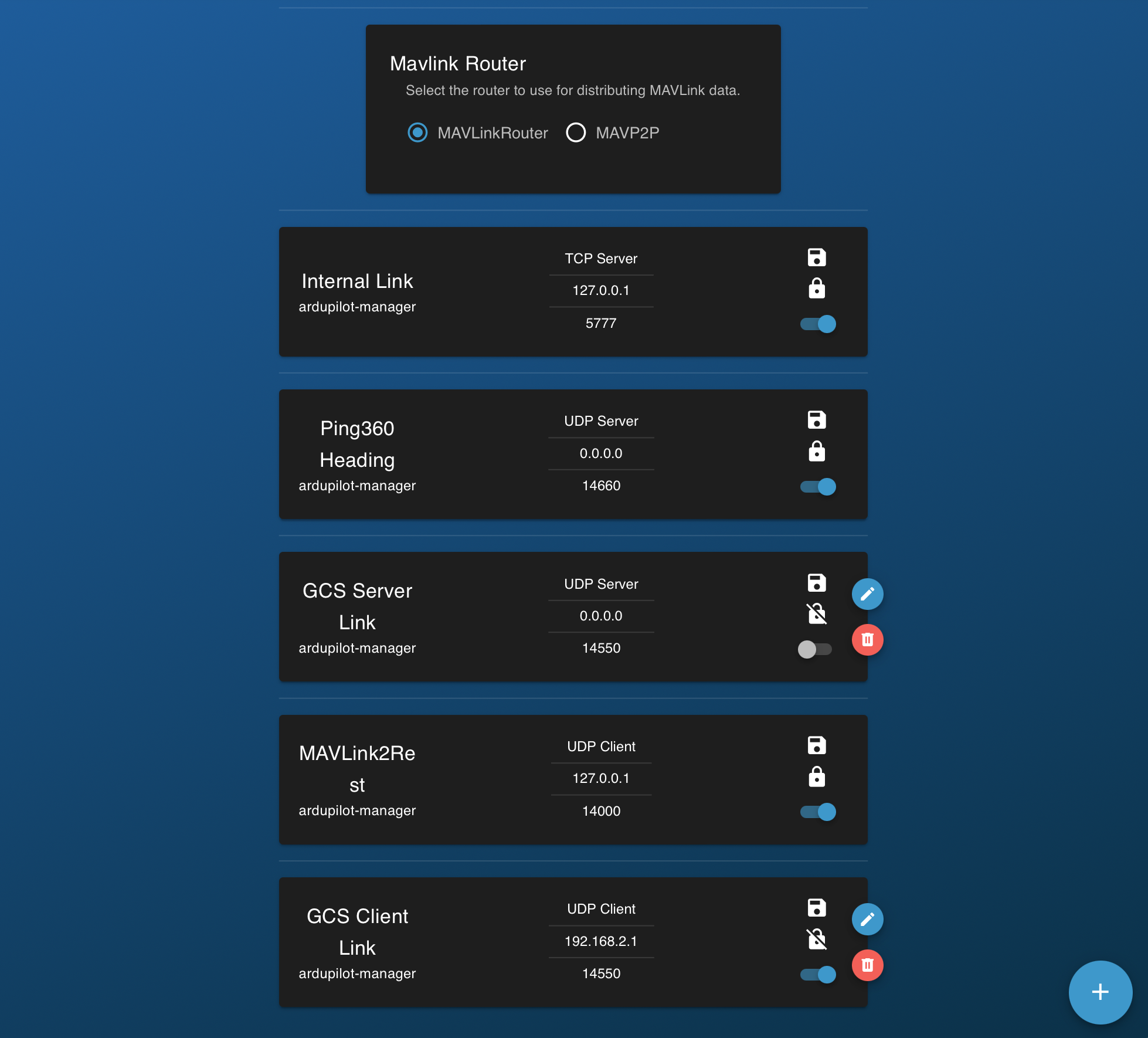
- The default MAVLinkRouter can be switched to instead use:
- MAVP2P
(New in 1.2)- This may use more CPU, so is only recommended if your system is having frequent "GCS Heartbeat Lost" errors
- Does not yet support generating telemetry log files
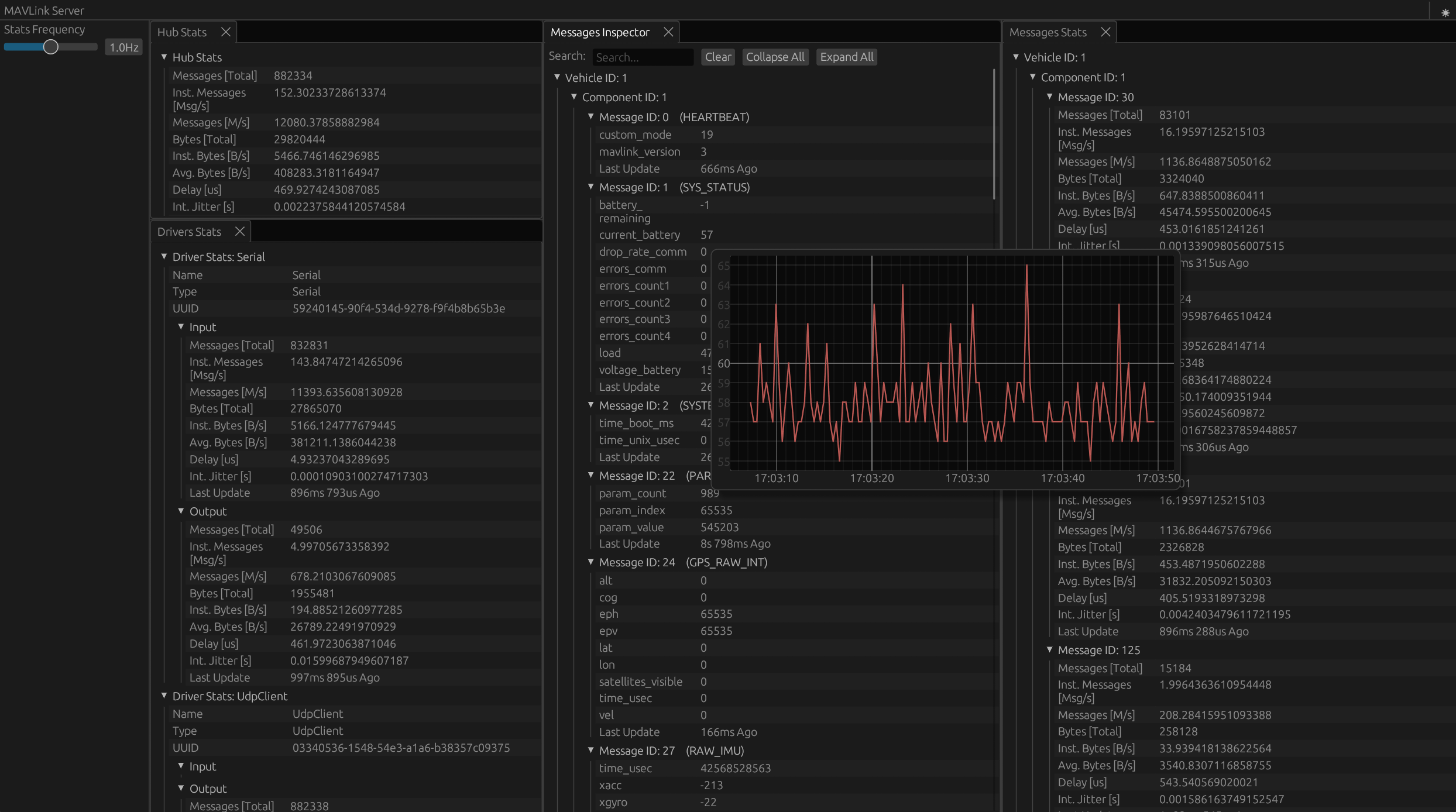
- MAVLinkServer
(New in 1.4)- All messages are forwarded to all clients (does not attempt to filter by component/target IDs)
- Endpoints do not have behavioural differences (e.g. UDP vs TCP, client vs server)
- Allows websocket and cross-websocket communication, with a MAVLink2REST-compatible API
- Logs all messages passed through, instead of just those from the vehicle
- Logs can be visualised and downloaded through the Log Browser
- Provides a detailed debugging interface (accessed via Available Services):
- All messages are forwarded to all clients (does not attempt to filter by component/target IDs)
- MAVP2P
- Endpoints intended for internal BlueOS operations are configured to the
loopback IP
127.0.0.1 - Server endpoints for external use are configured to the localhost IP
- e.g.
0.0.0.0 192.168.2.2may also work
- e.g.
- Client endpoints for external use are configured to the external IP
- e.g.
192.168.2.1for connecting to a UDP server on the Control Station Computer
- e.g.
- Client endpoints seem to operate more stably than server ones
- Unprotected endpoints can be removed or disabled
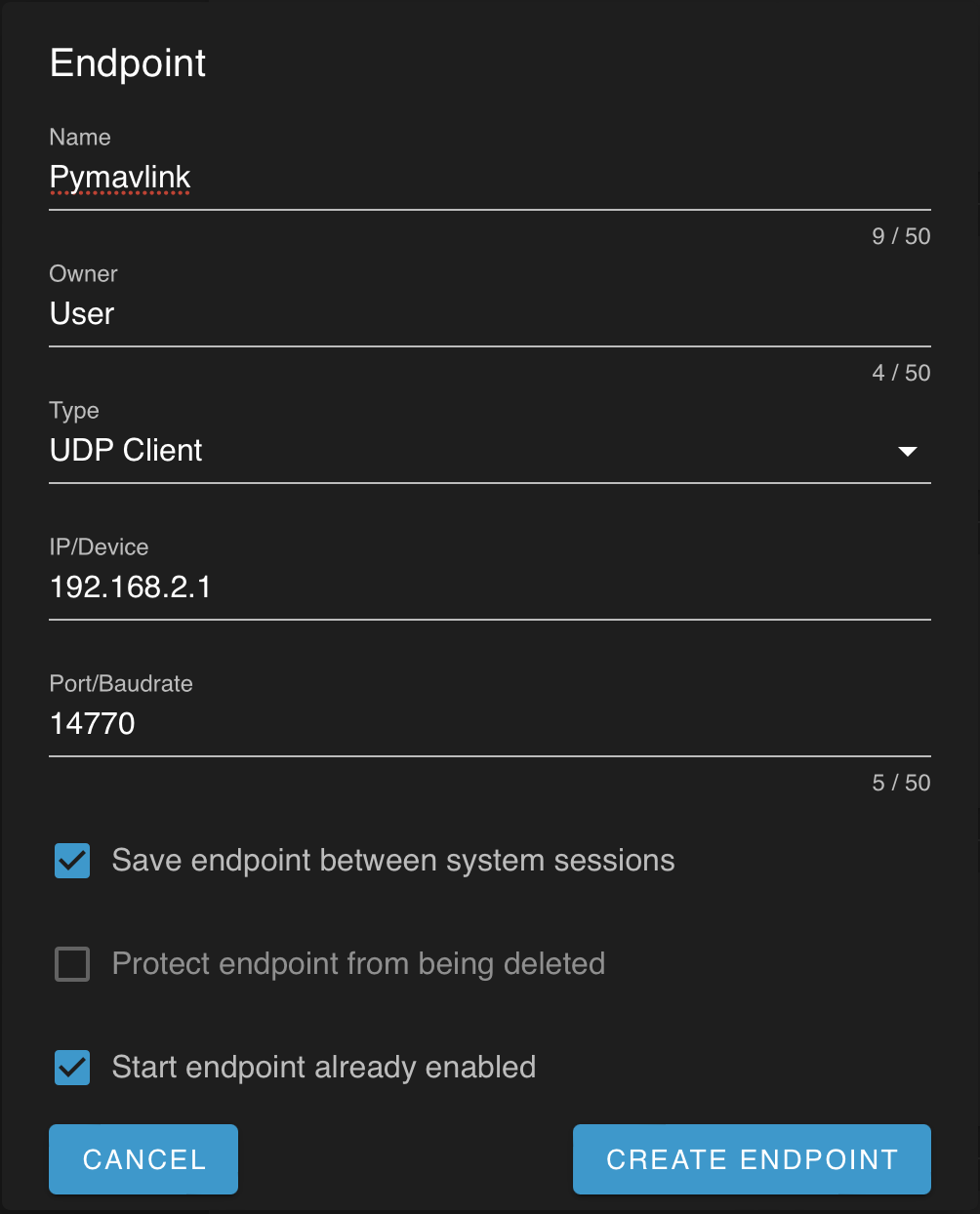
- New endpoints can be created, or existing unprotected ones can be modified
- e.g. some users may wish to set up a UDP endpoint for connecting to with Pymavlink from the surface:
#MAVLink Inspector
Based On: MAVLink2Rest | Port:6040
The MAVLink Inspector provides real-time access to the MAVLink messages being sent to the topside computer. It is possible to
- filter for particular messages
- view past and current messages
- click on messages to see their full details
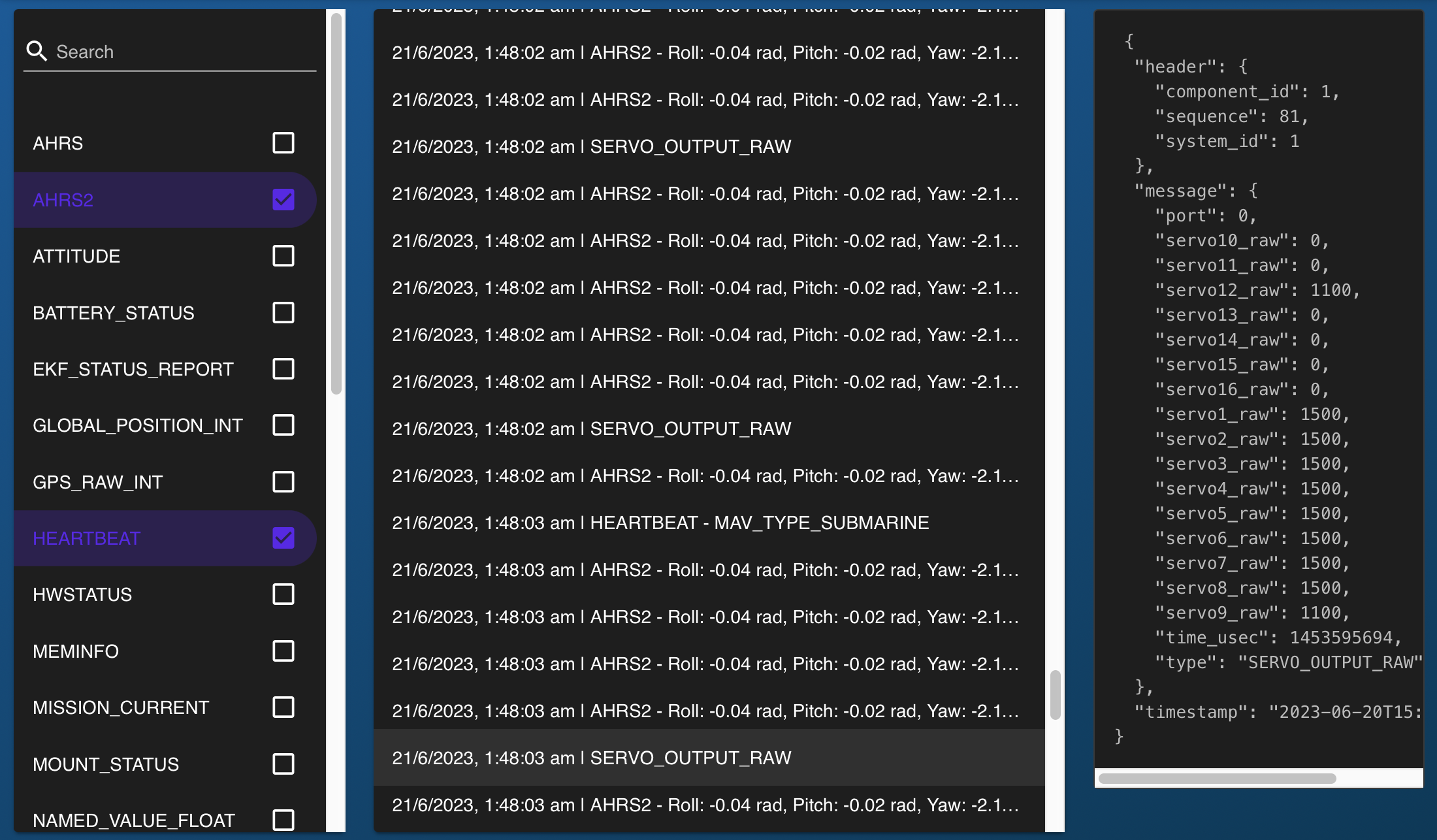
Future improvements will include plotting and comparisons, along with more powerful filtering options.
For tracking the latest value of a single message type, use the "watcher"
functionality of the MAVLink2REST service (access via the
Available Services page).
#Network Test
Based On: Pardal | Port:9120
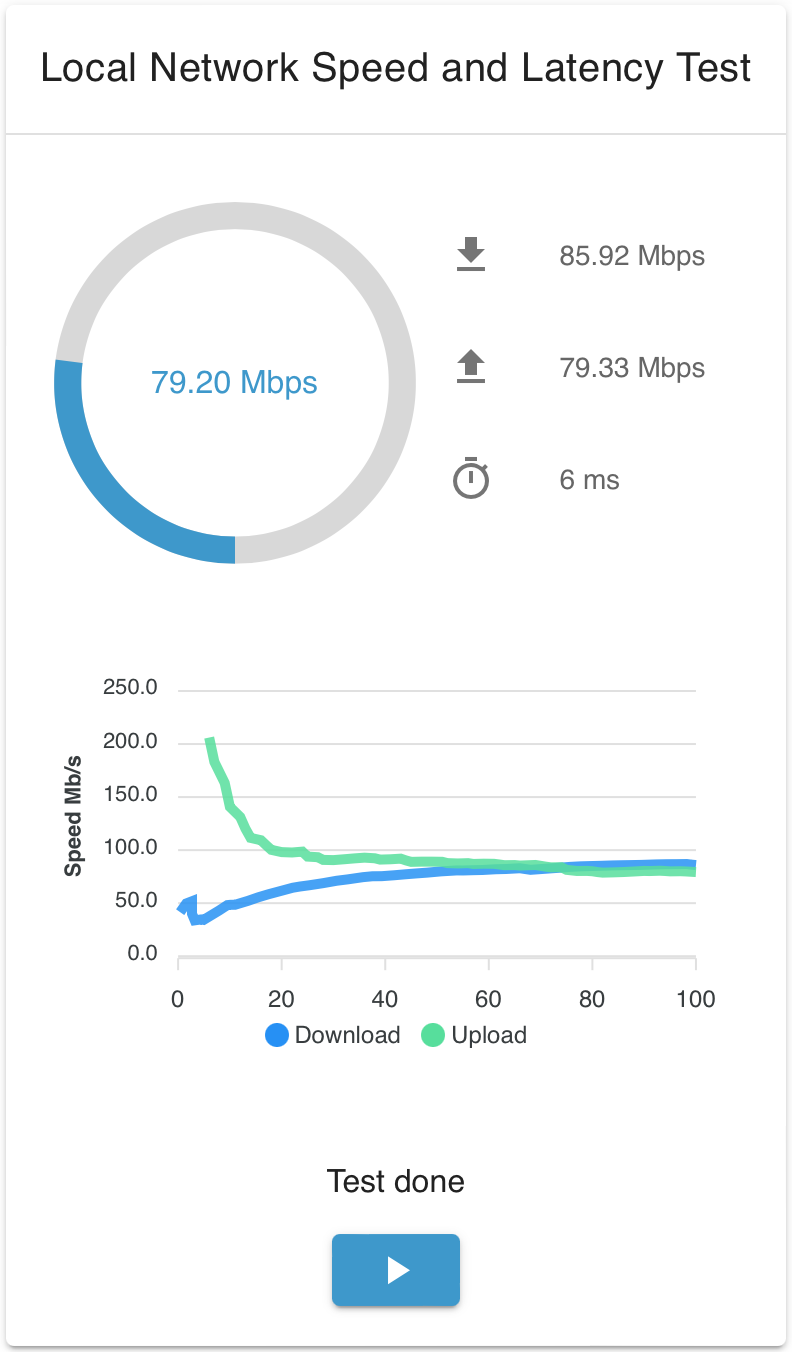
The Local Network Test measures real-time latency between BlueOS and the surface computer, and allows checking the upload and download speeds between them.
A plot is provided of each test, to help diagnose intermittent issues.
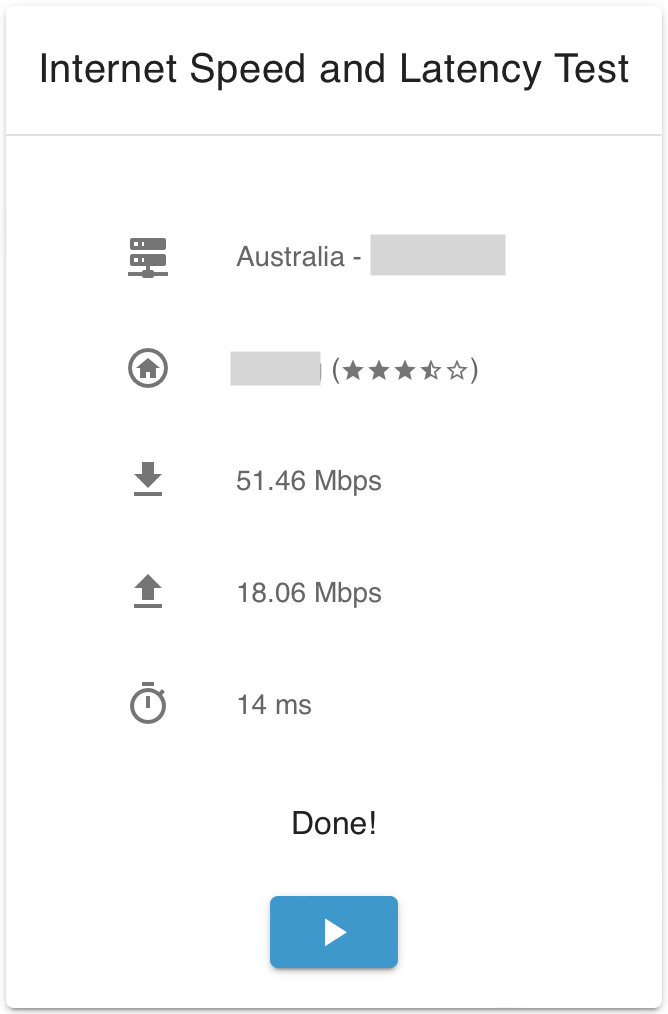
The Internet Speed Test allows measuring the latency and upload and download speeds between BlueOS and its internet connection (if one is available).
#NMEA Injector
Based On: NMEA Injector | Port:2748
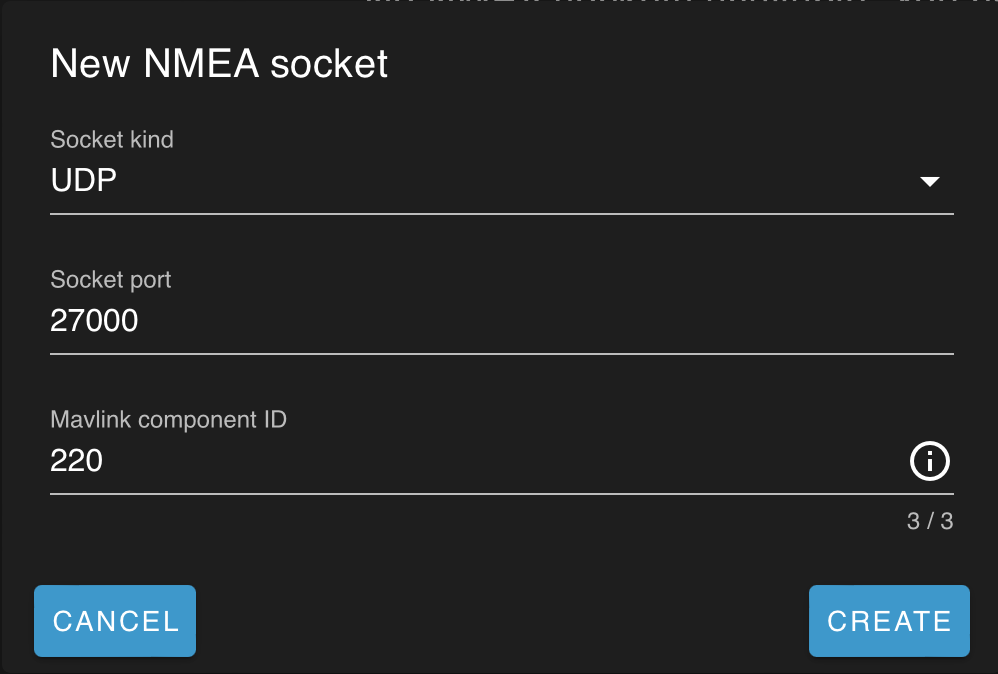
- Conveys GPS positions (from an NMEA device) to the vehicle via MAVLink messages
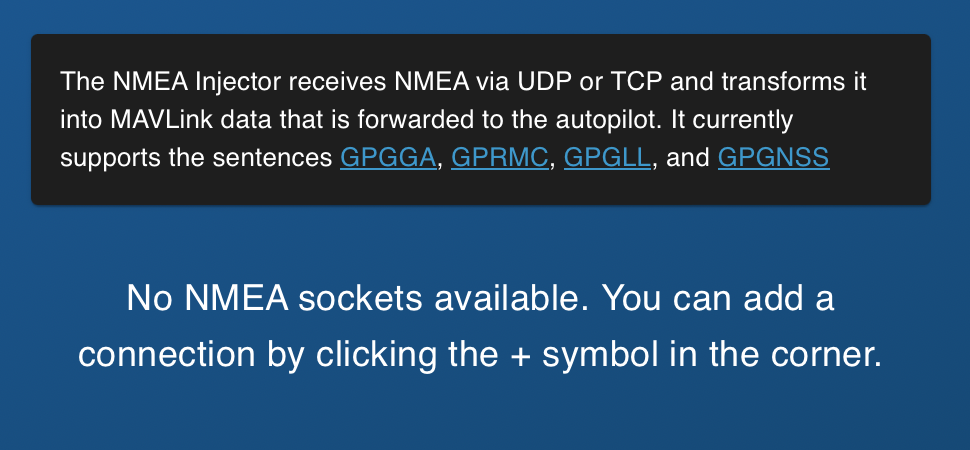
- Setup requires a UDP or TCP socket for the NMEA device to connect to, and a MAVLink ID for the component that will send the location data to the vehicle
#Ping Sonar Devices
Based On: Ping Service | Port:9110
New in 1.1
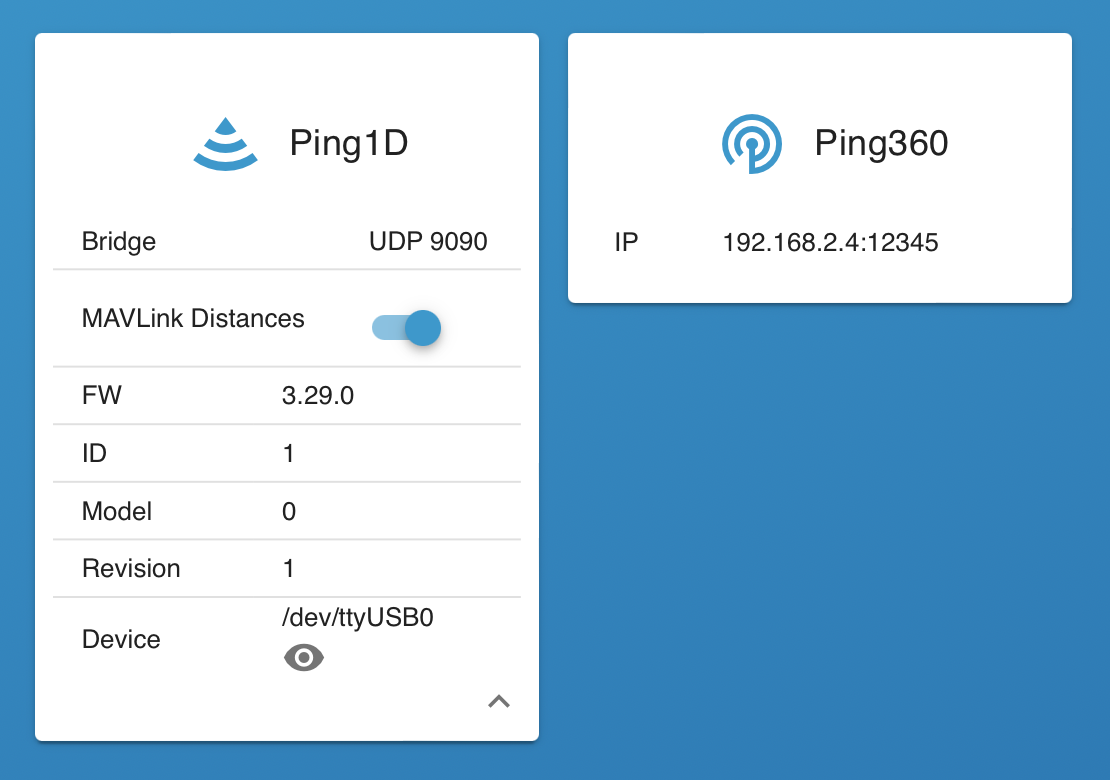
The Ping Sonar Devices page shows any detected sonars from the Ping family, including ethernet-configured Ping360s that are visible on the local network (e.g. via an Ethernet Switch).
- Allows configuring Ping Sonar distance estimates to send as MAVLink
DISTANCE_SENSORmessages to the autopilot, for viewing in the Control Station Software and logging as part of the telemetry stream - Provides a viewing utility for devices connected via USB/serial, to show which port they are plugged into
#Serial Bridges
Based On: Bridget | Port:27353
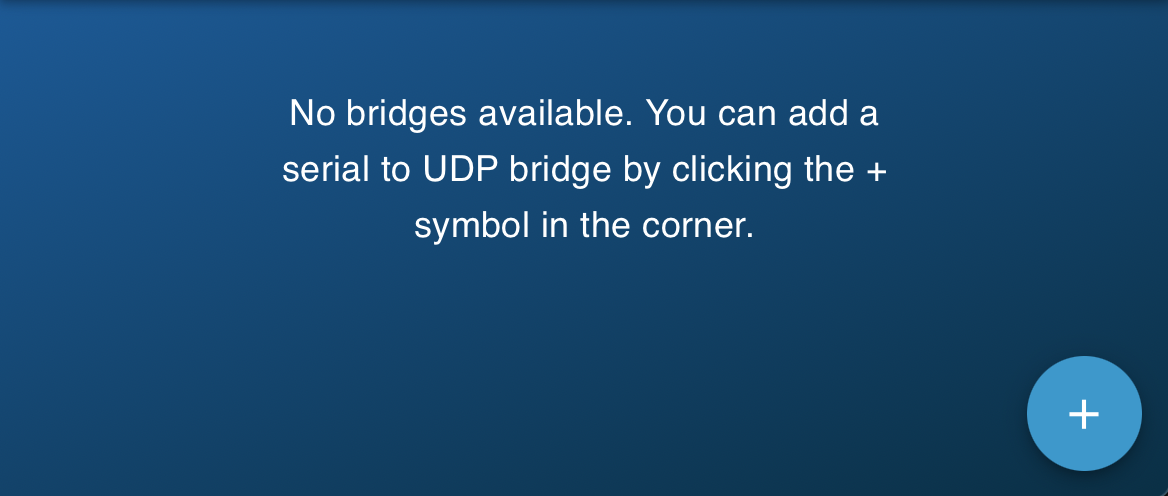
The Serial Bridges page allows creating high performance links between serial devices that are connected to the onboard computer, to a UDP port.
Replaces the Routing functionality from the old Companion Software.
For making connections to the autopilot, see MAVLink Endpoints.
- NOTE: UDP-based systems do not guarantee packet delivery or sequential alignment
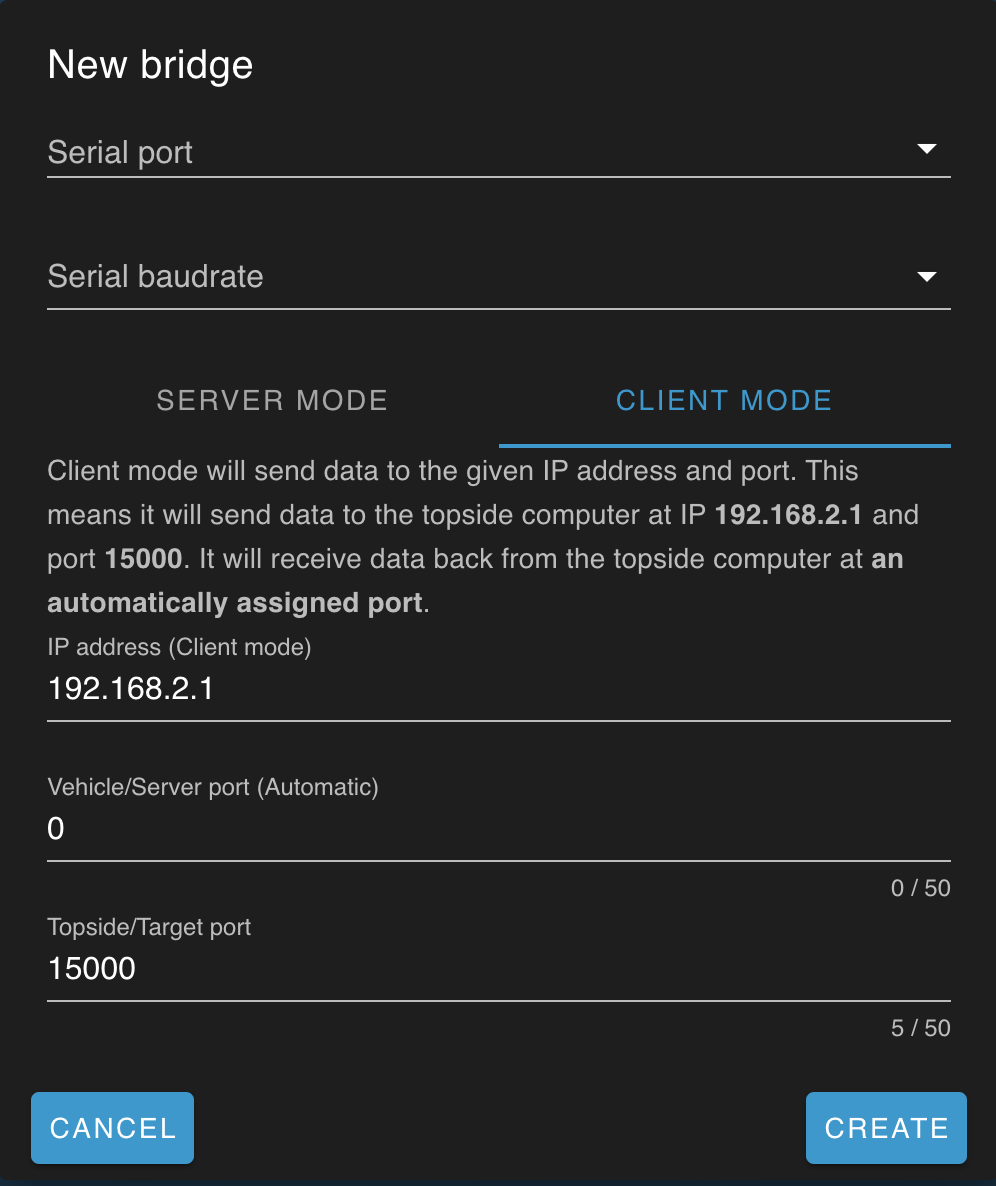
- Bridges to the Control Station Computer
will generally use the localhost IP
0.0.0.0, which creates a UDP server that waits for a UDP client on the control computer to connect to it- other IP addesses create a UDP client on the onboard computer, which expects the serial device to initiate communication before the connected UDP server (on the control computer) can respond
- NOTE: a client should communicate with the server at least once every 10 seconds to avoid being disconnected
- Bridges to internal programs can use the loopback IP
127.0.0.1, which creates a local server - Allows setting a custom UDP port for a UDP client bridge to listen to responses at
#System Information
Based On: System Information | Port:6030
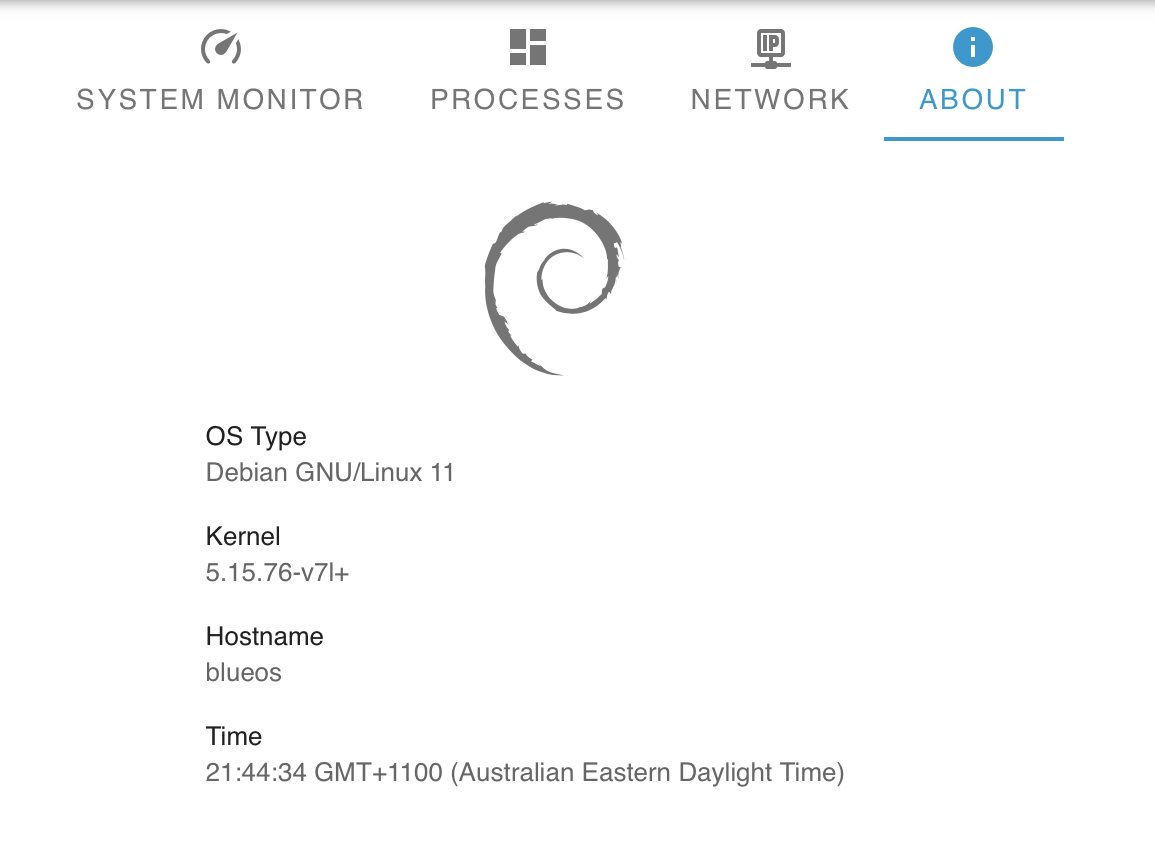
The System Information page provides useful information about the processes, network configuration, and computer system BlueOS is running on. It can be useful for troubleshooting, and finding if a particular program is using excessive resources.
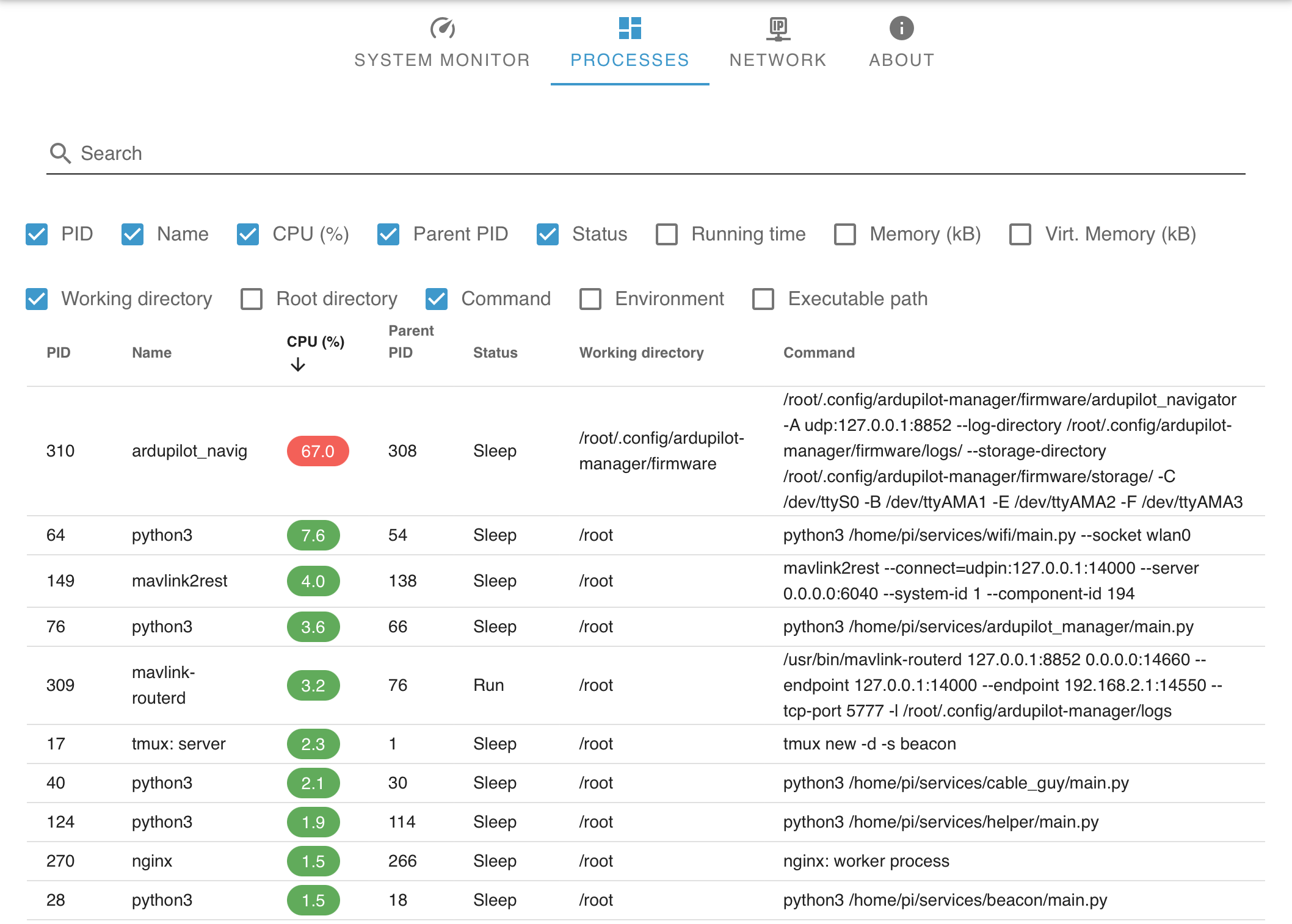
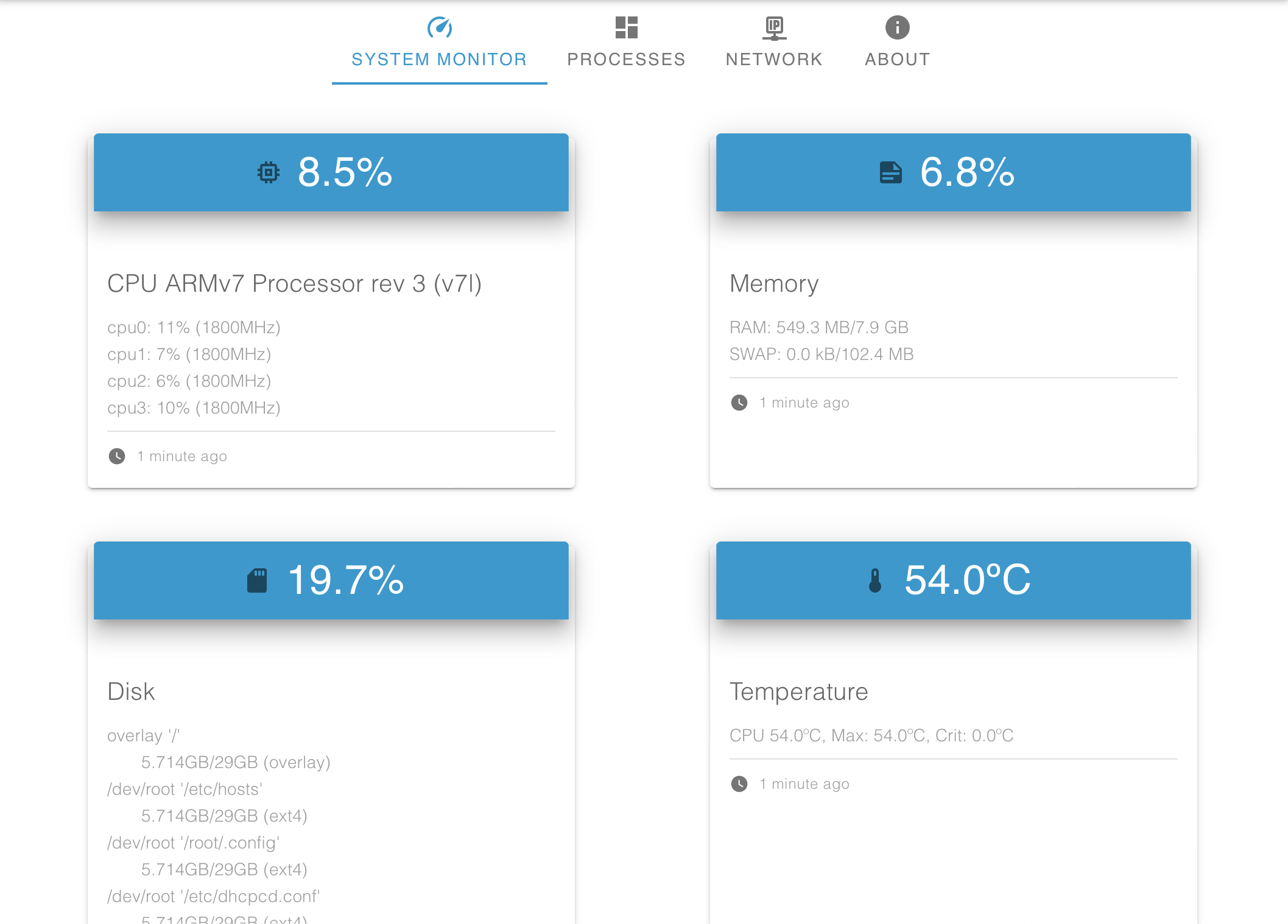
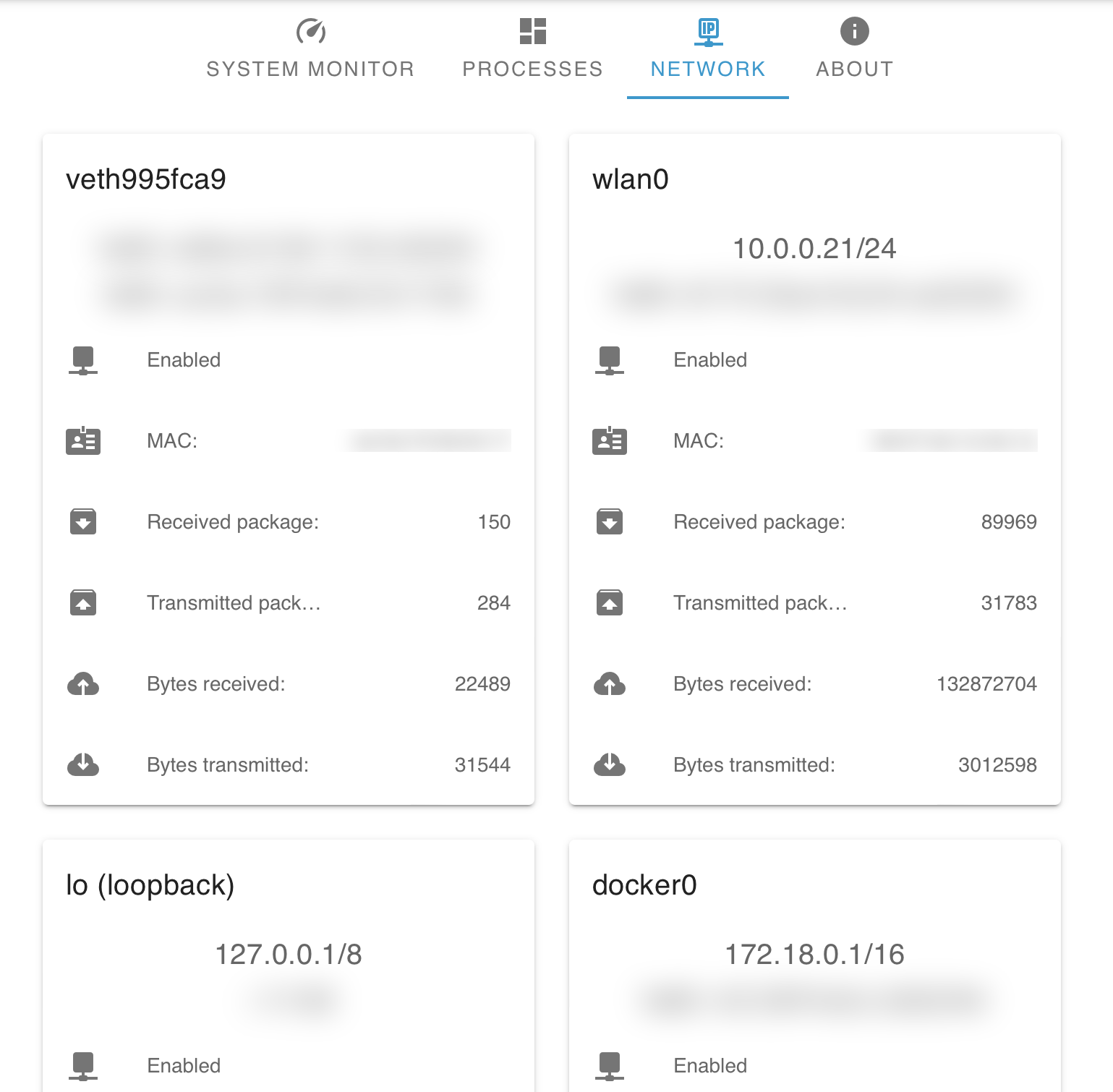
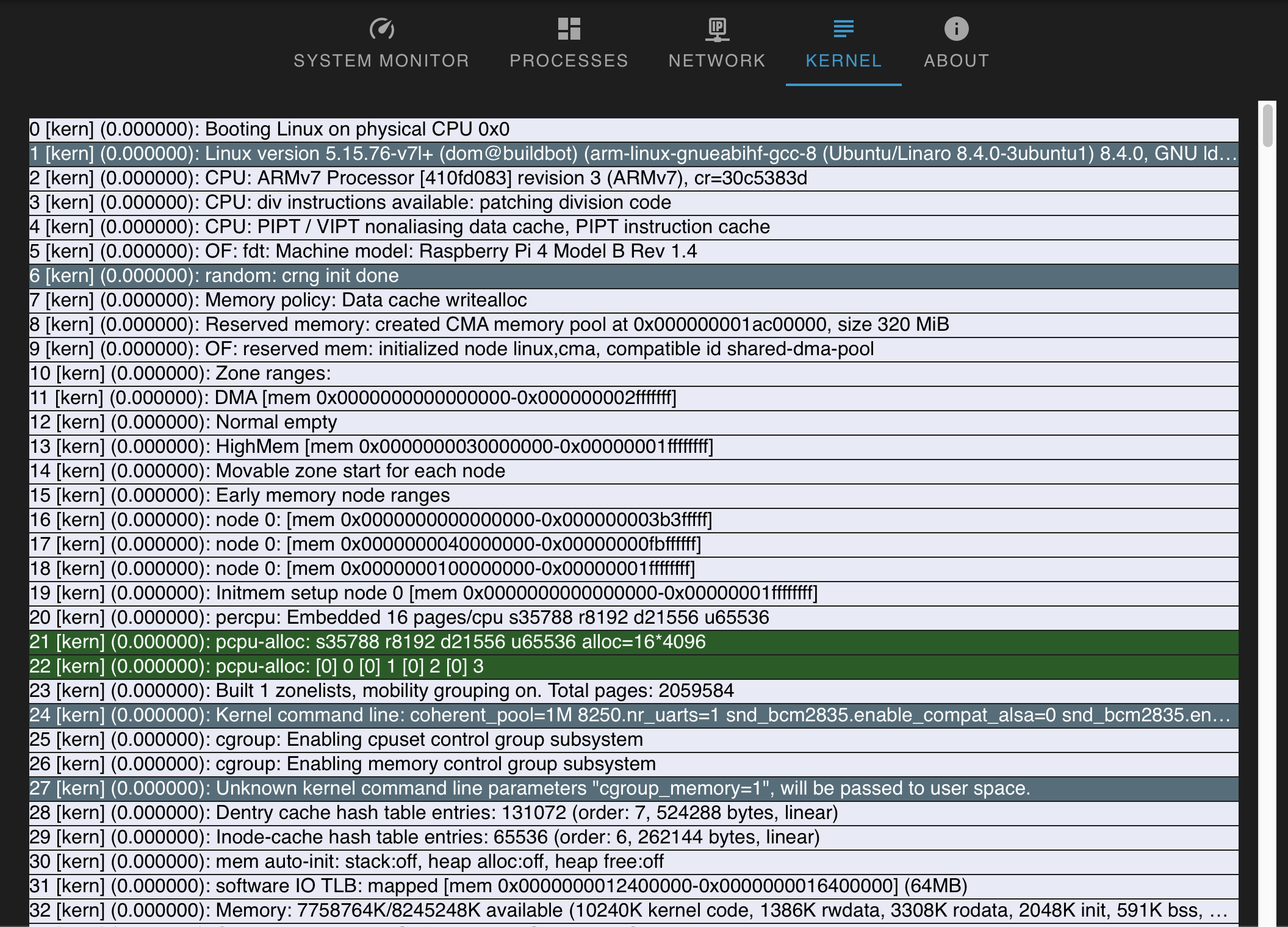
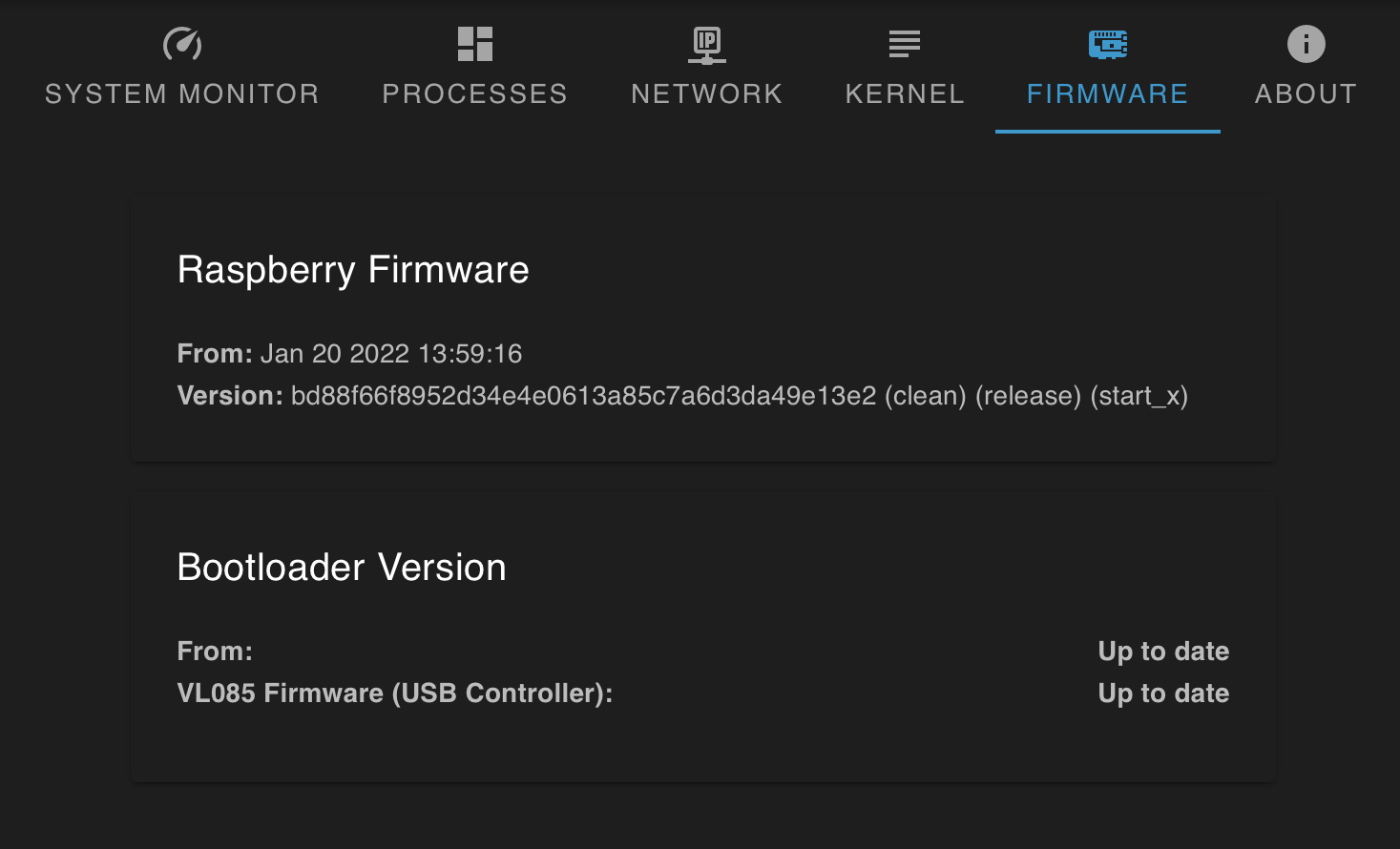
Update buttons are provided if the device is not running the latest stable versions of the Raspberry Pi firmware or USB controller.
#Terminal
Based On: ttyd | Port:8088
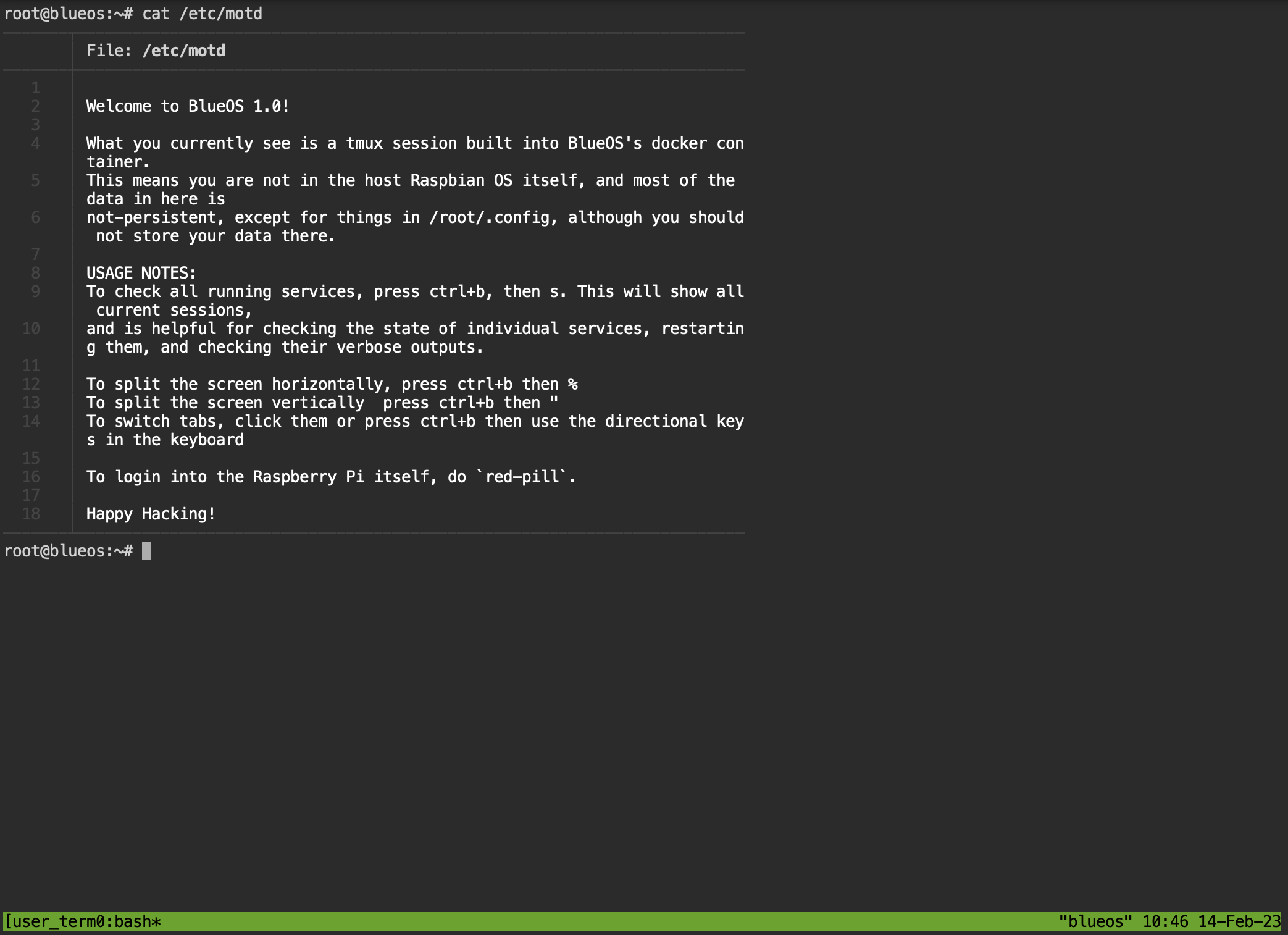
The Terminal provides
- A tmux session
- Can split horizontally (
CTRL+b ") and vertically (CTRL+b %), and use cursor to resize the panels - For more advanced tips, check out the tmux cheat sheet website
- Can split horizontally (
- Direct access into the core BlueOS docker container
- Ready access to the tmux sessions of the core services (
CTRL+b s)- Useful for seeing logs as they update live
- Can kill (
CTRL+c) services, and start them again (↑ ⏎)
- Access to the underlying device via the
red-pillutility- Can return to the core container using the
exitcommand, or pressingCTRL+d - Can list available docker images (including extensions) with
docker image list - Can list active docker containers (including extensions) with
docker ps -a - For BlueOS host computers that do not have the default user as "pi", a custom username
can be specified using the
-uargument (e.g.red-pill -u myusername)(New in 1.2)
- Can return to the core container using the
#Vehicle Setup
New in 1.1
The Vehicle Setup page provides an overview of the vehicle, including its sensors and peripherals. The 3D model can be rotated, and can be panned by clicking and dragging while holding SHIFT. The camera icon can be used to capture a screenshot of the current view of the model, with a transparent background.
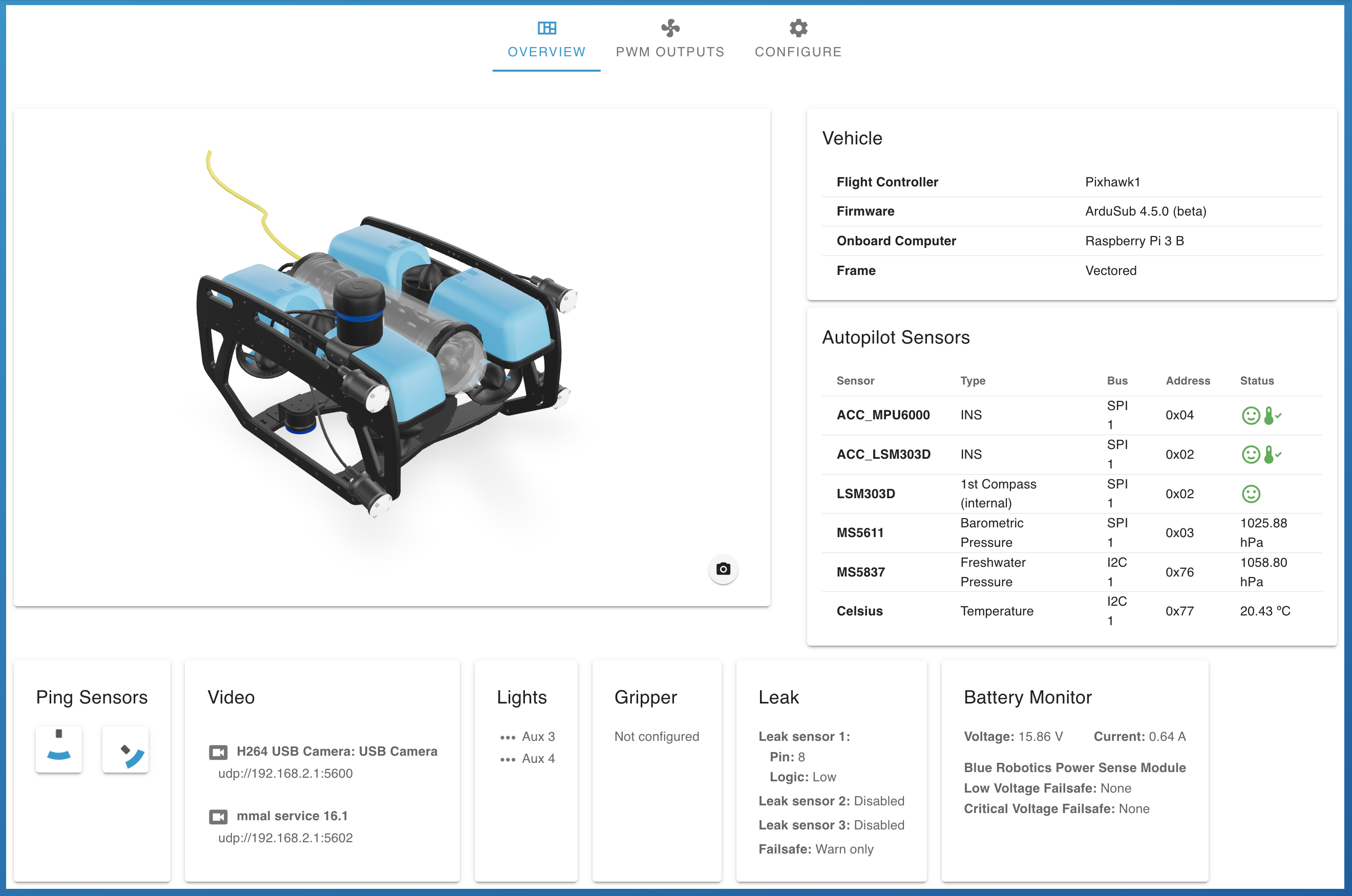
It is possible to override the displayed 3D model by providing an appropriate glTF file.
In future this page will also allow
- using custom highlighting logic for model components
- displaying device statuses from extensions
#PWM Outputs
The PWM Outputs tab allows configuring the servo function mappings (for motors, lights, camera tilt, etc), as well as manually testing the motors, and an automated check to detect motors that spin backwards. Relevant motors can be set to run on reversed control signals, so they spin in the expected direction.
Hovering over a motor or output function will attempt to highlight the related component in the 3D model.
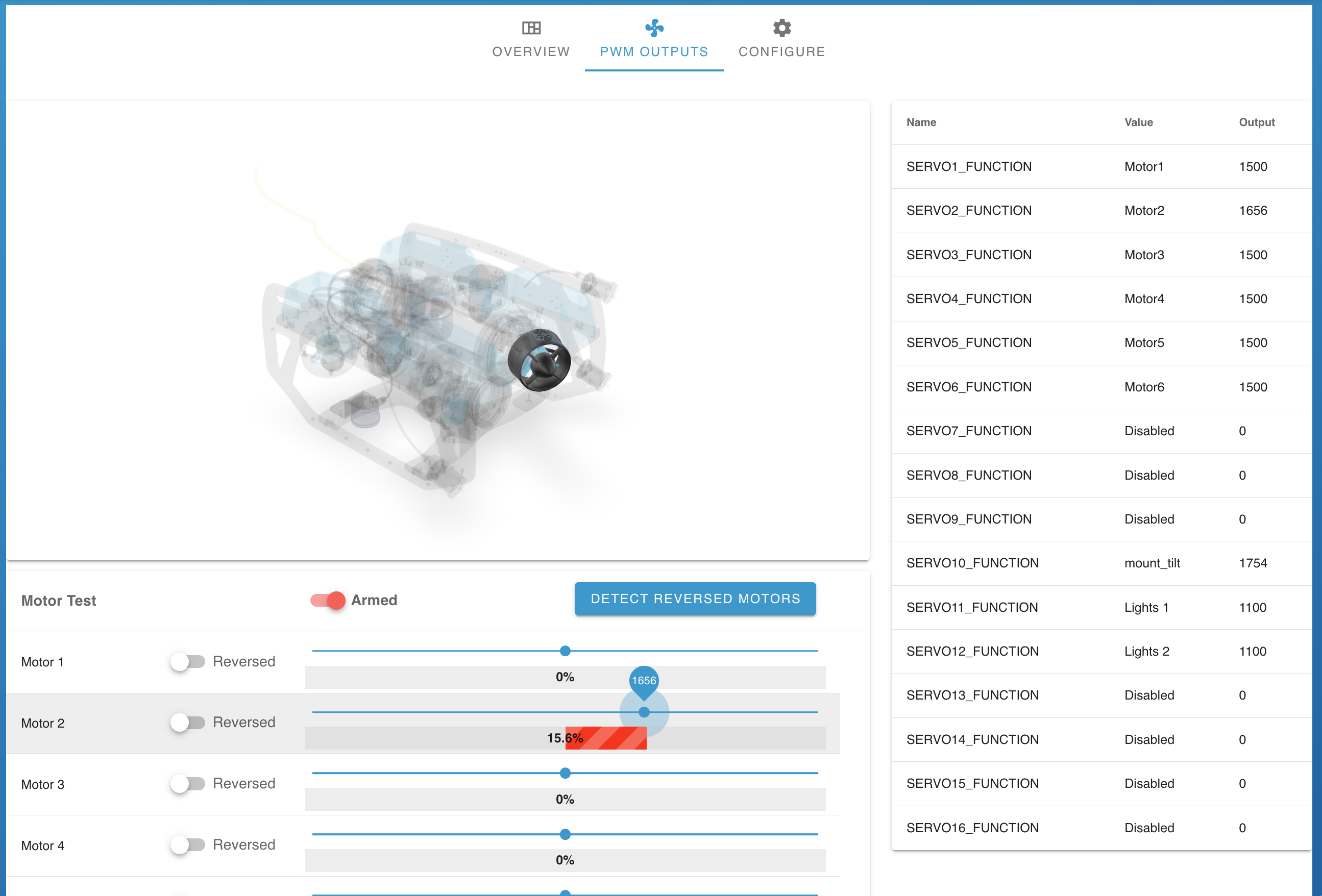
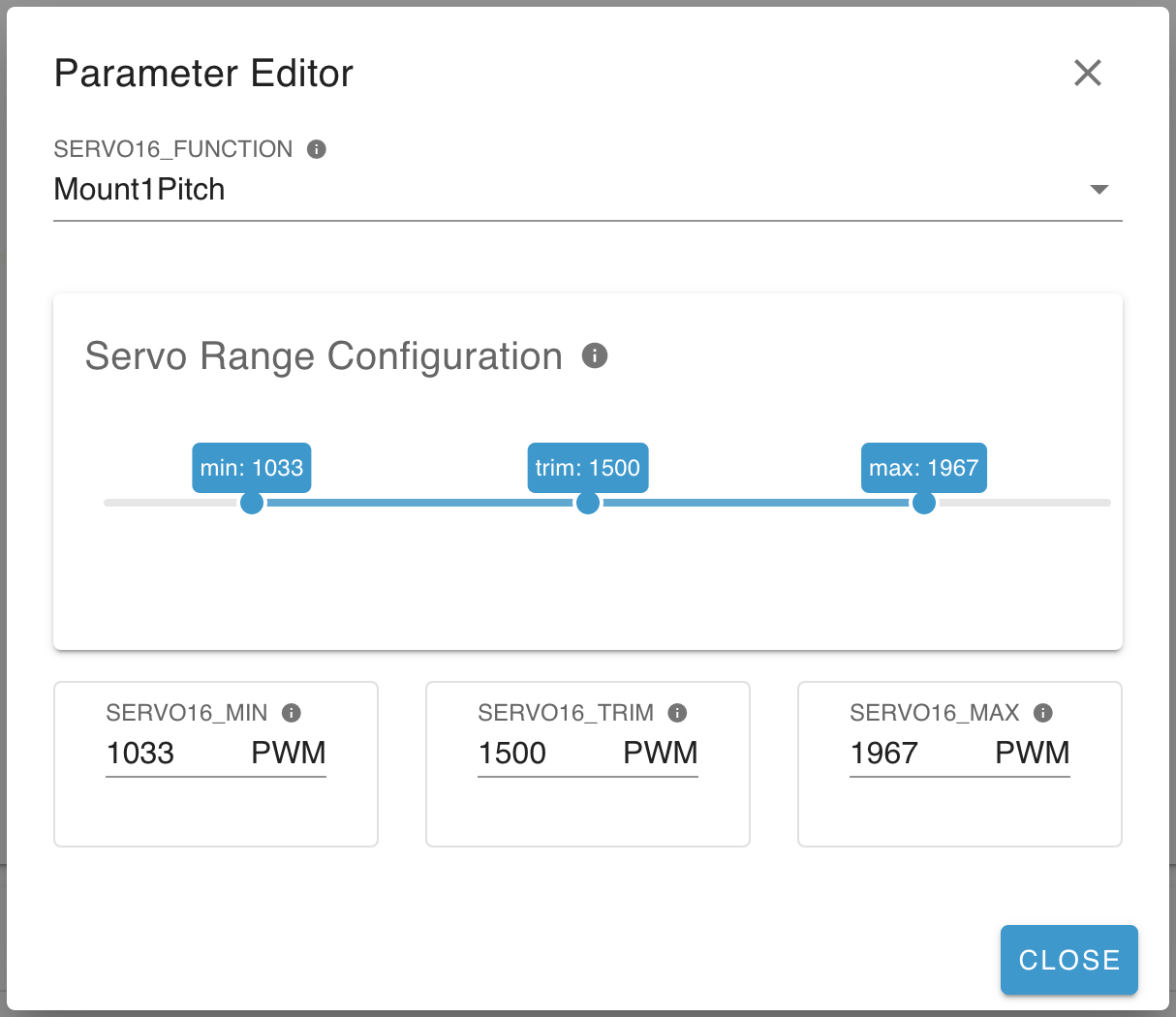
Clicking on an output in the right side table allows changing its assigned function,
and configuring its PWM limits and trim value (New in 1.4):
#Autopilot Configuration
New in 1.3
The Configure tab provides configuration and calibration options for the vehicle sensors and peripherals, including failsafes, and reverting parameters to their defaults.
💡 Pages with configurable options usually include info icons above the interface components, which can be hovered over for extra information about the underlying autopilot parameters.
#Parameters
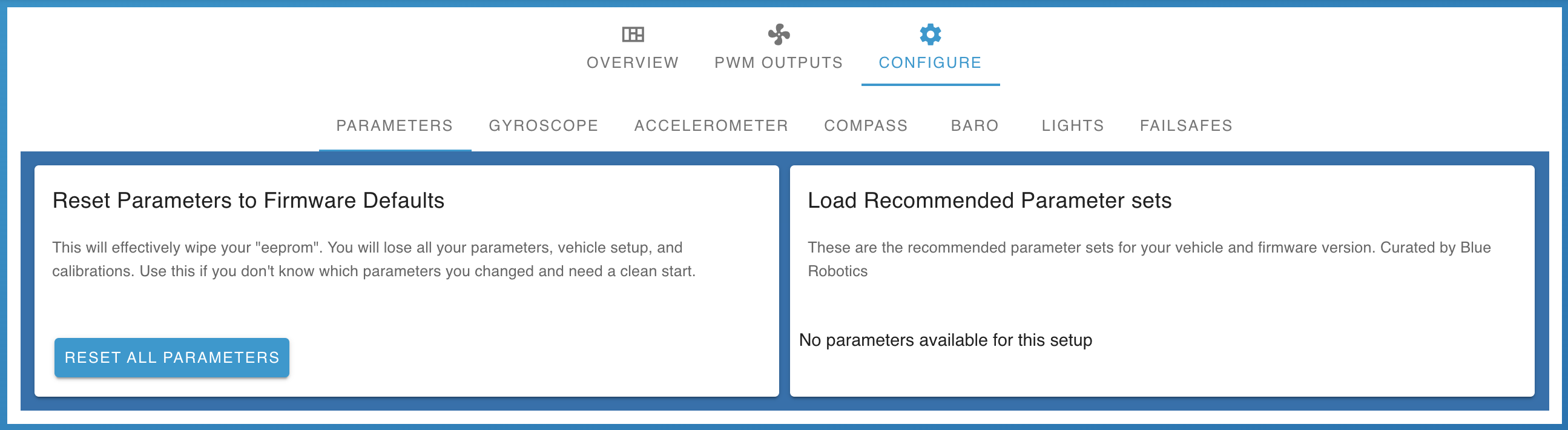
- Parameters can be reset to the default values defined and stored in the firmware
- Full sets of recommended parameters are available for Blue Robotics vehicles
#Gyroscope
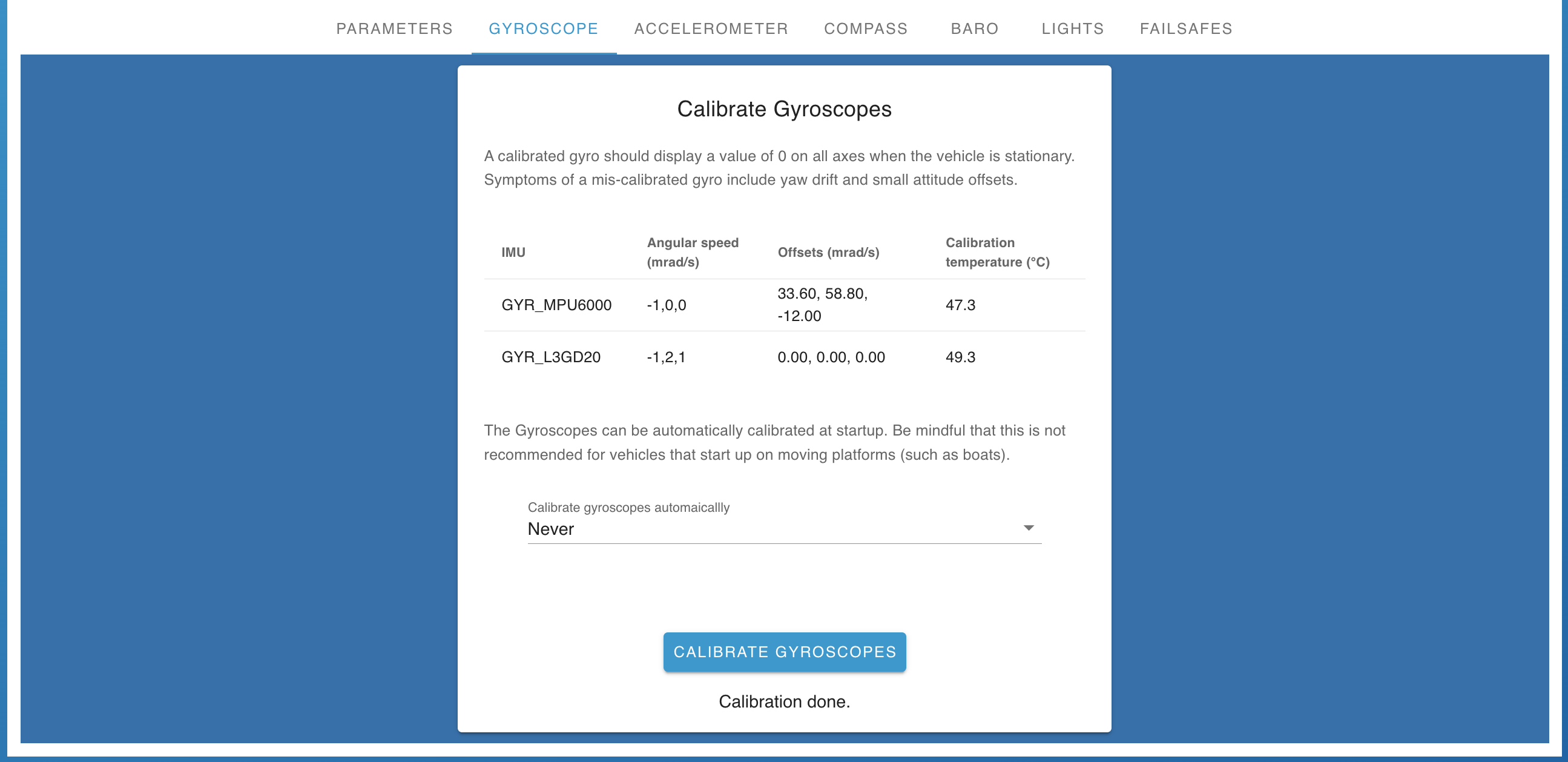
- Gyroscope calibration affects the vehicle attitude (orientation) estimates, and particularly the measured rotation rates
#Accelerometer
- Accelerometer calibration
affects the detected gravity direction, as well as speed estimates
- Full calibration is a detailed calibration of all three axes, and requires rotating the vehicle
- Quick calibration is a simplified, lower-quality calibration which only requires
placing the vehicle on a level surface
- This can be sufficient for vehicles that mostly operate in a level orientation

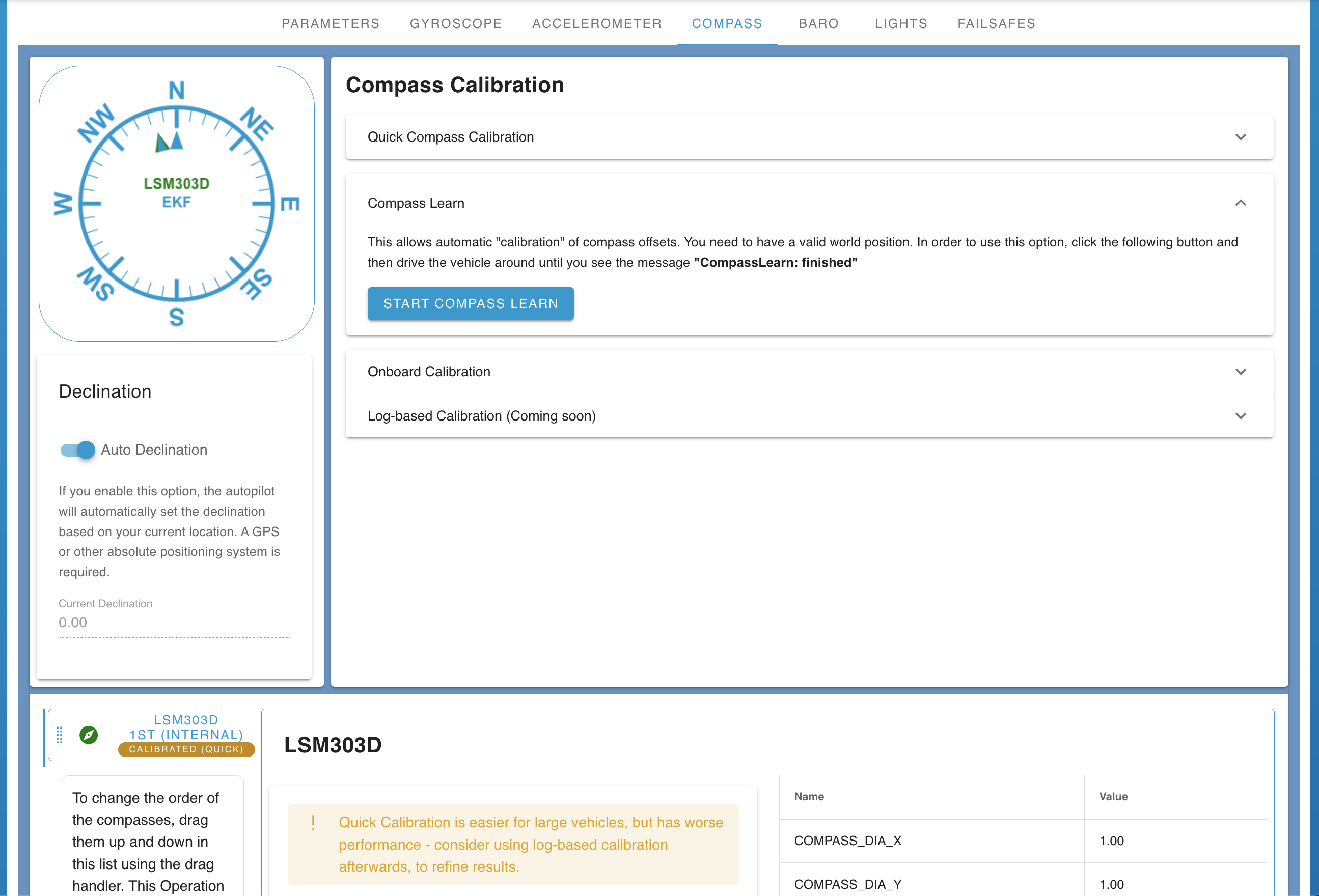
#Compass
- Compass calibration
affects the vehicle yaw (heading) estimate
- It compensates for constant magnetic effects caused by the vehicle structure, and large scale
compass declination effects using a world magnetic model, but cannot compensate for local
magnetic interference
- The world magnetic model requires an estimate of the vehicle's position, and can get
outdated when using an old autopilot version
- In case there is no global positioning sensor available, an option is provided to determine a rough position estimate using GeoIP, or to specify coordinates manually
- A rough position estimate is saved persistently when calibrating, but may need to be changed in the autopilot parameters if the vehicle is operating in a significantly different part of the world to where it was configured
- The world magnetic model requires an estimate of the vehicle's position, and can get
outdated when using an old autopilot version
- Full onboard calibration is a detailed calibration which requires rotating the vehicle about all three of its axes
- Large vehicle calibration is a simplified, lower-quality calibration which only requires
pointing the vehicle (true) North
- Results can be improved afterwards using Compass Learn
- Compass Learn calibrates the compasses automatically through operation of the vehicle
- It requires a valid global position estimate, and a period of driving the vehicle around
- Log-based calibration analyses a log from a previous flight, and usually provides the best results
- It is not currently available through the Vehicle Setup page, but can be accessed via the Mag Fit tool in the Log Browser (when replaying a log), and the resulting values can be copied across to the autopilot parameters
- It compensates for constant magnetic effects caused by the vehicle structure, and large scale
compass declination effects using a world magnetic model, but cannot compensate for local
magnetic interference
- Available compasses can be disabled or reordered, and flagged as internal or external to the flight controller board
#Barometer
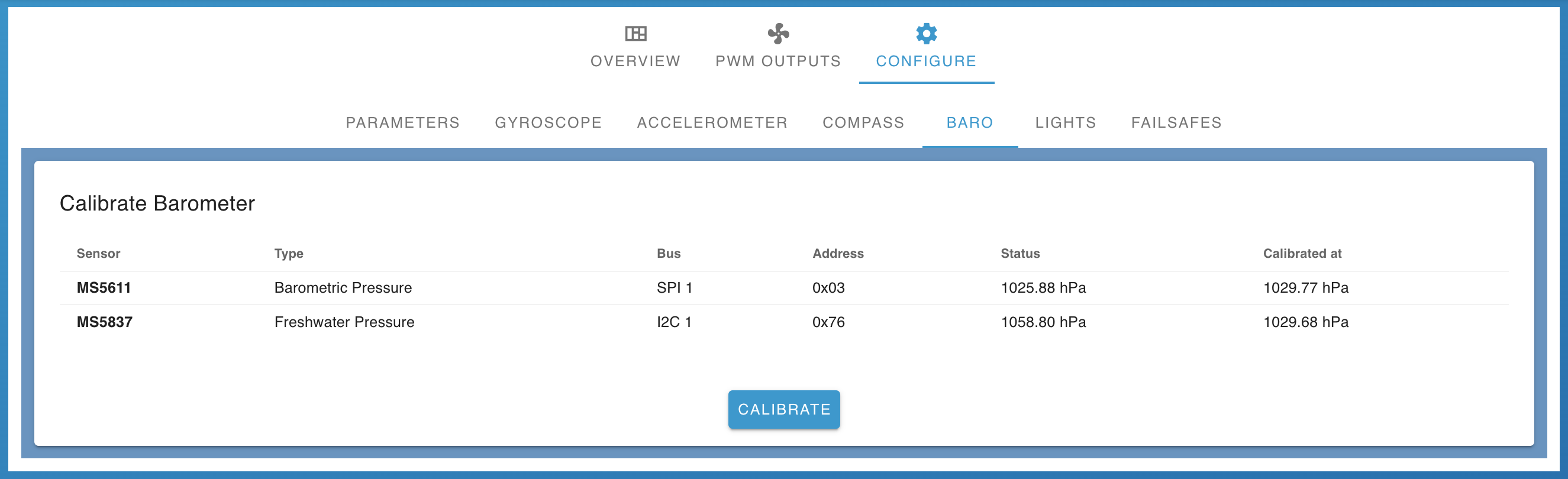
- Barometer calibration sets the reference pressure for altitude/depth measurements, and the
internal pressure for vehicles with enclosed electronics
- It should generally be performed at the start of each dive/flight
#Lights
- ROV lights configuration allows specifying the output pins for two sets of PWM-controlled lights, and the number of steps the control is split into

#Failsafes
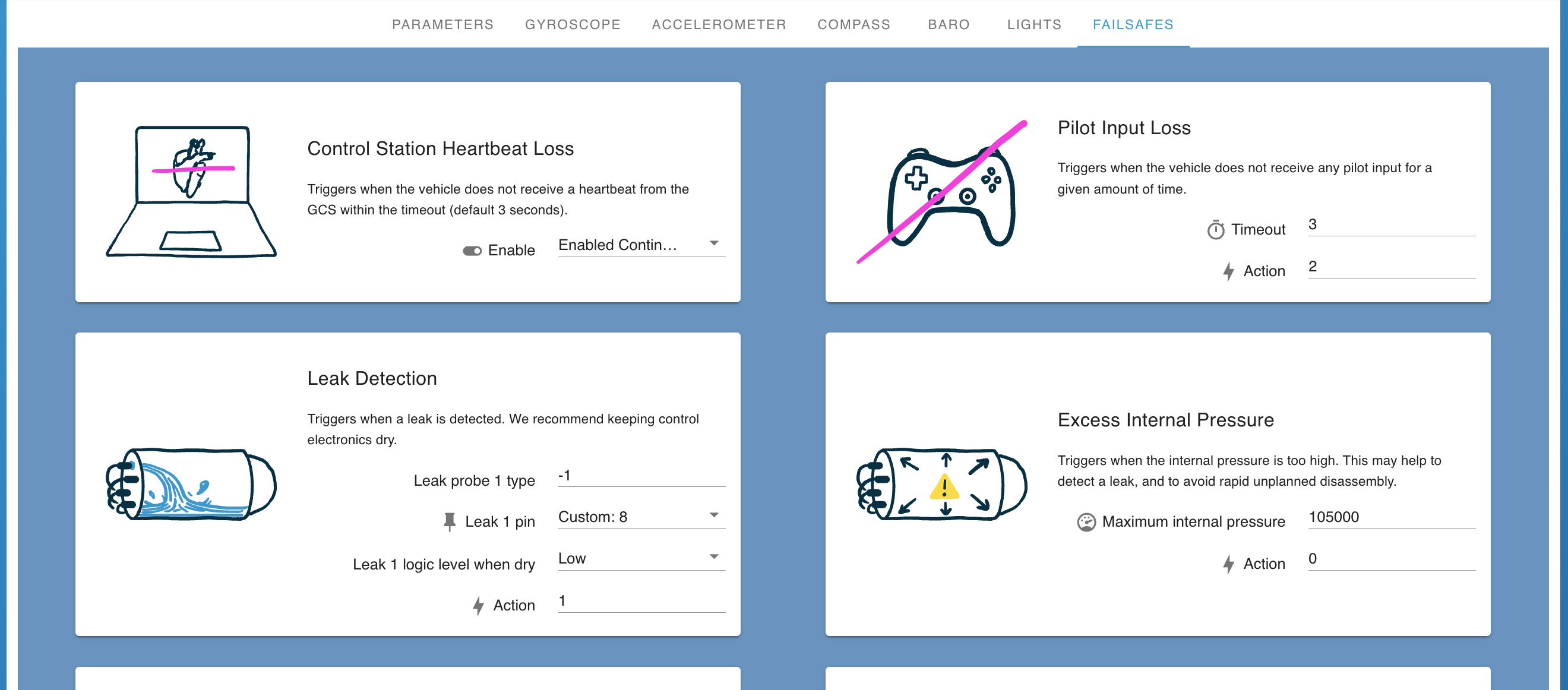
- Failsafe configuration exposes important autopilot failsafe features through an intuitive interface
- Failsafes should be set up as part of responsible operation, and can provide early warnings of problems, and trigger automated safe behaviours if a critical issue occurs
#Camera Gimbal
New in 1.4
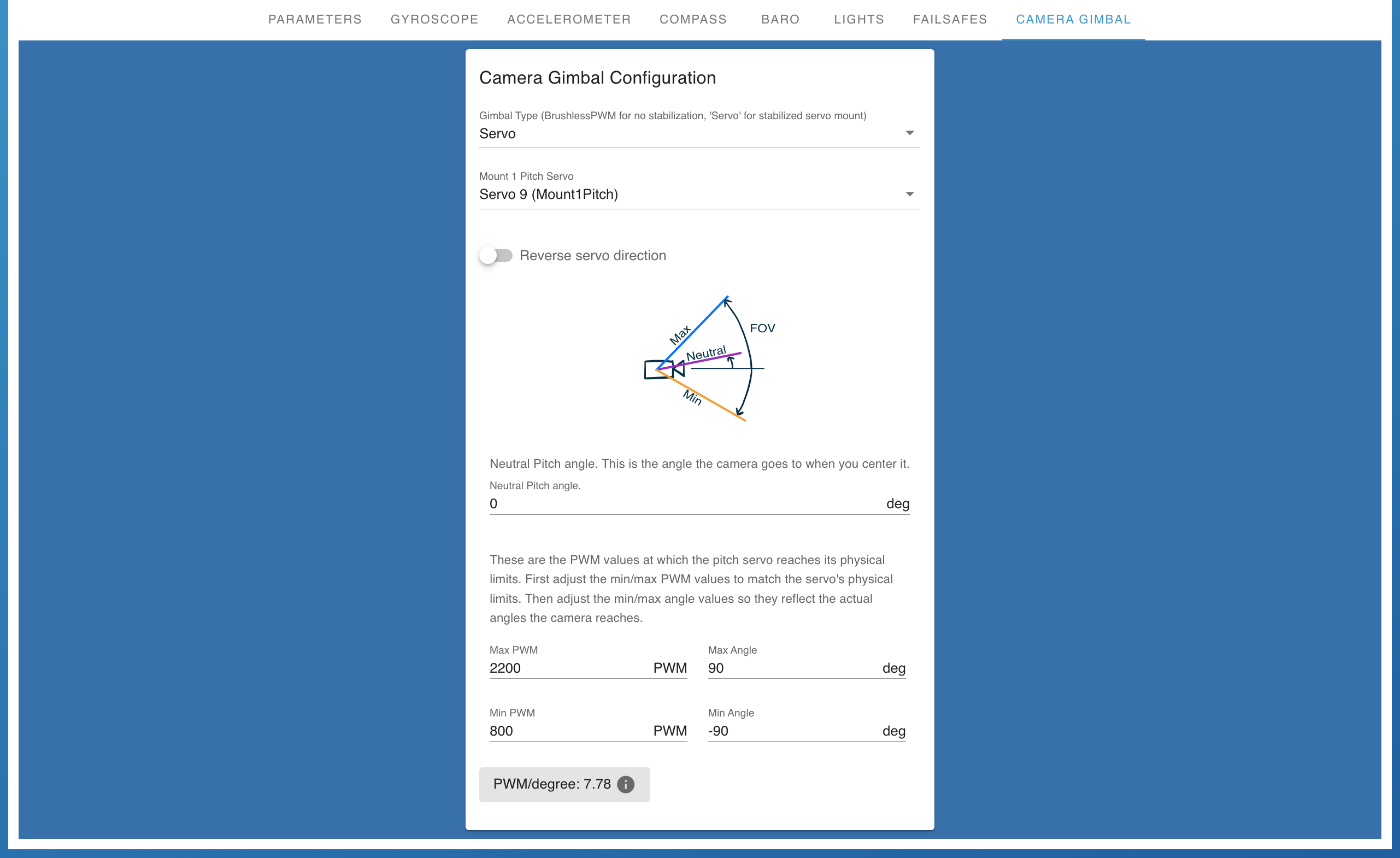
- Pitch control for the camera gimbal requires specifying the PWM limits of the gimbal servo motor, and their relationship with its tilt angle range
- Auto-stabilization allows the camera to maintain its current pitch angle (relative to Earth), by compensating for pitch rotations of the vehicle
#Video Streams
Based On: MAVLink Camera Manager | Port:6020
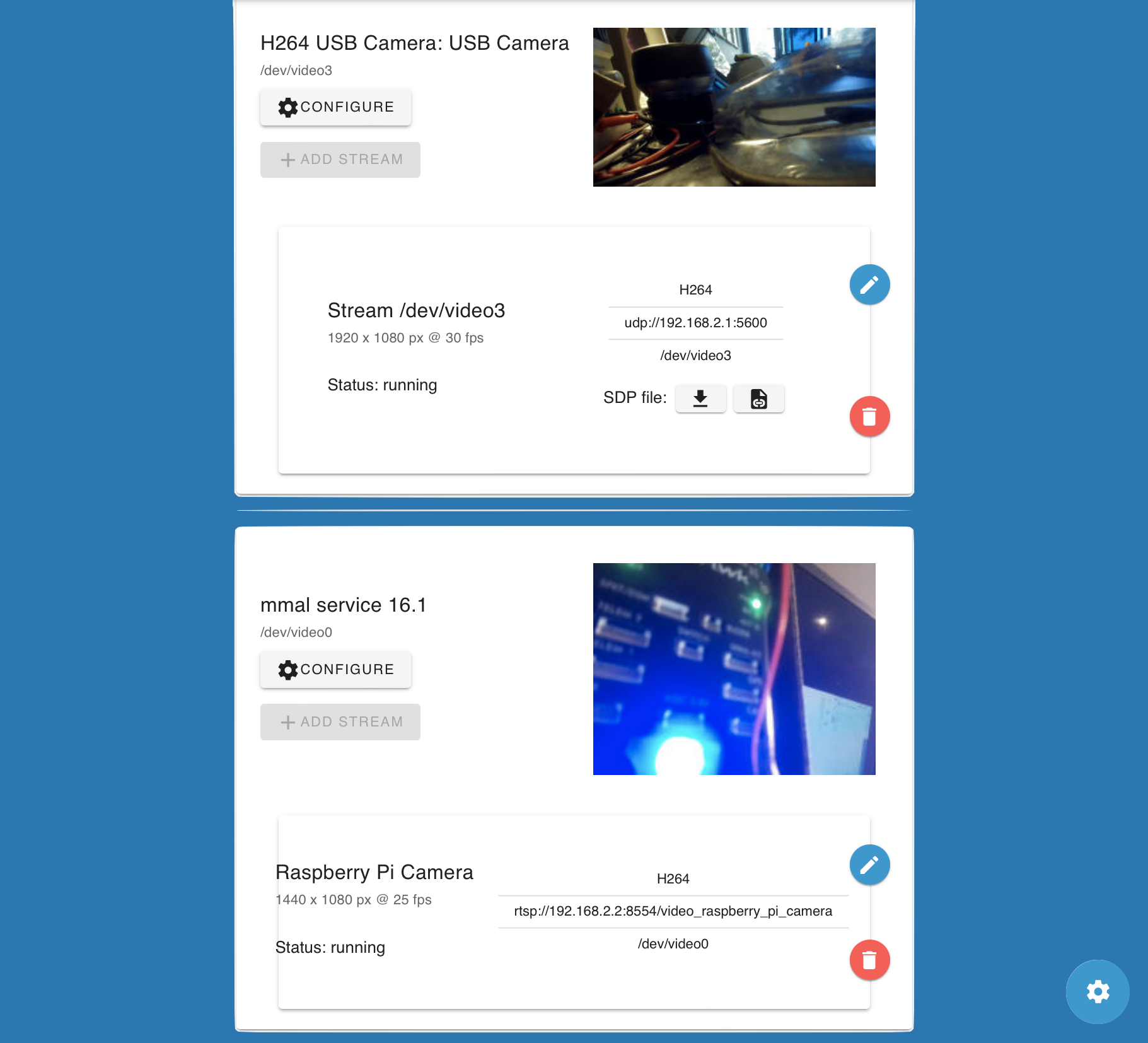
- BlueOS automatically detects H264-encoded video streams
- MJPG and YUYV encoded streams are also detected in pirate mode, but currently only work when configured as RTSP streams
- H265 encoded streams can be streamed, using RTSP or UDP265
(New in 1.4)
- The first time BlueOS starts up it will auto-configure any cameras that are
connected at that time, with UDP streams counting up from port
5600- e.g. a second camera at first startup would be streamed to port
5601 - Auto-configuration also occurs if the settings are reset
- applies to both global settings resets (via the sidebar) and
- camera manager settings resets (via the settings icon in the bottom right)
- e.g. a second camera at first startup would be streamed to port
- After the initial startup, settings are saved and persistent across reboots
- Further changes require manually re-configuring streams
- New streams need to be manually added
- UDP stream endpoints should be set to
udp://<surface-IP>:<port>- e.g.
udp://192.168.2.1:5602
- e.g.
- RTSP stream endpoints are auto-configured with appropriate values
- UDP stream endpoints should be set to
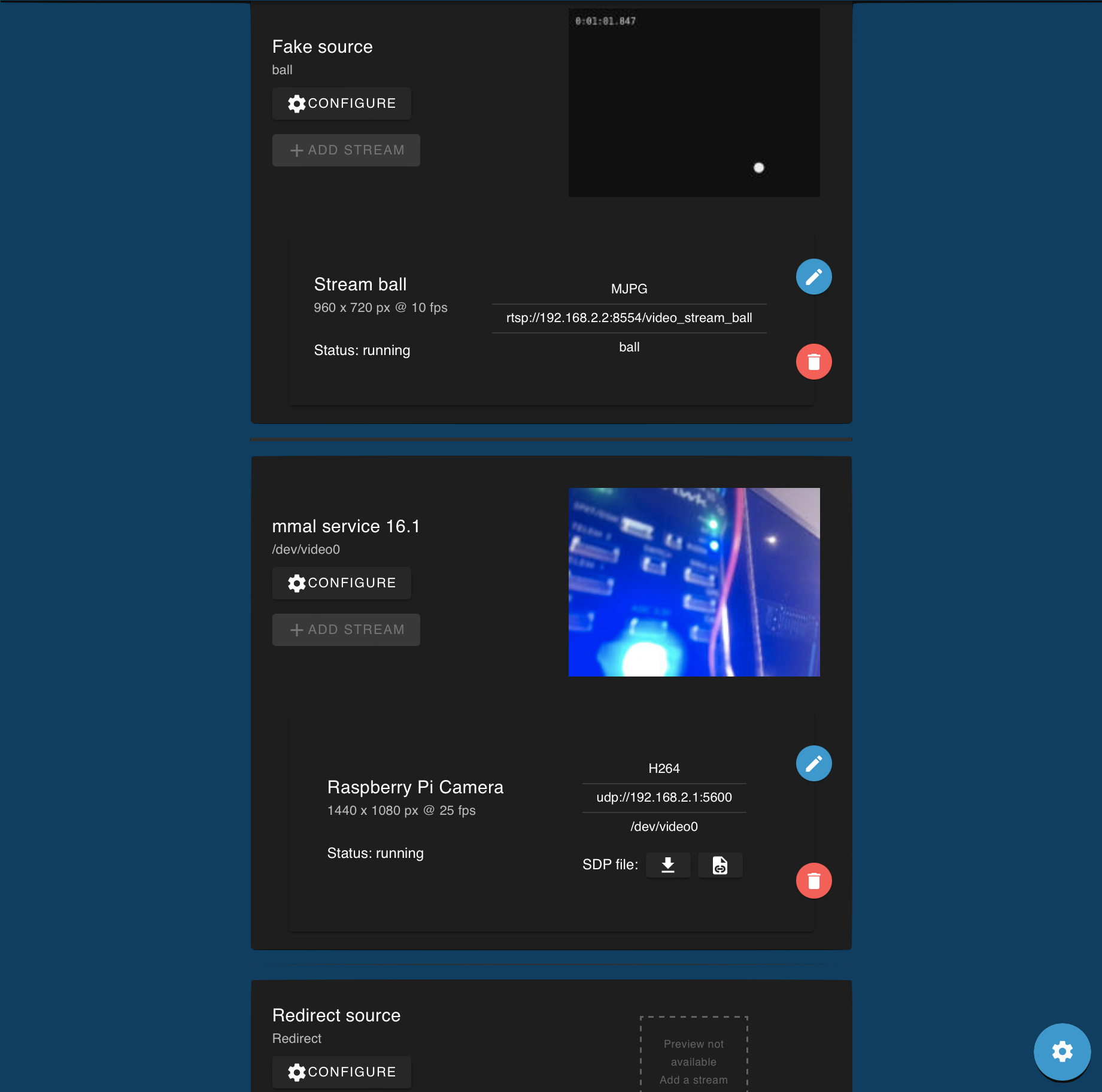
- One video input can have multiple output streams by clicking the blue
+symbol during stream configuration- This only works for streams of the same endpoint type (e.g. it is not currently possible to mix UDP and RTSP output streams for the same input)
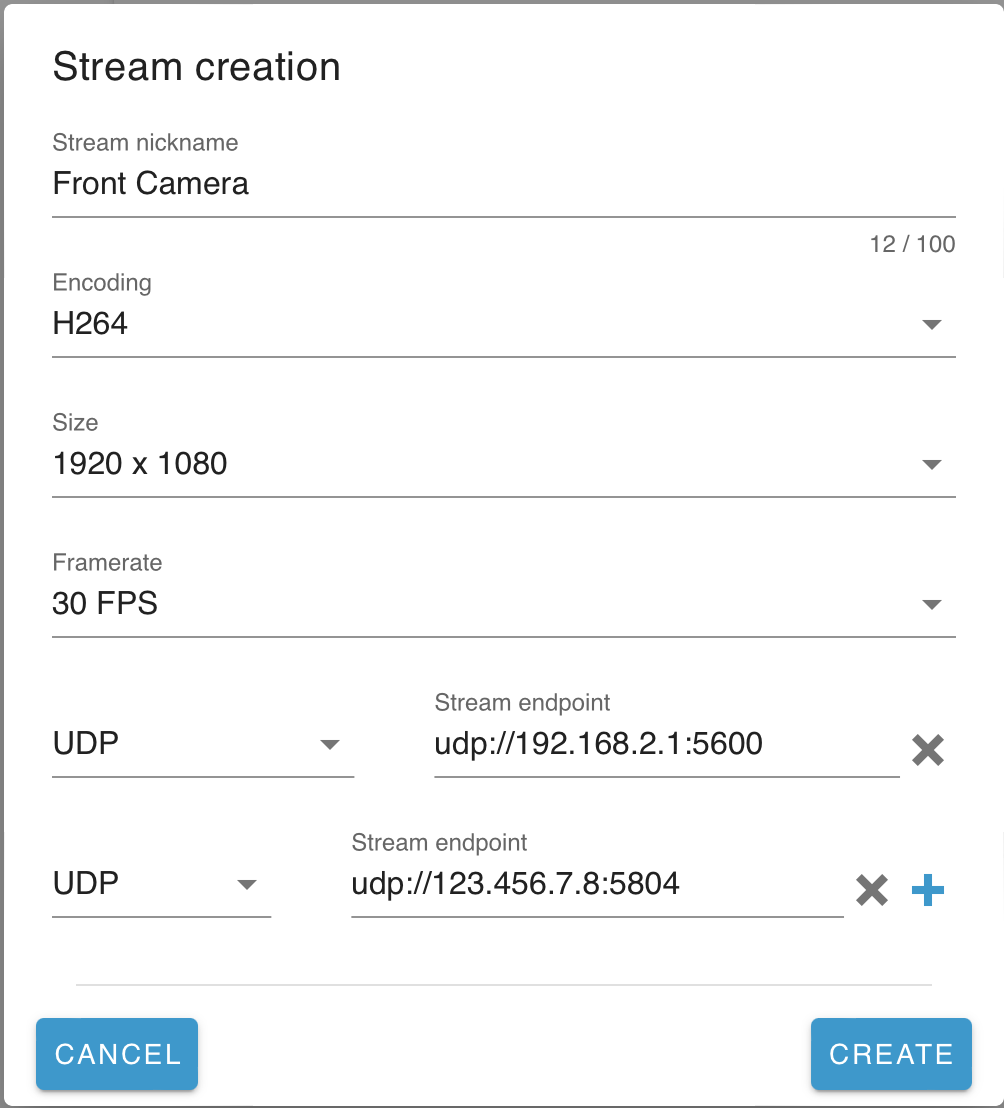
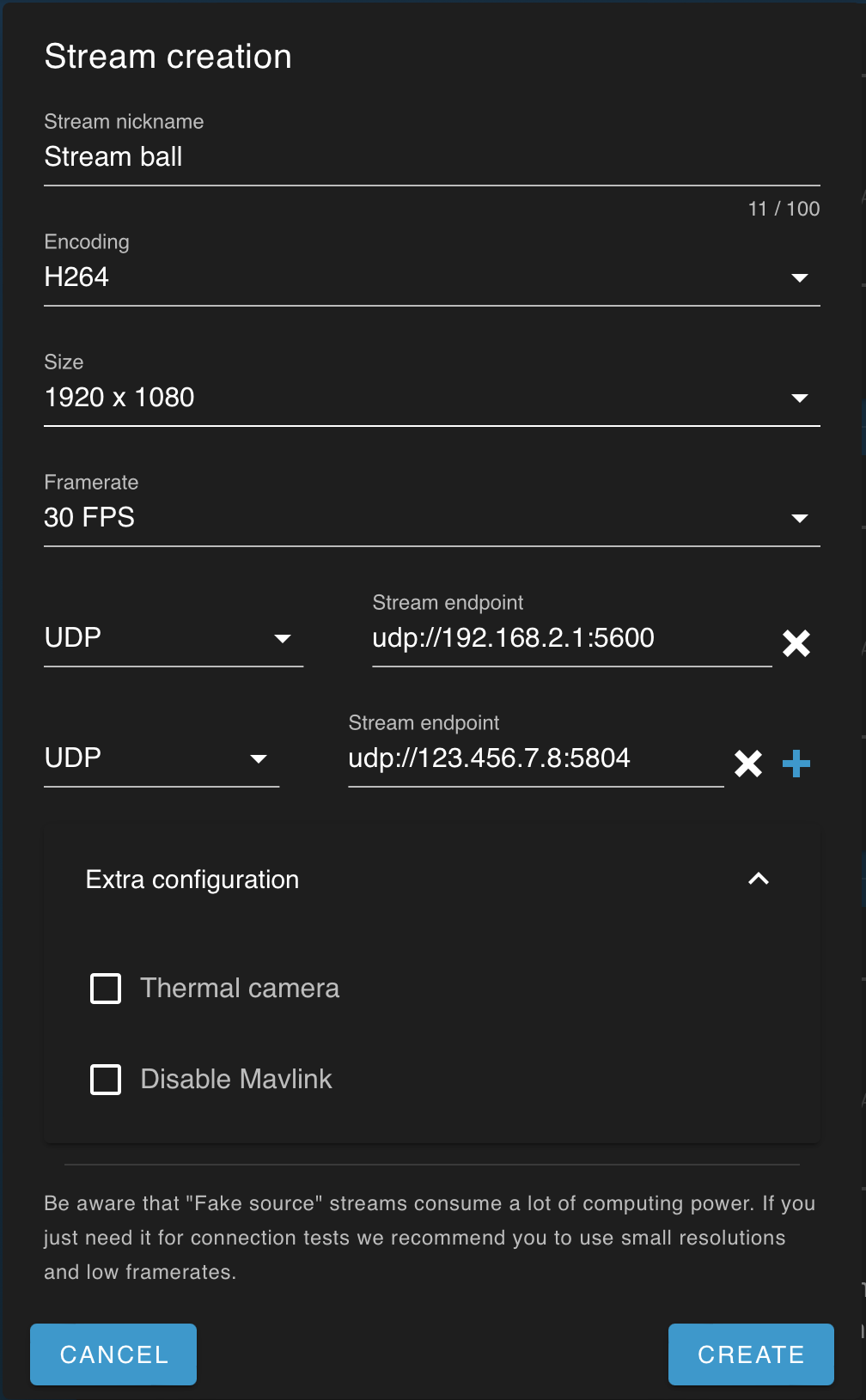
- H264-encoded streams can be repackaged as WebRTC, and viewed and recorded in
Cockpit
- H265-encoded streams also work, but currently only on macOS
(New in 1.4)
- H265-encoded streams also work, but currently only on macOS
- By default the streams are also presented via MAVLink, so QGroundControl (>=v4.1.7) can toggle between them without needing to know specific ports
- It is possible to specify a stream as "thermal", which allows it to be overlaid on another stream in some viewing applications
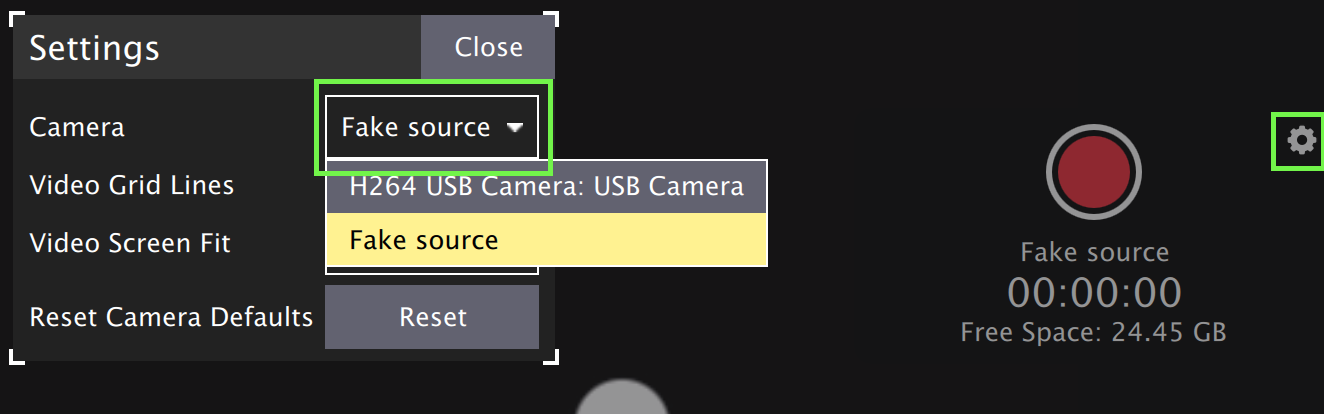
- Camera settings (brightness, exposure, etc) that are exposed via UVC can be configured with the "Device Controls" button
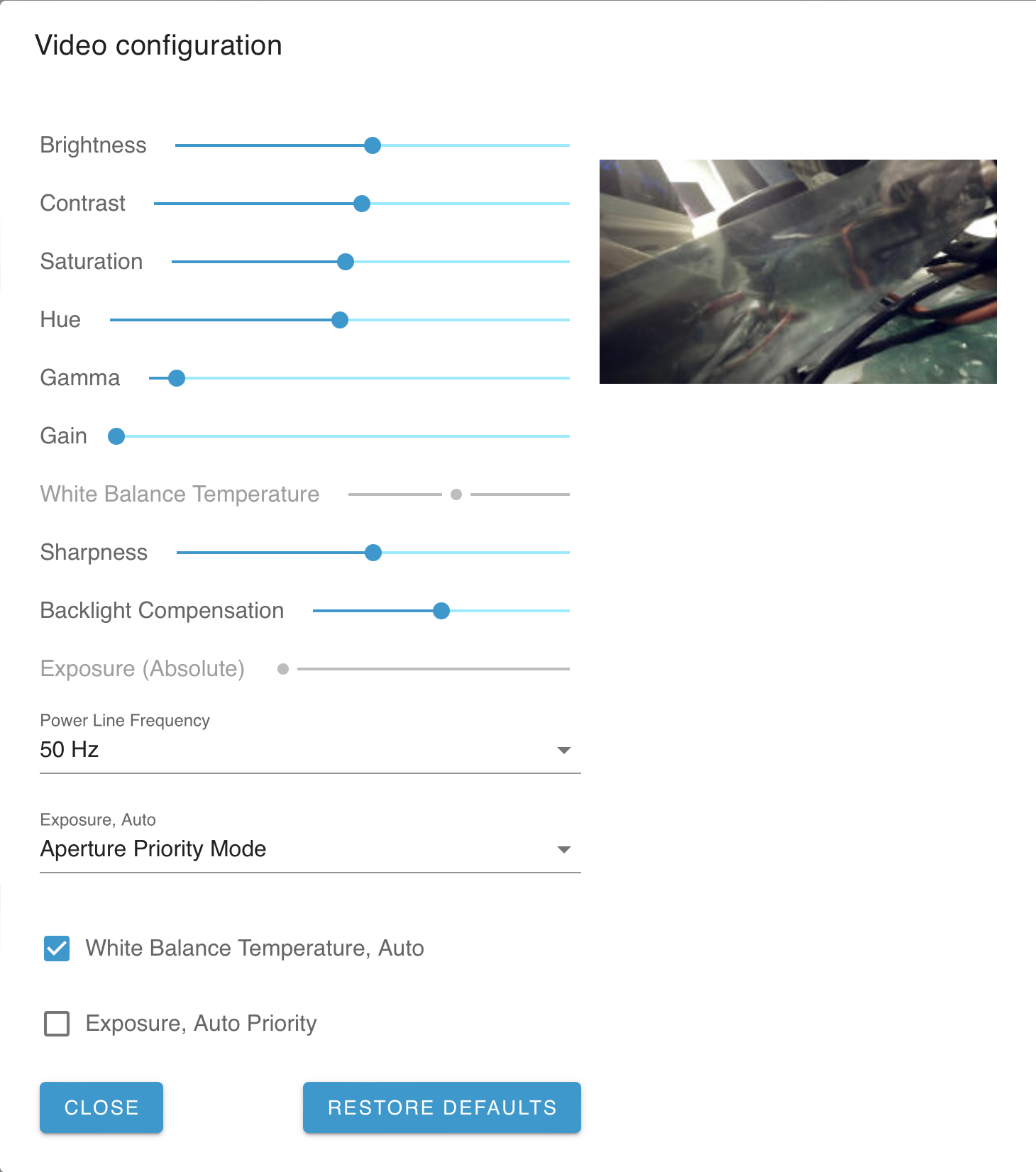
- Camera settings are also exposed via the MAVLink camera protocol, so are controllable in applications like QGroundControl
- Switching streams in QGroundControl while recording stops the current recording
- If you are regularly switching streams it may be worth doing a screen recording either instead of or as well as recording the base video
- QGroundControl does not yet support displaying multiple streams simultaneously
- Additional streams can be processed/viewed/recorded by the options discussed
here
- Note that some playback applications (e.g. VLC) treat odd-numbered ports as audio channels, so relevant video streams should only use even-numbered ports
- UDP streams have the option to download an SDP file (or copy a URL to it),
for easier video playback in applications like VLC
(New in 1.1)
- Additional streams can be processed/viewed/recorded by the options discussed
here
- Raspberry Pi cameras are supported
(New in 1.1)- Detection requires turning on legacy camera support:
- turn on via the settings button in the buttom right corner
- reboot the onboard computer to enable
- Detection requires turning on legacy camera support:
- It is possible to use the "Redirect source" element to make an ethernet camera available via the BlueOS camera manager, which allows Cockpit and QGroundControl to detect it automatically
#Extensions
#Extensions Manager
New in 1.1
Based On: Kraken | Port:9134
The Extensions Manager is in charge of fetching, installing, updating, and managing Extensions.
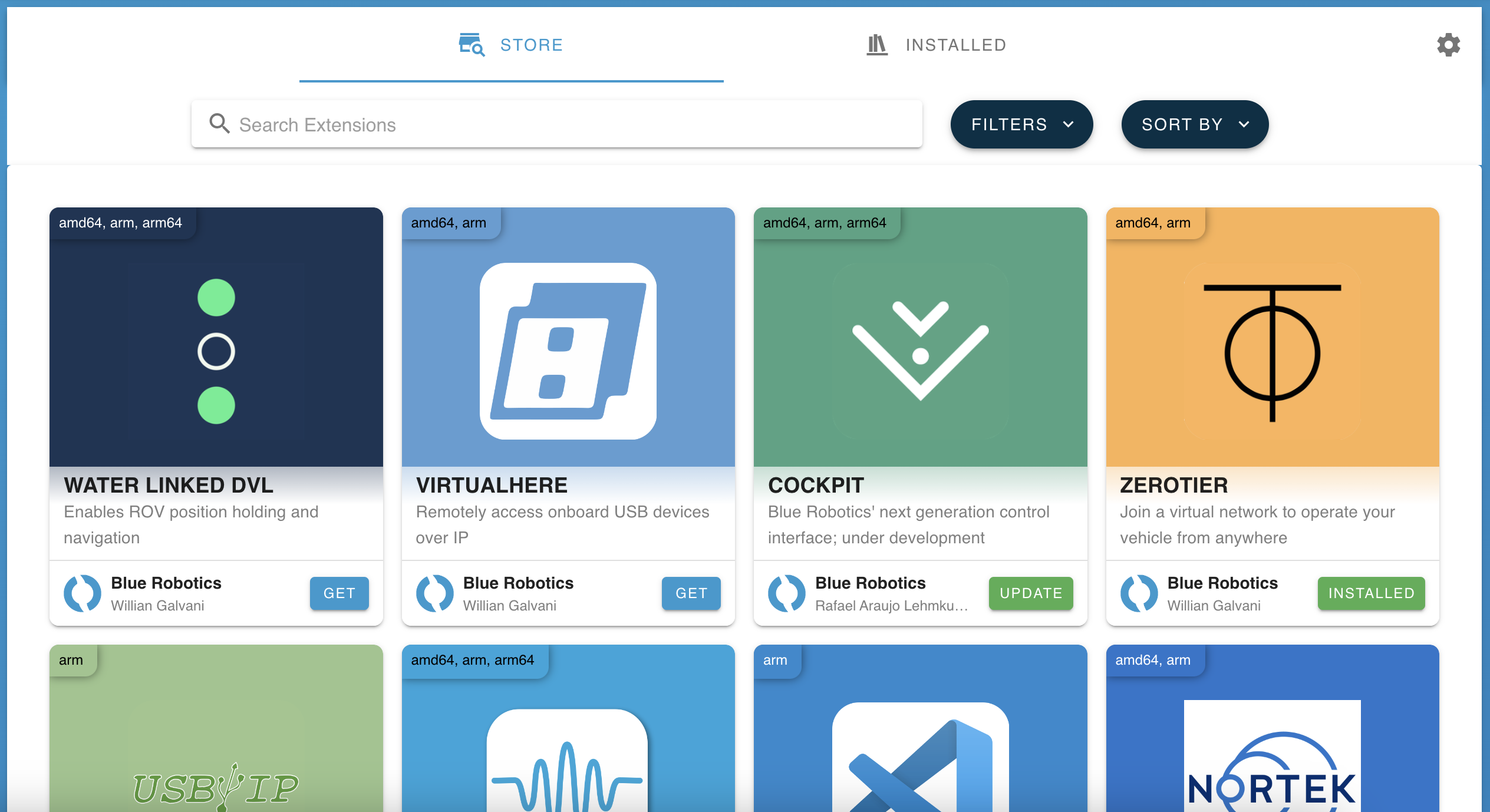
The Store tab shows the available extensions, with a default filter which excludes the development example extensions. Beta versions show a red marker on the card corner.
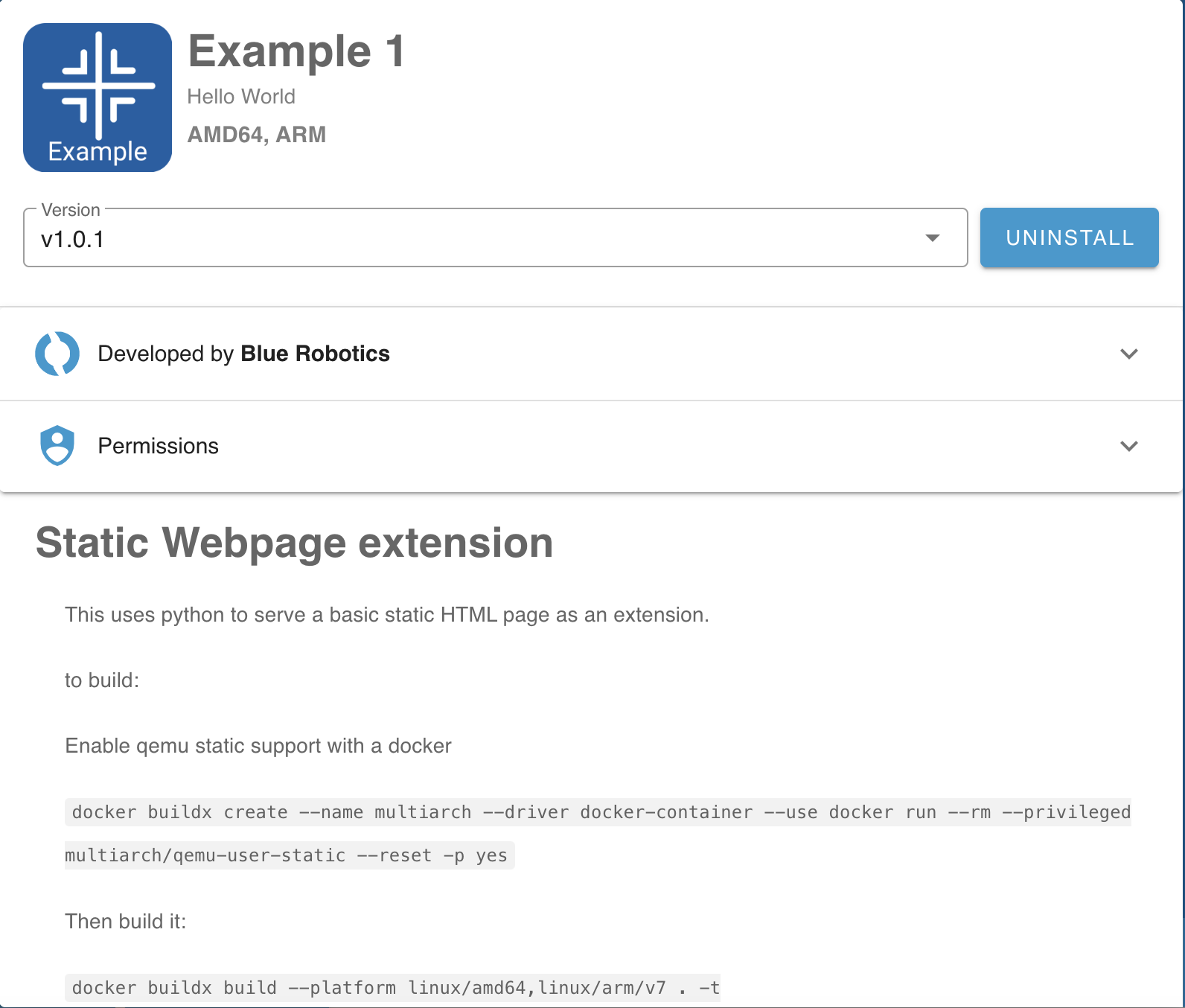
Clicking an extension card displays the developer information, default application settings and permissions, a description / basic usage instructions, and a dropdown to select which version of the extension to install (or uninstall):
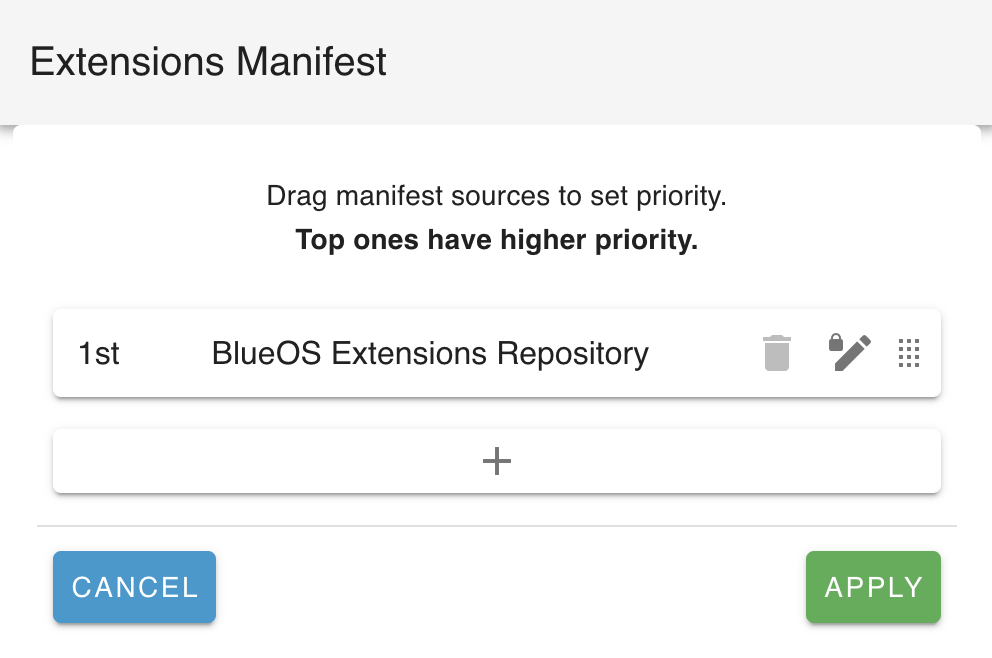
By default, the store searches the BlueOS Extensions Repository for available extensions, but it is also possible to specify your own external collections of extensions:
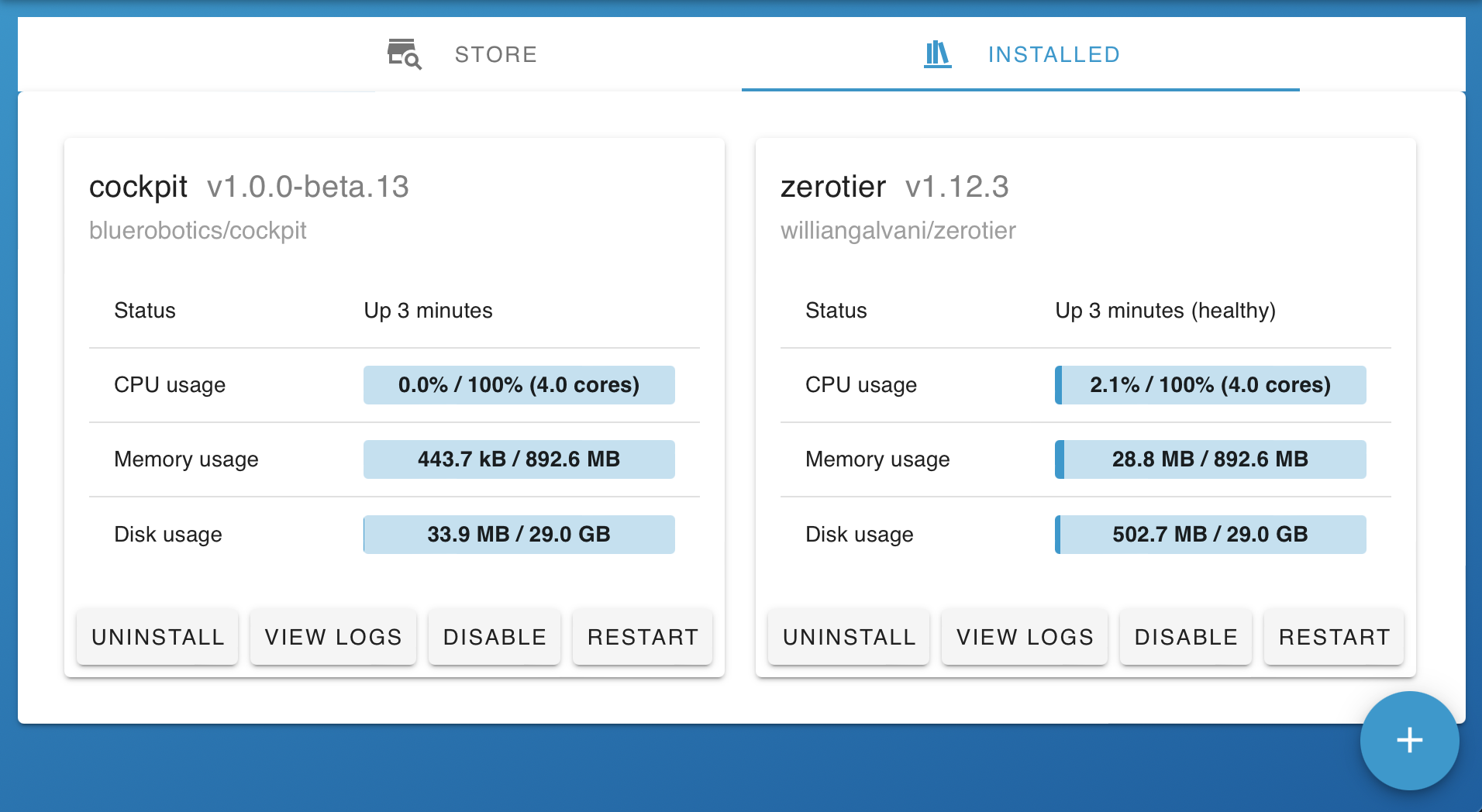
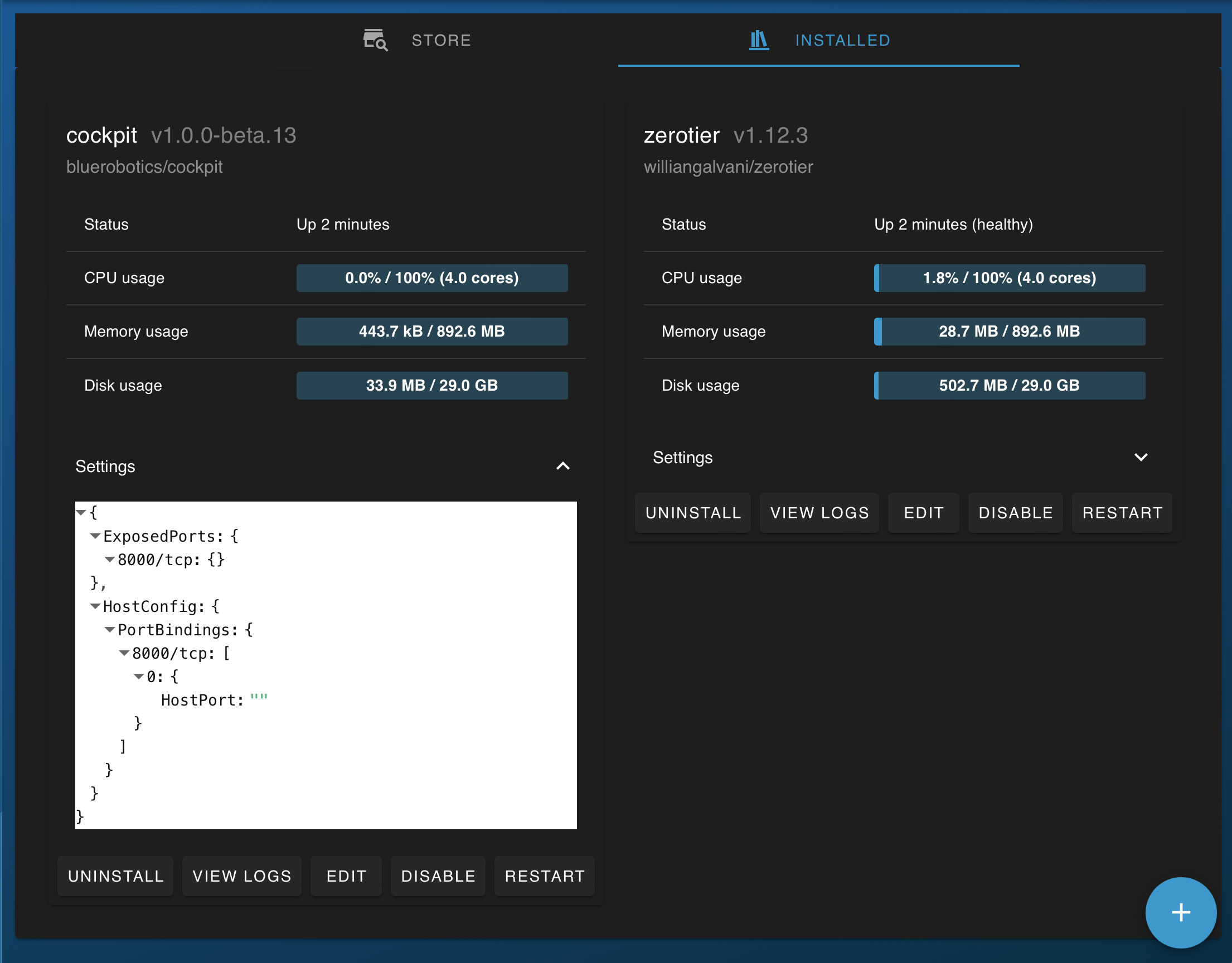
The Installed tab shows the resource usage of the installed extensions, and allows configuring them, checking their logs, and restarting or disabling them:
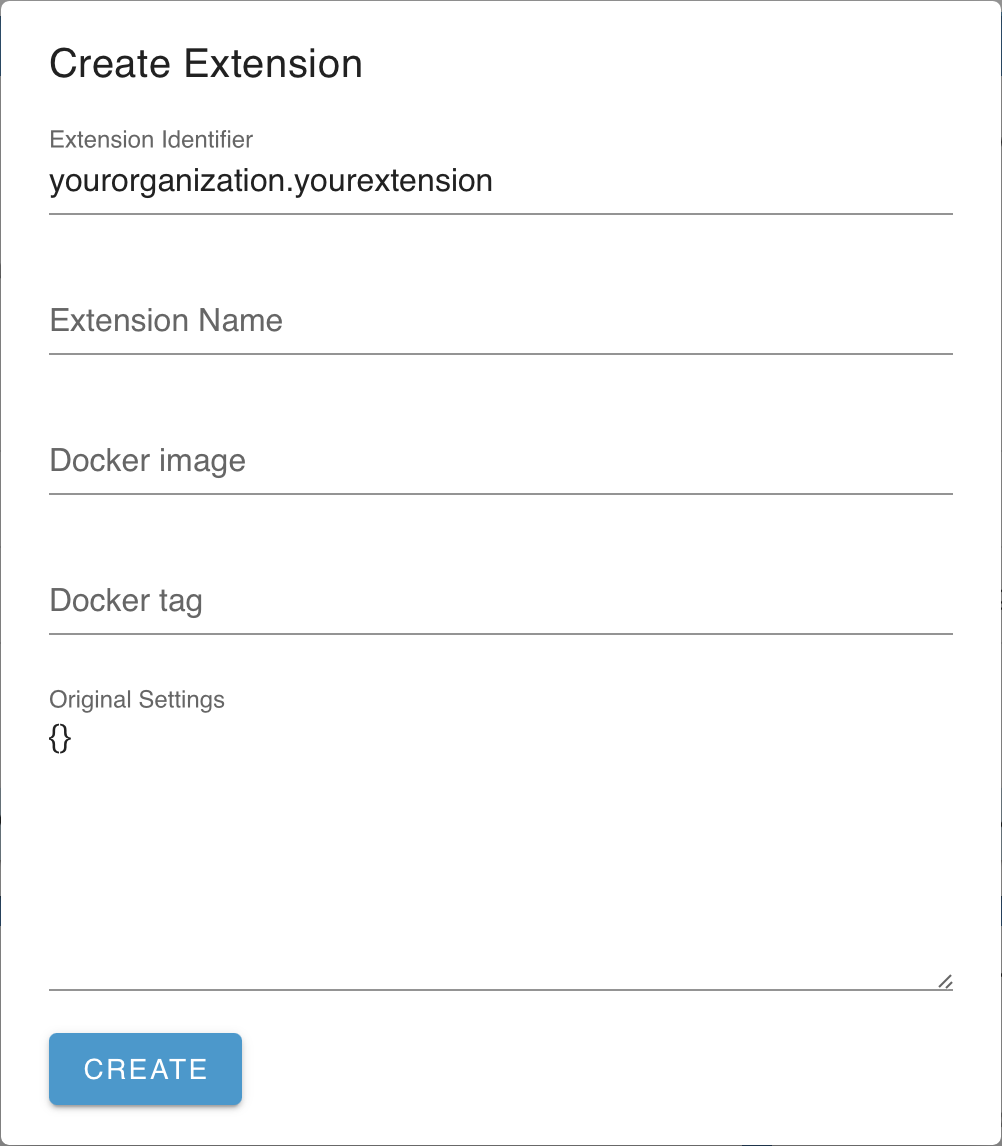
The blue "+" button in the bottom right corner allows installing custom extensions as relevant.
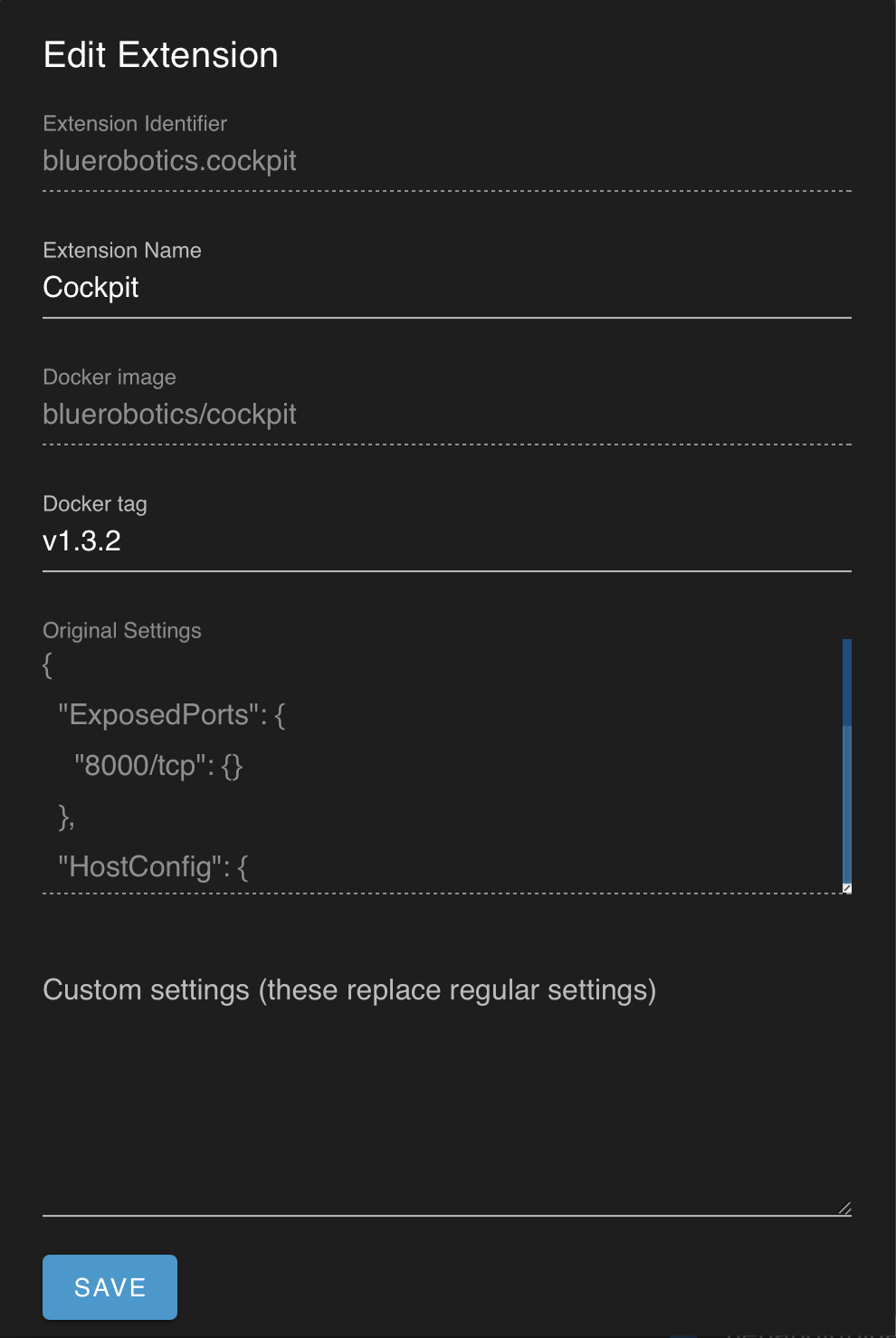
The "Edit" button on installed extension listings allows changing to alternative/development versions by setting the docker tag.
#Interface Theme
#Theme Content
The vehicle identifier components in the sidebar can be modified to suit your vehicle or use-case - just click to edit:
#Company Logo
- square images work best
#Vehicle Icon
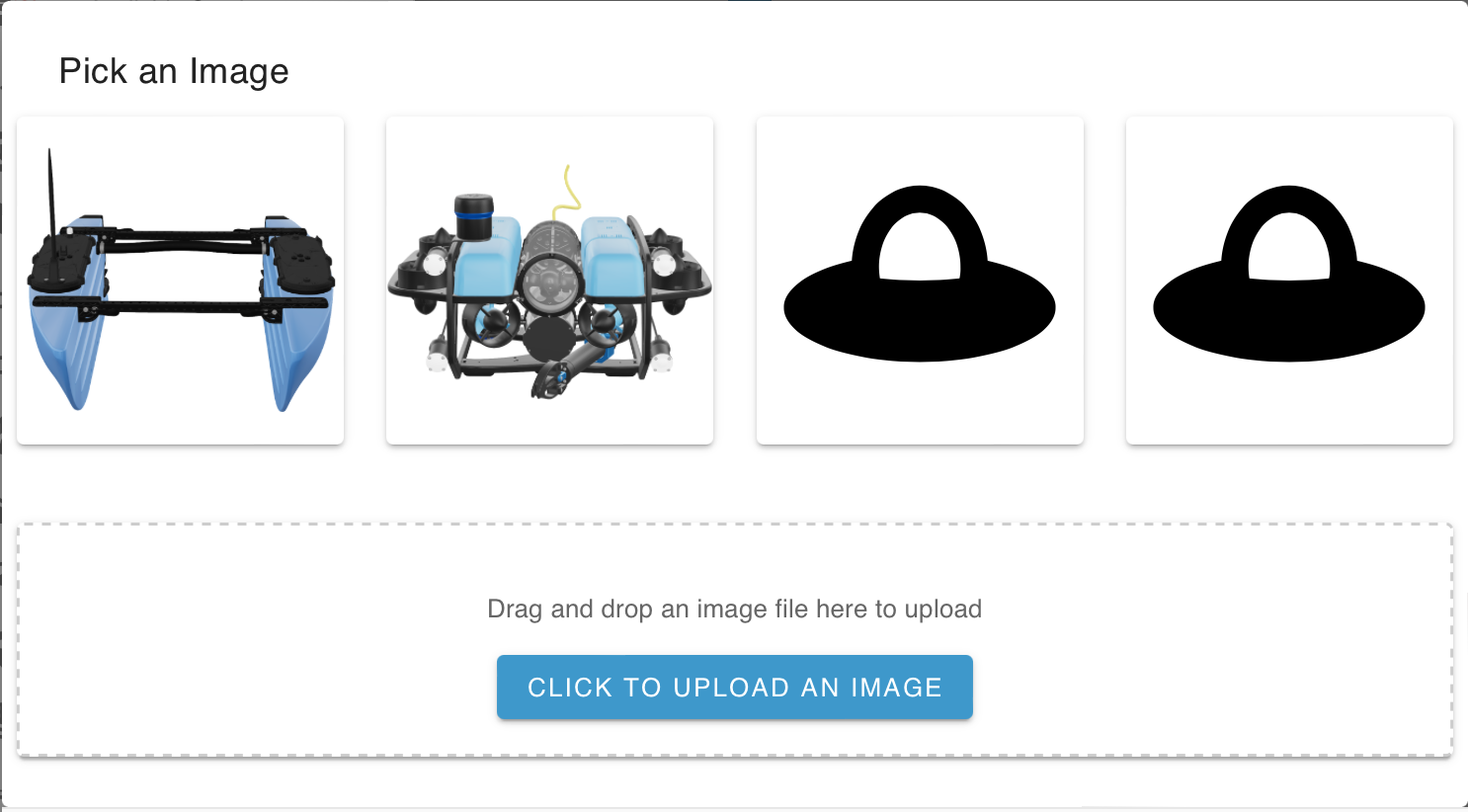
- square images work best
- consider getting an image of your 3D model from the Vehicle Setup page
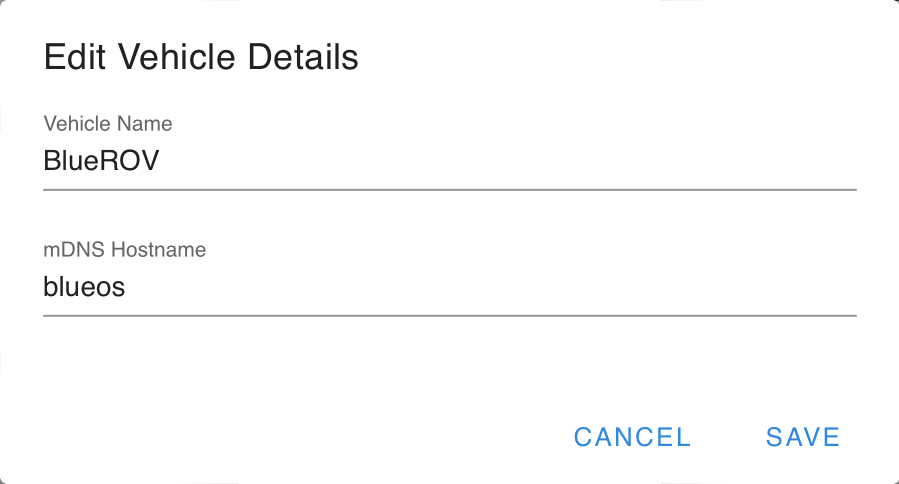
#Vehicle Name and mDNS Hostname
- the vehicle name makes it easier to determine which vehicle you are connected to
- changing the mDNS hostname changes the address you connect to for the browser interface
- wired connection (ethernet tether / USB-OTG) -> http://custom.local
- ethernet can also be accessed through http://custom-ethernet.local
- wifi connection -> http://custom-wifi.local
- BlueOS hotspot -> http://custom-hotspot.local
- http://blueos.local will still be available for wired connections, as a fallback in case the custom name is forgotten
- http://blueos-avahi.local is broadcast to all interfaces, for connecting when you're not sure which interface(s) are available
- IP addresses are always available for the interfaces they're configured for, but they're less intuitive to remember than mDNS names
- NOTE: mDNS is available on most modern operating systems, but
- for Windows older than Windows 10, install Bonjour
- for Linux run
avahi-discoveron the terminal to see if the avahi service is running
- wired connection (ethernet tether / USB-OTG) -> http://custom.local
#Vehicle Model
The 3D model used in the Vehicle Setup pages can be replaced with a custom glTF file:
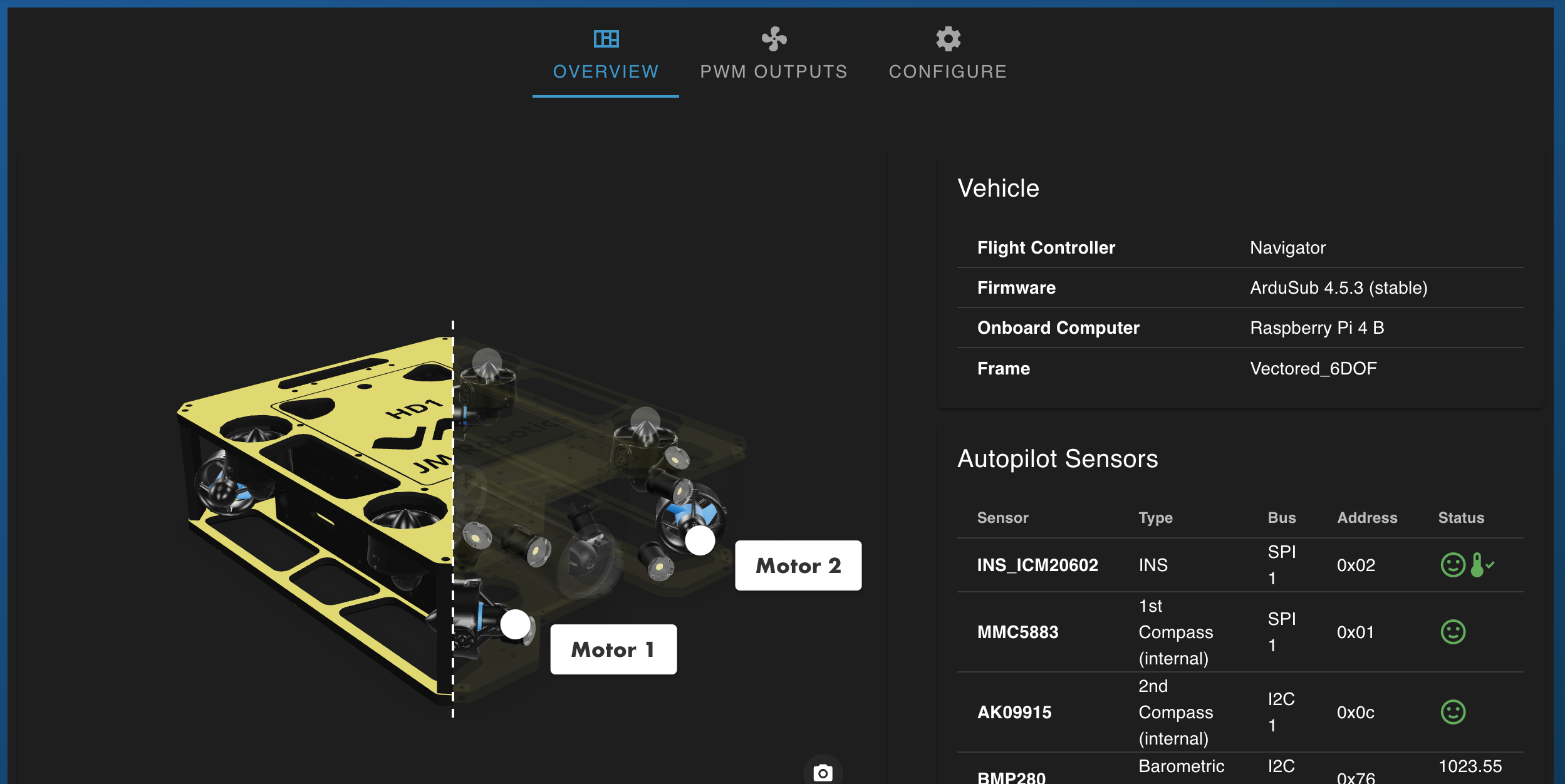
There are a variety of ways to create such a file, but our standard process is to:
- Export a model of your vehicle as an STL file
- triangle meshes are bad for designing, but nice for rendering
- Import it into Blender
- Remove small parts (including cutting off the threads of screws)
- This helps improve performance, with minimal effect on what can be seen
- Merge/group pieces that are part of a single component
- Select them and press
CTRL+J - We'll typically rename the groups with meaningful component names as we go
- Select them and press
- Add materials, to "paint" the parts in different colours
CTRL+Lcan help to select connected faces- Transparent materials can be made by setting low alpha values, and setting the blend mode to "Alpha Blend"
- For parts that should sometimes be highlighted in the Vehicle Setup page, start the names of their materials with their servo function enum name
- Not case sensitive
- E.g. thruster 1 should only use materials with names that start with
motor1
- Merge the parts, set the shading to smooth, and adjust the auto-smoothing of normals to a value that looks right for your components
- Reduce the model triangles by adding a decimate modifier
- We typically drag the Ratio slider down until the model looks bad, then bring it back up until it looks acceptable
- Export as a glTF (
.glb) file, so it can be read by the BlueOS model viewerMesh / Apply ModifiersandCompressionshould both be enabled in the export configuration
- Save it into the relevant folder in the BlueOS File Browser
userdata/modeloverrides/<vehicle-type>/<vehicle-frame>.glb- e.g. for a BlueROV2 Heavy,
<vehicle-type>would besub, and<vehicle-frame>would beVECTORED_6DOF - to ignore vehicle type switching, you can instead save the file as
/userdata/modeloverrides/ALL.glb
- If you want, it's possible to add annotations (like we have for the motors, in the default model) via the glTF https://modelviewer.dev/editor/
- "Add Hotspot" to create a new annotation
- Copy the resulting "data surface" attribute into a json file like the following:
{ "annotations": { "Motor1": { "surface": "3 1 2510 2509 2511 0.356 0.124 0.521", "text": "Motor 1" }, "Motor2": { "surface": "2 1 2642 2643 2674 0.638 0.230 0.133", "text": "Motor 2" }, } }- annotation names should match the
SERVOn_FUNCTIONparameter value names - Save the file in the same place as and with the same base name as the model file, e.g.
VECTORED_6DOF.json
- annotation names should match the
#Theme Styling
It is possible to customise the styling of the BlueOS interface by adding a
theme_style.css file at userdata/styles/ in the File Browser.
The File Browser can also be used to modify the file, in which case the styles
are updated at the next page refresh after the file is saved. The save button is
in the top right corner.
CSS is commonly used for styling HTML webpages, and has an extensive set of features available. For the purposes of adjusting the BlueOS theme, the most important thing to understand is how to specify colors. It can be helpful to use tools like colorhexa when choosing a palette of colors, including for checking accessibility for various color vision deficiencies.
For reference, here is an example with most of the main BlueOS colors changed, together with the theme file that created it:
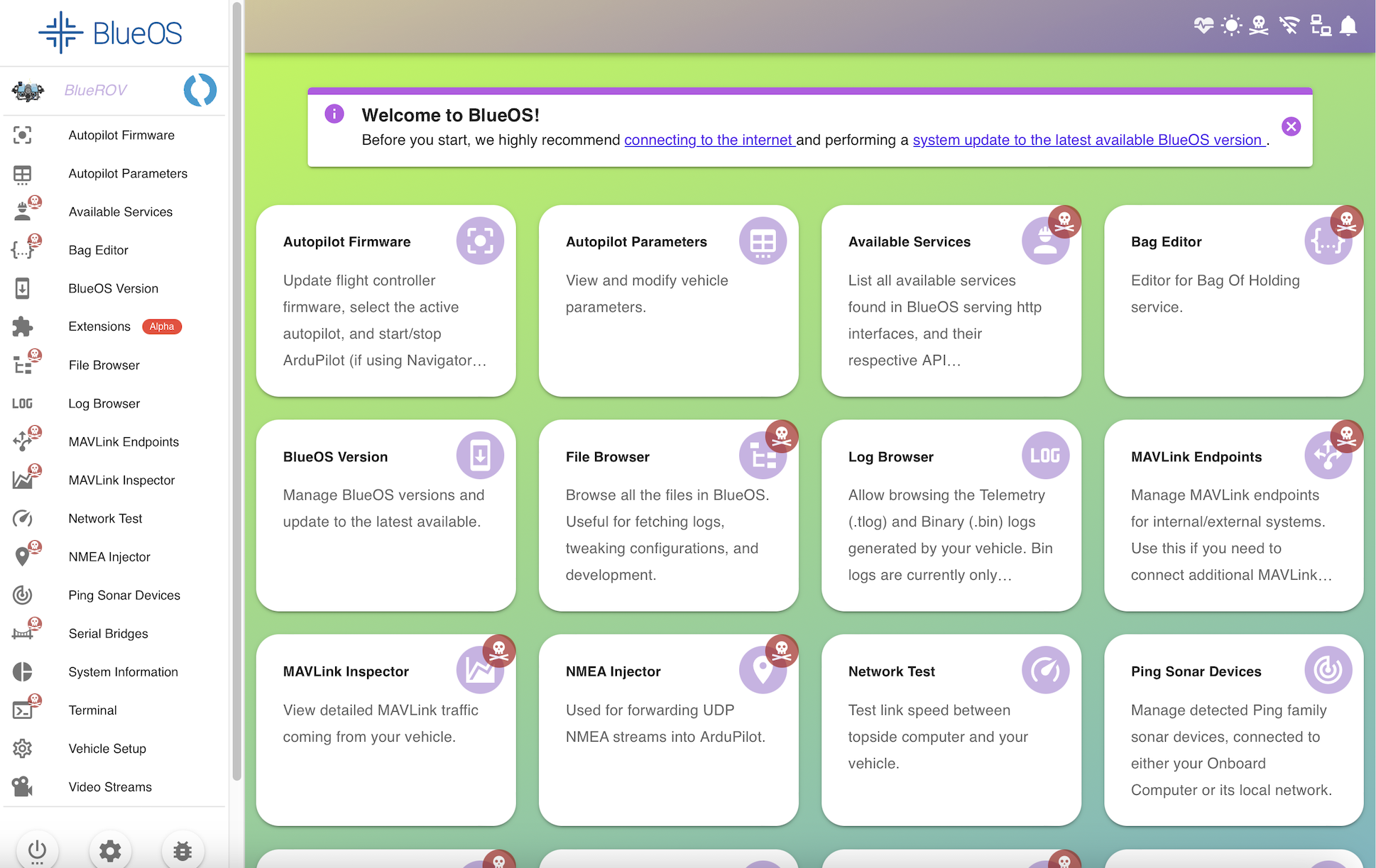
:root {
  --v-primary-base: #CAB1E5 !important;  /* sidebar highlights, submit buttons */
  --v-info-base: #BA55E5 !important;     /* info boxes (often same as primary base) */
  --v-warning-base: #EDD1E5 !important;  /* warnings and skip buttons */
  --v-error-base: #AC1D1C !important;    /* notifications, pirate icons, negative buttons */
  --v-anchor-base: #5A11ED !important;   /* hyperlinks */
}

/* light theme background, light to dark */
div.light-background {
  background-color: #BAFF1E !important;
  background-image: linear-gradient(160deg, #BAFF1E 0%, #5CA1E5 100%) !important;
}

/* dark theme background, light to dark */
div.dark-background {
  background-color: #5EABED !important;
  background-image: linear-gradient(160deg, #5EABED 0%, #BA55E5 100%) !important;
}

/* light theme header bar background, light to dark, translucent */
header.light-background-glass {
  background-color: #DEADBA55 !important; /* fallback if gradient not available */
  background-image: linear-gradient(160deg, #DEADBA88 0%, #5111CA88 100%) !important;
  backdrop-filter: blur(4.5px) !important;
  -webkit-backdrop-filter: blur(10px) !important;
}

/* dark theme header bar background, light to dark, translucent */
header.dark-background-glass {
  background-color: #5111CA55 !important; /* fallback if gradient not available */
  background-image: linear-gradient(160deg, #5111CA88 0%, #0B5E5588 100%) !important;
  backdrop-filter: blur(4.5px) !important;
  -webkit-backdrop-filter: blur(10px) !important;
}
The explanatory diagram colours are also configurable (New in 1.4):
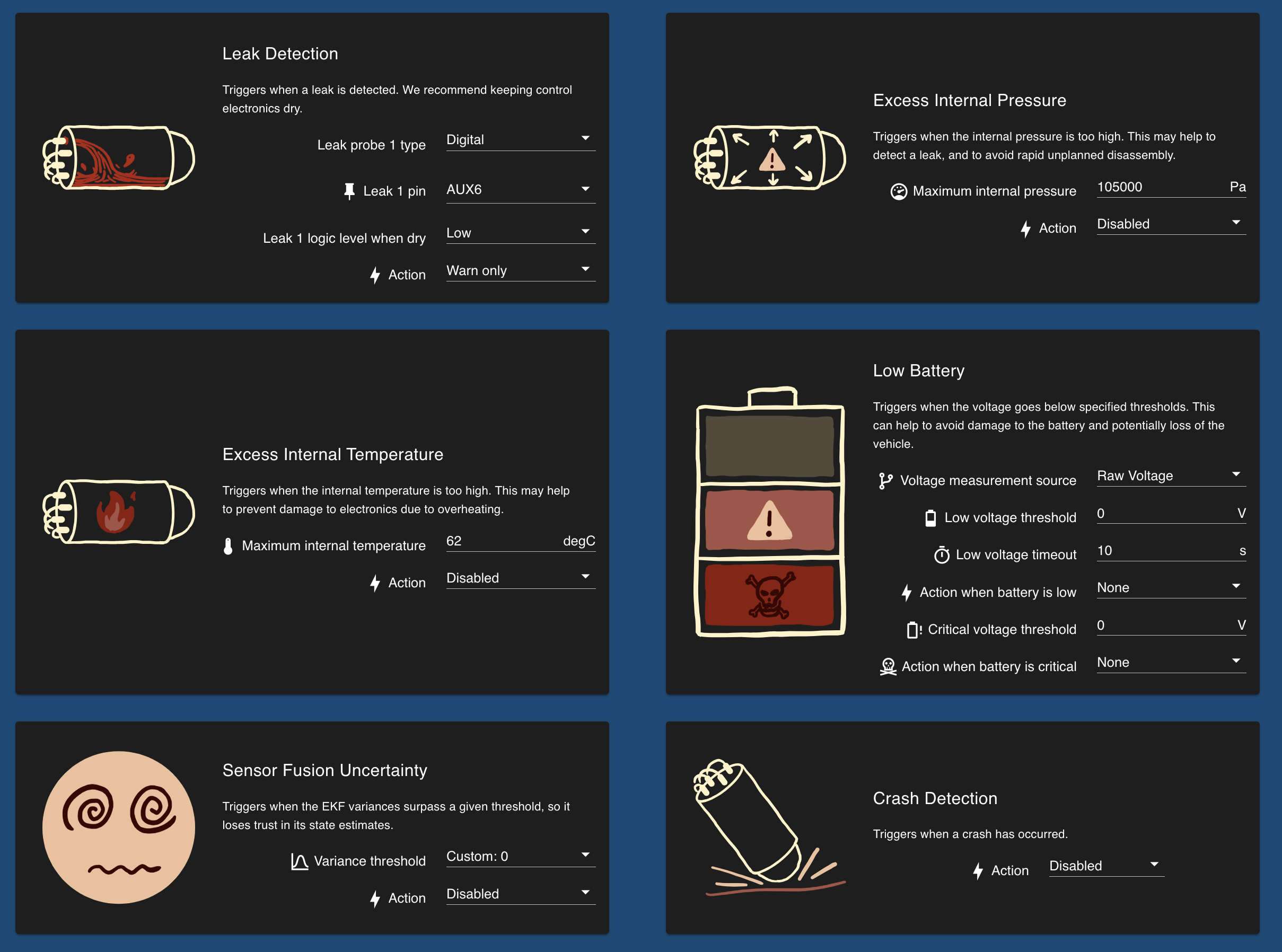
:root {
    --v-water-base: #AC2317 !important;
    --v-negative-base: #891A10 !important;
    --v-attention-base: #ECC19B !important;
    --v-positive-base: #514A3B !important;
    --v-neutral-base: #A15447 !important;
    --v-detail-base: #370502 !important;
    --v-outline-base: #FDF4C9 !important;
}
Powered by Zola and Bluetheme Documentation under CC BY-NC-SA 4.0


 Sponsored by Blue Robotics
Code under
AGPLv3
/
BlueOS Custom
Sponsored by Blue Robotics
Code under
AGPLv3
/
BlueOS Custom